Canon Printer Not Printing? How to Fix It Step by Step
A Canon printer not printing can be caused by a connection problem, offline status, a stuck print queue, incorrect printer selection, paper or ink issues, or a driver problem. If your Canon printer won't print from a Windows PC, Mac, or wireless connection, start with the basic checks below before changing advanced settings.
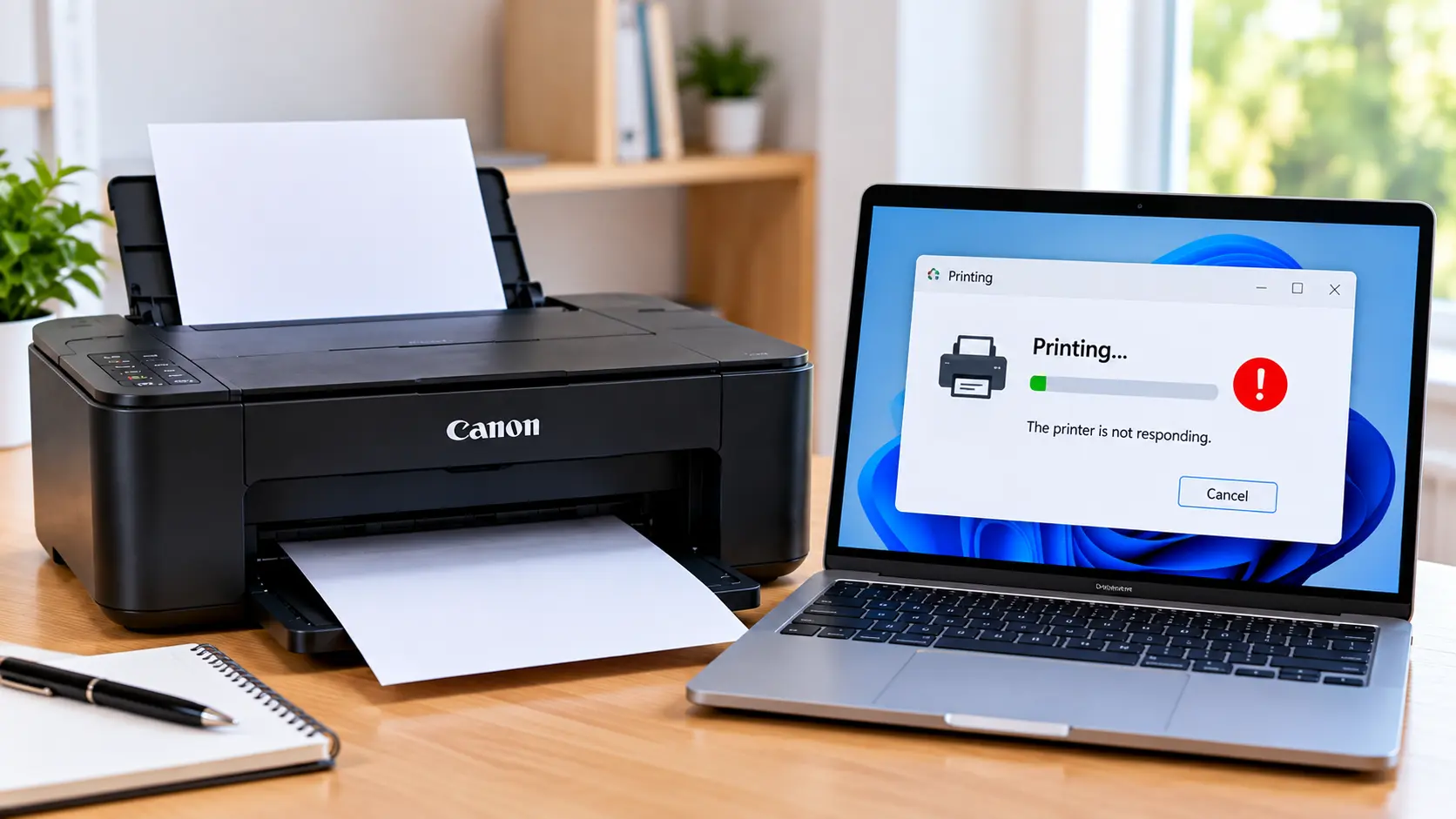
What Should I Do If My Canon Printer Won't Print?
Make sure the printer is powered on and does not show an error. Check paper and ink, confirm the Wi-Fi or USB connection, select the correct printer, clear stuck print jobs, and restart both the printer and computer. If the Canon printer is still not printing, check its offline status and update or reinstall the appropriate printer driver.
Why Is My Canon Printer Not Printing?
A printing problem does not always mean the printer itself has failed. The problem can occur anywhere between the document, computer, connection, print queue, printer software, and physical printing system.
Common reasons a Canon printer won't print include:
- The printer is turned off or displaying an error.
- The computer is sending the job to the wrong printer.
- The printer is shown as offline.
- Wi-Fi connectivity has been interrupted.
- The USB connection is loose or unavailable.
- A print job is stuck in the queue.
- Paper is missing, incorrectly loaded, or jammed.
- An ink or cartridge warning is preventing normal printing.
- The printer driver is missing, outdated, or incorrectly configured.
- The application being used to print has a temporary problem.
1. Start With These Quick Checks
Before changing computer settings, inspect the printer itself.
- Make sure the printer is powered on.
- Check its display or indicator lights for an error.
- Confirm that paper is loaded correctly.
- Check for a visible paper jam.
- Review any ink or cartridge warning.
- Make sure covers and trays are in their normal operating position.
2. Restart the Printer and Computer
Temporary communication and print-queue problems can sometimes be resolved with a normal restart.
- Save the document you are trying to print.
- Turn the printer off normally.
- Restart the computer.
- Turn the printer back on.
- Wait until the printer is ready.
- Try printing a simple document again.
If the Canon printer is still not printing, continue with the connection checks.
3. Check the Wi-Fi or USB Connection
If You Use Wi-Fi
Confirm that the printer is still connected to the intended wireless network. A router restart, network-name change, password change, or weak signal can interrupt printer communication.
If the printer has lost its wireless connection, see: Canon Printer Won't Connect to WiFi .
You can also use our Canon printer Wi-Fi setup guide when the printer needs to be reconnected.
If You Use USB
Check that the USB cable is connected securely to both the printer and computer. If possible, use a working USB port and avoid unnecessary adapters or hubs while troubleshooting.
If the computer does not detect the printer at all, see: Canon Printer Not Connecting to Computer .
4. Make Sure the Correct Printer Is Selected
Computers can store multiple printer entries. A print job may be sent to an old, disconnected, or virtual printer instead of the Canon printer you want to use.
Open the print dialog in the application and confirm that the intended Canon printer is selected.
If several similar Canon printer entries appear, check which one corresponds to the connection you are currently using.
5. Clear Stuck Print Jobs
A failed or paused document can block later jobs from printing.
Open the printer's print queue and look for jobs that are:
- Stuck on printing.
- Paused.
- Showing an error.
- Waiting behind an old failed document.
Cancel unnecessary jobs, wait for the queue to clear, and then send one simple test document.
6. Check Whether the Canon Printer Is Offline
If the computer shows the printer as offline, the problem may be related to communication rather than ink or paper.
Check that:
- The printer is powered on.
- The Wi-Fi or USB connection is active.
- The correct printer entry is selected.
- The print queue is not paused.
- The printer is not intentionally configured to remain offline.
For detailed troubleshooting, follow our Canon Printer Offline guide .
7. Canon Printer Not Printing on Windows
On a Windows computer, first confirm that the correct printer appears in the printer settings and that its queue is not paused or blocked.
If the printer remains unavailable, check the connection and restart the Windows Print Spooler.
Restart the Print Spooler
- Press Windows + R.
- Type services.msc.
- Press Enter.
- Find Print Spooler.
- Right-click it.
- Select Restart.
- Try printing again.
If the printer is specifically shown as offline on Windows, see our Canon printer offline on Windows guide .
8. Canon Printer Not Printing on Mac
On a Mac, verify that the intended Canon printer is selected and check whether an old print job is blocking the queue.
Also check whether:
- The printer is still connected to Wi-Fi or USB.
- The printer appears in the Mac printer settings.
- The correct printer entry is being used.
- The queue contains a paused or failed job.
If the printer appears offline, follow: Canon Printer Offline on Mac .
If setup itself is incomplete, see: How to Set Up a Canon Printer on Mac .
9. Check Ink, Cartridges, and Paper
If the computer successfully sends a job but the printer does not complete it, inspect the printer for physical printing conditions.
Check:
- Paper is loaded correctly.
- Paper is not jammed.
- Paper guides are positioned appropriately.
- The printer is not displaying an ink warning.
- User-removable cartridges are installed normally.
- The printer does not show a cartridge recognition error.
For a paper-related problem, use our Canon printer paper jam guide .
If a cartridge is not being detected, see: Canon Printer Ink Cartridges Cannot Be Recognized .
10. Check the Canon Printer Driver
A driver or software problem can prevent the computer from communicating correctly with the printer.
Driver troubleshooting may be useful when:
- The printer stopped working after a computer update.
- The printer was recently installed.
- The computer shows a driver error.
- The printer is detected but cannot print.
- An old printer installation remains on the computer.
See our Canon printer driver guide for installation information.
If the computer specifically reports that the driver is unavailable, see: Canon Printer Driver Unavailable .
11. Try Printing From Another Application
If the printer works from one program but not another, the problem may be related to the application, document, or print settings rather than the printer itself.
Try printing a simple document from another application. If that works, return to the original program and review its selected printer, paper size, and print settings.
Canon Printer Runs but Prints Blank Pages
If the printer accepts the job and feeds paper but the page comes out blank, that is different from a printer that does not respond at all.
Blank output may require checking:
- Ink status.
- Cartridge installation.
- Protective material on a newly installed cartridge.
- Print quality or maintenance results.
- Whether the document itself contains printable content.
For this specific symptom, see: Canon Printer Prints Blank Pages .
What If the Canon Printer Still Won't Print?
If the basic checks have not solved the problem, identify exactly where the printing process is failing.
Ask these questions:
- Does the computer detect the printer?
- Does the printer show online or offline?
- Does the print job enter the queue?
- Does the job remain stuck in the queue?
- Does the printer begin feeding paper?
- Does paper feed but come out blank?
- Is a specific error code displayed?
- Does the problem happen from every application?
These details help separate connection, software, driver, paper, ink, and printer hardware conditions.
Canon Printer Not Printing Troubleshooting Table
| Problem | What to Check |
|---|---|
| Printer does nothing | Power, error display, selected printer, connection, and queue. |
| Canon printer shows offline | Wi-Fi or USB connection, printer status, correct printer entry, and print queue. |
| Print job is stuck | Cancel failed jobs and restart the print queue or spooler where appropriate. |
| Printer not found on Wi-Fi | Wireless connection, router changes, network selection, and signal. |
| Printer not detected by computer | USB/Wi-Fi connection, printer installation, and driver. |
| Printer feeds blank pages | Ink, cartridges, print quality, maintenance results, and document content. |
| Printing stopped after an update | Printer selection, connection, and driver/software configuration. |
| Specific error code appears | Troubleshoot the displayed support code before repeating print jobs. |
Related Canon Printer Guides
Frequently Asked Questions
Why is my Canon printer not printing?
Common causes include an offline printer, disconnected Wi-Fi or USB, a stuck print queue, incorrect printer selection, paper or cartridge problems, or a driver issue. Check for a specific printer error before changing advanced settings.
Why is my Canon printer connected but not printing?
A printer can appear connected while a print job is blocked by the queue, incorrect printer selection, offline settings, driver problems, or a printer-side error. Check the queue and printer display first.
Why is my Canon printer not printing from my computer?
Confirm that the computer detects the correct Canon printer, check the Wi-Fi or USB connection, clear stuck print jobs, and review the printer driver if necessary.
Why does my Canon printer say offline and not print?
Offline status usually means the computer cannot currently communicate with the selected printer. Check power, Wi-Fi or USB, printer selection, queue status, and network changes.
Why is my Canon printer not printing after a Wi-Fi change?
If the router, network name, or Wi-Fi password changed, the printer may still have the old wireless configuration. Reconnect it to the intended network and then confirm the computer can detect it.
Why does my Canon printer accept the job but print a blank page?
If paper feeds but the output is blank, check ink status, cartridge installation, print quality, and whether a new cartridge still has protective material attached.
Can a printer driver stop my Canon printer from printing?
Yes. Driver or software configuration problems can affect communication between the computer and printer. This is especially worth checking after installation, operating-system changes, or a driver error.
Should I reset my Canon printer if it won't print?
Start with a normal restart rather than an undocumented reset procedure. If the printer displays a specific error code, troubleshoot that condition using instructions appropriate for the exact model.
Final Canon Printer Not Printing Checklist
- Confirm that the printer is powered on.
- Check the printer for an error message.
- Check paper and cartridges.
- Restart the printer and computer.
- Confirm the Wi-Fi or USB connection.
- Select the correct printer.
- Clear stuck print jobs.
- Check whether the printer is offline.
- Restart the Windows Print Spooler if appropriate.
- Check the printer driver.
- Test printing from another application.
- Troubleshoot any specific support code shown by the printer.
