How to Set Up a Canon Printer on Mac: Step-by-Step Guide
Setting up a Canon printer on a Mac usually involves preparing the printer, connecting it through Wi-Fi or USB, and then adding it in macOS through Printers & Scanners. The exact printer controls can vary by model, but the Mac-side setup process is similar for many printers.
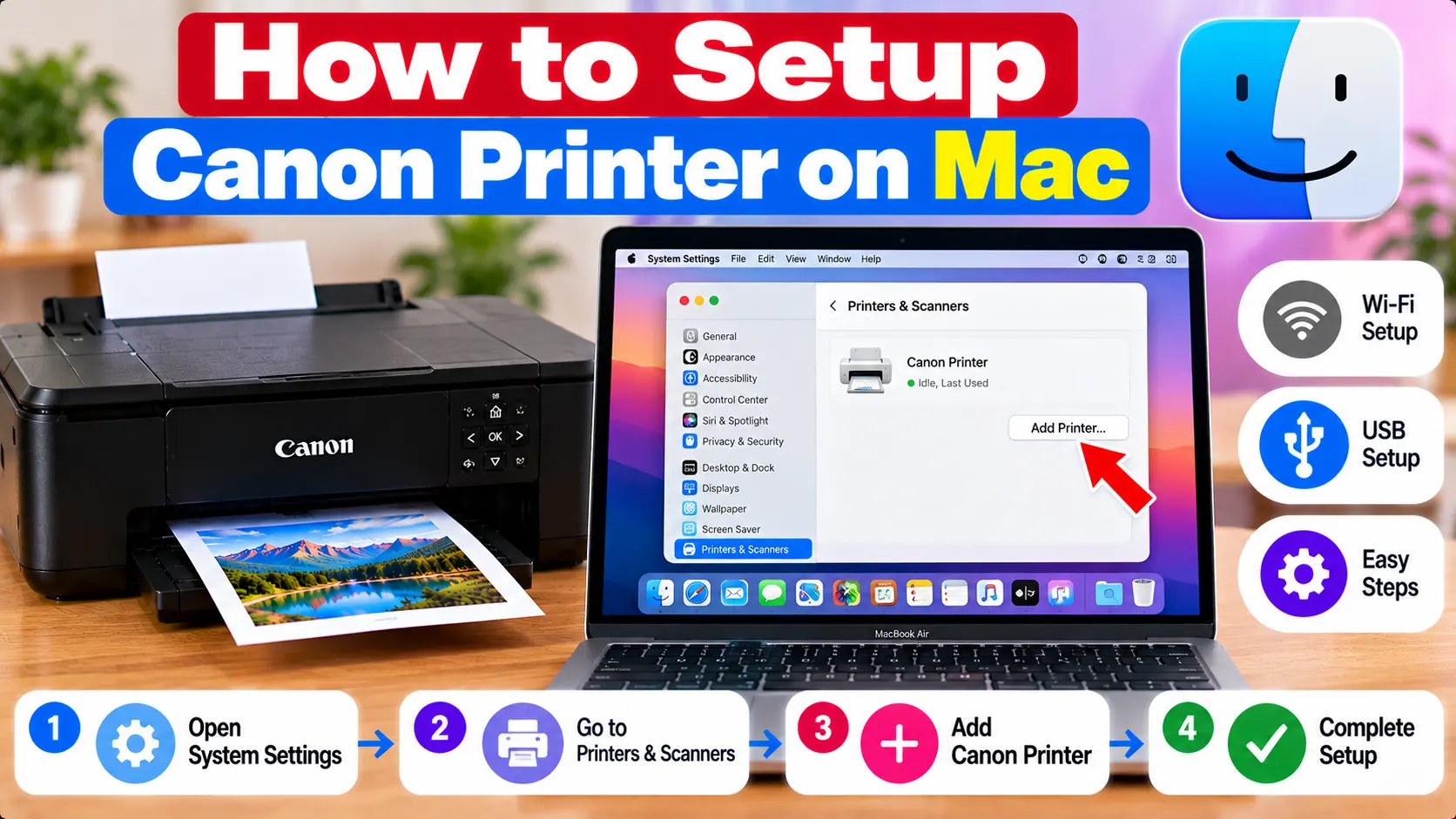
How Do I Set Up a Canon Printer on My Mac?
Turn on the Canon printer and connect it to the same Wi-Fi network as your Mac, or connect it through a supported USB connection. On the Mac, open System Settings, select Printers & Scanners, choose Add Printer, Scanner, or Fax, and select the printer when it appears. Complete the prompts and then print a test document.
Before Setting Up Your Canon Printer on Mac
A few basic checks can prevent unnecessary setup problems.
Before adding the printer, make sure:
- The Canon printer is powered on.
- Required cartridges or ink components are installed according to the printer's setup procedure.
- Paper is loaded correctly.
- The printer is not displaying an unresolved error or support code.
- Your Mac is connected to the intended network if you plan to use Wi-Fi.
- You know the correct Wi-Fi network name and password when wireless setup is required.
How to Set Up a Canon Printer on Mac Using Wi-Fi
For wireless printing, the printer and Mac normally need to be able to communicate through the same local network.
Step 1: Connect the Canon Printer to Wi-Fi
Use the wireless setup method available for your exact Canon printer model. Depending on the model, network setup may be performed through printer controls, a setup application, or another supported configuration method.
During setup, select the intended wireless network and enter the correct network password when requested.
For more detailed wireless instructions, see: How to Connect Canon Printer to WiFi .
Step 2: Check the Mac's Network
Make sure the Mac is connected to the intended network. If the printer was accidentally connected to another network, it may not appear when you try to add it.
Step 3: Wait for the Printer to Become Ready
After wireless setup, allow the printer to finish connecting before opening the printer settings on the Mac.
How to Add a Canon Printer to Mac
Once the printer is connected and ready, add it through macOS.
- Open the Apple menu.
- Open System Settings.
- Select Printers & Scanners.
- Choose Add Printer, Scanner, or Fax.
- Wait for available printers to appear.
- Select the intended Canon printer.
- Review the available printer or software selection.
- Complete the add-printer process.
After installation, the Canon printer should appear in the Mac's printer list.
How to Set Up a Canon Printer on Mac Using USB
A USB connection can be useful when wireless setup is unavailable or when you specifically want a direct connection.
- Turn on the Canon printer.
- Connect the printer using the appropriate USB connection for the printer and Mac.
- Wait briefly for macOS to detect the device.
- Open System Settings.
- Open Printers & Scanners.
- Add the Canon printer if it has not already appeared.
- Complete any available setup prompts.
- Print a simple test document.
If your Mac does not have the required physical port, use an appropriate compatible connection method rather than forcing a connector into an incompatible port.
Does a Canon Printer Need a Driver on Mac?
The software required depends on the printer model, the macOS version, the connection method, and the features you want to use.
In some cases, macOS can add a compatible printer using available built-in printing support. Other models or advanced functions may require model-specific software.
If you need to review driver installation, see: Canon Printer Driver Download and Installation .
Avoid installing random driver packages from unknown download sites. Software should match the exact printer model and operating-system version.
Set the Canon Printer as the Default Printer on Mac
If multiple printers are installed, check which device macOS uses when you open the print dialog.
Open System Settings and then Printers & Scanners. Review the available default-printer setting and choose the behavior that suits your setup.
You can also verify the selected printer each time you print a document.
Print a Test Document
After adding the printer, test the setup with a simple document.
- Open a small document containing visible text.
- Choose File → Print.
- Select the newly added Canon printer.
- Review the basic print settings.
- Send one print job.
If the printer responds normally, the basic Mac setup is complete.
If the job enters the queue but does not print, see: Canon Printer Not Printing .
Canon Printer Not Showing Up on Mac? Try These Checks
If the printer does not appear when you try to add it, determine whether the problem is with the connection or with printer discovery.
1. Check Printer Power
Make sure the printer has completed startup and is not displaying an error.
2. Check Wi-Fi
For wireless setup, confirm that the printer is connected to the intended network.
3. Check the Mac Connection
Confirm the Mac is connected to the intended network and that its network connection is working.
4. Restart the Printer and Mac
A normal restart can clear temporary discovery or communication problems.
5. Try Adding the Printer Again
Return to Printers & Scanners and check whether the printer appears.
6. Check the Driver or Software
If the printer is connected but cannot be added, check whether your particular model requires additional compatible software.
For broader connection troubleshooting, see: Canon Printer Not Connecting to Computer .
What If the Canon Printer Won't Connect to Wi-Fi?
If wireless setup fails before you can add the printer to the Mac, troubleshoot the network connection first.
Check:
- The correct Wi-Fi network is selected.
- The network password is entered correctly.
- The printer is within a practical range of the wireless network.
- The printer is not still configured for an old network.
- The issue did not begin after replacing or reconfiguring the router.
Continue with: Canon Printer Won't Connect to WiFi .
Canon Printer Is Set Up but Shows Offline on Mac
Successful installation does not guarantee that the printer will remain reachable. If the printer later appears offline, check its power, network or USB connection, printer queue, and the printer entry selected on the Mac.
For Mac-specific offline troubleshooting, see: Why Is My Canon Printer Offline on Mac? .
Should You Remove and Re-add the Canon Printer?
Removing and re-adding the printer can be useful when an existing printer entry is no longer communicating correctly, but it should not be the first response to every setup problem.
Before removing the printer, confirm that:
- The printer itself has no unresolved error.
- The Wi-Fi or USB connection is working.
- You are working with the correct printer entry.
- You can reconnect or re-add the printer afterward.
Canon Printer Setup on Mac Troubleshooting Table
| Problem | What to Check |
|---|---|
| Canon printer does not appear on Mac | Printer power, network or USB connection, printer error status, and compatible software. |
| Wi-Fi printer cannot be found | Printer network connection and the Mac's current network. |
| Printer appears but will not print | Print queue, selected printer, connection, printer status, and software. |
| Printer shows offline | Power, Wi-Fi or USB connection, queue status, and selected printer entry. |
| Setup stopped after router change | Reconnect the printer to the current wireless network. |
| USB printer not detected | Cable, connection, compatible port or adapter, printer power, and software. |
| Printer added but document fails | Correct printer selection, queue, application, and printer status. |
Common Setup Mistakes to Avoid
- Do not add the printer before resolving a printer-side error.
- Do not repeatedly create duplicate printer entries.
- Do not install software intended for a different printer model.
- Do not use unknown driver download websites.
- Do not assume a Wi-Fi printer is connected just because it is powered on.
- Do not force incompatible USB connectors or adapters.
Related Canon Printer Guides
Frequently Asked Questions
How do I connect my Canon printer to my Mac?
Connect the printer through Wi-Fi or a supported USB connection, then open System Settings, select Printers & Scanners, and add the printer when it appears.
How do I add a wireless Canon printer to my Mac?
First connect the Canon printer to the intended Wi-Fi network. Then open Printers & Scanners on the Mac, choose the option to add a printer, and select the Canon printer when it becomes available.
Why is my Canon printer not showing up on my Mac?
Check printer power, Wi-Fi or USB connectivity, printer error status, and whether the printer and Mac can communicate through the intended connection. Compatible printer software may also need to be checked.
Do I need to install a Canon printer driver on Mac?
It depends on the printer model, macOS version, connection method, and required features. Some setups can use printing support available in macOS, while other functions or models may require additional compatible software.
Why is my Canon printer offline after setting it up on Mac?
Check printer power, Wi-Fi or USB communication, the selected printer entry, and the print queue. A printer can be installed correctly but later lose its active connection.
Can I set up a Canon printer on Mac without USB?
If the printer supports a compatible wireless connection, it can generally be added to the Mac without using USB once the printer is connected to the network.
What should I do after adding the printer?
Print one simple test document and verify that the correct printer is selected. If the job fails, check the print queue, connection, and printer status before changing additional settings.
Final Canon Printer Setup on Mac Checklist
- Printer is powered on and ready.
- No unresolved support code is displayed.
- Paper and cartridges are installed normally.
- Printer is connected through Wi-Fi or USB.
- Mac can access the intended connection.
- Canon printer appears in Printers & Scanners.
- Appropriate printer software is available when required.
- Correct printer is selected when printing.
- A simple test document prints successfully.
