Canon Printer Not Connecting to Computer: How to Fix It
A Canon printer not connecting to a computer can prevent printing, scanning, setup, or printer detection. The problem may involve the USB cable, Wi-Fi connection, local network, printer status, computer settings, or printer driver. Start by identifying how the printer is supposed to connect, then troubleshoot that connection method step by step.
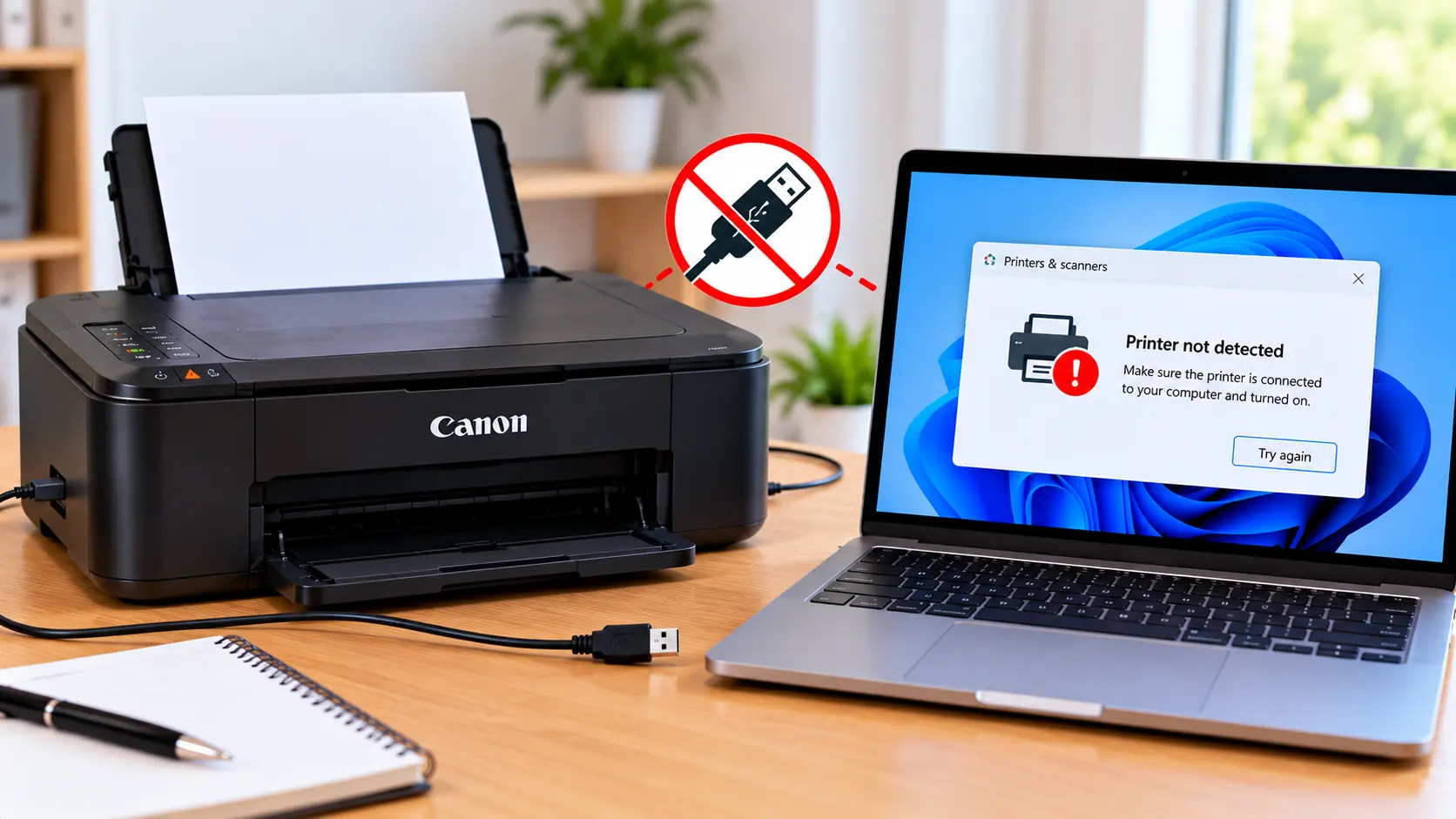
How Do I Fix a Canon Printer Not Connecting to My Computer?
Make sure the printer is powered on and free of printer-side errors. If using USB, reconnect the cable and confirm the computer detects the printer. For Wi-Fi, make sure the printer and computer are connected to the intended local network. Restart the printer and computer, check the installed printer entry, and verify that compatible Canon printer software or drivers are installed.
Why Is My Canon Printer Not Connecting to My Computer?
The cause depends largely on whether the printer uses USB or a network connection.
Common possibilities include:
- The printer is turned off or showing an error.
- The USB cable is disconnected or not communicating correctly.
- The printer is no longer connected to the intended Wi-Fi network.
- The computer and printer are not communicating over the same local network.
- The computer is using an old or duplicate printer entry.
- Required printer software or a compatible driver is missing.
- The network name or password recently changed.
- A previous printer installation is interfering with the current setup.
1. Check the Printer Before Changing Computer Settings
First make sure the printer itself is ready to communicate.
- Turn the printer on.
- Allow startup to complete.
- Check for warning lights or displayed error codes.
- Make sure user-accessible covers are closed normally.
- Check for an obvious paper jam.
- Make sure cartridges are installed normally.
If the printer displays a specific error code, resolve that condition before assuming the computer connection is the main problem.
2. Restart the Printer and Computer
A restart can restore communication after a temporary USB, network, or software problem.
- Turn the Canon printer off normally.
- Restart the computer.
- Turn the printer back on.
- Wait until the printer is ready.
- Check whether the computer now detects it.
If the connection still fails, troubleshoot the actual connection method.
3. Canon Printer Not Connecting to Computer With USB
If your printer connects directly through USB, inspect the physical connection before reinstalling software.
Check the USB Cable
Make sure the cable is securely connected at both ends. A loose connection can cause the printer to disappear from the computer or stop responding.
Connect Directly to the Computer
If practical, connect the printer directly to a computer USB port instead of relying on an unpowered hub or another intermediate device.
Check Whether the Computer Detects the Printer
After reconnecting the cable, allow the operating system a moment to detect the device. Check the printer settings to see whether the Canon printer appears.
4. Canon Printer Not Connecting to Computer Over Wi-Fi
With a wireless printer, both devices must be able to communicate through the intended local network.
Check whether the printer is still connected to the expected Wi-Fi network. Then confirm that the computer is connected to the intended local network.
If the printer recently lost its Wi-Fi connection, reconnect the printer before changing unrelated computer settings.
For detailed wireless troubleshooting, use: Canon Printer Won't Connect to Wi-Fi .
5. Check for a Network Mismatch
A printer can appear connected while still being unavailable to the computer if the devices are not communicating through the expected local network.
This can happen after:
- Changing routers.
- Changing the Wi-Fi network name.
- Changing the Wi-Fi password.
- Reconnecting the computer to another network.
- Resetting the printer's network settings.
Verify the printer's current network connection before reinstalling drivers.
6. Canon Printer Not Connecting to a Windows Computer
On Windows, open the printer settings and check whether the correct Canon printer appears.
If multiple entries with similar names are listed, determine which one corresponds to the current USB or network connection.
Also check:
- Whether Windows reports the printer as offline.
- Whether printing is paused.
- Whether failed jobs are stuck in the queue.
- Whether the correct printer is selected when printing.
- Whether Windows detects the printer after a restart.
If the printer is detected but appears offline, see: Canon Printer Offline on Windows .
7. Canon Printer Not Connecting to a Mac
On a Mac, open the printer settings and check whether the Canon printer appears in the available printer list.
If the printer was previously added but the connection has changed, the existing entry may no longer represent the current connection.
Check the physical USB connection or confirm that the Mac and printer can communicate over the intended local network.
If you are setting up the printer on a Mac for the first time, see: How to Set Up a Canon Printer on Mac .
8. Check Canon Printer Drivers and Software
If the connection appears correct but the computer still cannot use the printer, check the printer software.
Before installing or reinstalling anything, identify the exact printer model and computer operating system.
A printer driver intended for another model or operating system may not work correctly.
If reinstalling is necessary, avoid unknown software-download websites and do not install unrelated driver-updater applications simply because the printer is not detected.
See: Canon Printer Drivers: Download, Install & Update Guide .
9. Printer Stopped Connecting After a Router or Wi-Fi Password Change
If the printer worked previously but stopped connecting after a router replacement or Wi-Fi change, the printer may still be configured for the previous network.
Reconnect the printer to the current wireless network using the setup procedure appropriate for the exact printer model.
Once the printer is connected, check whether the existing printer entry on the computer can communicate with it.
For setup instructions, see: How to Connect a Canon Printer to Wi-Fi .
10. Check for Old or Duplicate Printer Entries
Reinstalling a printer, changing from USB to Wi-Fi, or changing networks can sometimes leave multiple printer entries on a computer.
If you see several similar Canon printer names, determine which entry corresponds to the current connection before deleting anything.
Removing the wrong entry can make troubleshooting more difficult, especially if one configuration is still working.
11. Check Whether Printing and Scanning Have the Same Problem
Test whether the connection problem affects all printer functions or only one feature.
For example, if printing works but scanning does not, the printer may already be communicating with the computer and the issue may instead involve scanning software or scan configuration.
In that situation, see: Canon Printer Won't Scan .
12. Should You Reset the Canon Printer?
A factory reset should not be the first step for a computer connection problem.
Resetting the printer may remove network settings and create additional setup work without fixing a USB cable, computer configuration, driver, or duplicate printer entry.
First identify whether the failure is related to USB, Wi-Fi, the operating system, or printer software.
What If the Canon Printer Still Won't Connect to the Computer?
If the basic troubleshooting does not restore the connection, collect a few details before making further changes.
- Exact Canon printer model.
- Windows or macOS version.
- USB or Wi-Fi connection.
- Whether the computer detects the printer at all.
- Whether the printer shows an error.
- Whether printing, scanning, or both are affected.
- Whether the problem started after a router, computer, software, or printer change.
These details help separate a printer-side problem from a computer, network, or software problem.
Canon Printer Connection Troubleshooting Table
| Problem | What to Check |
|---|---|
| Computer does not detect printer | Check printer power, USB or network connection, and printer software. |
| USB printer not connecting | Check the cable and direct computer connection. |
| Wi-Fi printer not connecting | Confirm the printer is connected to the intended local network. |
| Problem started after router change | Reconnect the printer to the current wireless network. |
| Multiple printer entries appear | Identify the entry associated with the active connection. |
| Printer detected but offline | Check queue status, connection, and the selected printer entry. |
| Printing works but scanning fails | Troubleshoot scan software and scan configuration separately. |
| Connection works but printer cannot be used | Check compatible printer drivers and software. |
Common Troubleshooting Mistakes to Avoid
- Do not reinstall drivers before checking the basic connection.
- Do not assume every connection problem is caused by Wi-Fi.
- Do not repeatedly add duplicate printer entries.
- Do not delete printer configurations randomly.
- Do not download drivers from unknown websites.
- Do not factory-reset the printer as the first troubleshooting step.
- Do not ignore an error displayed directly on the printer.
Related Canon Printer Guides
Frequently Asked Questions
Why won't my Canon printer connect to my computer?
The problem may involve the USB cable, Wi-Fi connection, local network, printer status, computer printer configuration, or printer driver. Identify the connection method first and troubleshoot that path.
Why is my computer not detecting my Canon printer?
Make sure the printer is powered on and ready. For USB, check the cable and computer connection. For wireless printing, confirm that the printer is connected to the intended local network. Then check the computer's printer settings and software.
Why won't my Canon printer connect to my laptop?
A laptop connection can fail for the same reasons as a desktop connection, including USB problems, Wi-Fi changes, printer detection, duplicate printer entries, or missing printer software.
Why did my Canon printer stop connecting after I changed my router?
The printer may still have settings for the previous wireless network. Reconnect it to the current network, then verify that the computer can communicate with the printer.
Should I reinstall the Canon printer driver?
Consider driver reinstallation after checking power, USB or network connectivity, printer detection, and existing printer entries. Use software appropriate for the exact printer model and operating system.
Why does my Canon printer connect but still show offline?
The physical or wireless connection may exist while the computer is using an old printer entry, incorrect configuration, or a queue that reports the printer offline. Troubleshoot the offline status separately.
Should I reset my Canon printer if it won't connect to my computer?
A factory reset is generally not the first troubleshooting step. First determine whether the issue involves USB, Wi-Fi, the computer, printer software, or an error on the printer.
Final Connection Checklist
- Printer is powered on and ready.
- No unresolved printer error is displayed.
- USB cable is connected correctly if using USB.
- Printer is connected to the intended network if using Wi-Fi.
- Computer is using the correct printer entry.
- Old or duplicate entries have been identified.
- Printer is not simply showing an offline status.
- Compatible driver/software is installed where needed.
- Router or Wi-Fi changes have been accounted for.
- Printing and scanning have been tested separately.
