Canon Printer Prints Blank Pages? Causes and How to Fix It
If your Canon printer feeds paper normally but the output is completely blank or missing expected content, the problem is different from a printer that does not print at all. Blank pages can be related to ink, cartridge installation, print quality, nozzle conditions, document settings, or another printer-side issue. Start with simple checks before running repeated maintenance cycles.
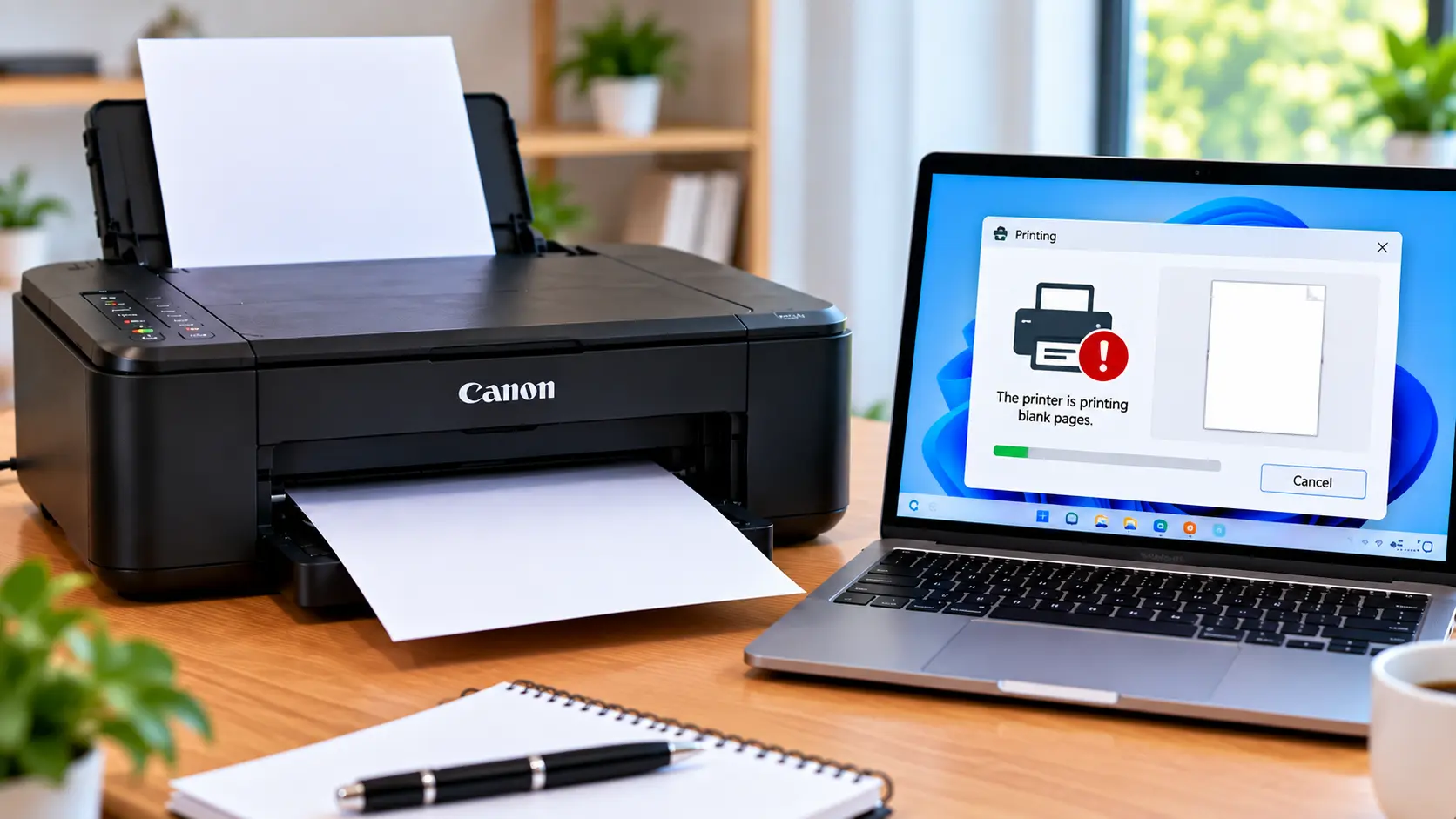
How Do I Fix a Canon Printer Printing Blank Pages?
Check the printer for ink or cartridge warnings, confirm that cartridges are installed correctly, and make sure required protective material was removed from newly installed cartridges. Print a nozzle or print-quality check if that function is available for your model. If the pattern shows missing output, use the normal maintenance options appropriate for the printer. Also test a simple document to rule out an application or file issue.
Why Is My Canon Printer Printing Blank Pages?
When a printer accepts a print job and feeds paper but produces a blank sheet, communication with the printer may already be working. The next checks should focus on the content being sent and the printer's ability to place ink on the page.
Possible causes include:
- An ink-related warning or low ink condition.
- A cartridge that is not installed correctly.
- Protective material remaining on a new cartridge.
- A cartridge recognition problem.
- Missing or interrupted output in a nozzle or print-quality check.
- A document or application printing problem.
- Incorrect print settings.
- A driver or printer software problem.
- A printer condition that requires model-specific diagnosis.
1. Start With These Quick Checks
Before running cleaning or maintenance operations, check the printer display and basic printing conditions.
- Check for an ink or cartridge warning.
- Check whether a support code is displayed.
- Confirm paper is loaded correctly.
- Confirm the document contains visible printable content.
- Check whether every page is blank or only certain pages.
- Note whether the problem began after replacing a cartridge.
2. Check the Ink Status
Review the printer's available ink-status information and any messages shown on its display or computer.
If the printer identifies a specific cartridge, focus on that cartridge rather than removing every cartridge unnecessarily.
If the printer reports that a cartridge cannot be recognized, use our Canon ink cartridge recognition guide before continuing with print-quality troubleshooting.
3. Check Cartridge Installation
If the cartridge is designed to be user-removable on your printer model, check that it is installed according to the normal replacement procedure.
Check that:
- The cartridge is in the correct position.
- It is seated normally.
- The printer does not report it as missing or unrecognized.
- There is no obvious physical damage.
- A newly installed cartridge is appropriate for the exact printer model.
4. Canon Printer Prints Blank Pages After Changing Ink
If blank pages started immediately after a cartridge replacement, check the newly installed cartridge first.
Confirm:
- The cartridge is compatible with the exact printer model.
- It is installed in the correct position.
- Required protective material has been removed.
- Material not intended for removal has not been peeled away.
- The printer recognizes the cartridge.
If the printer reports a cartridge recognition error rather than simply producing blank output, troubleshoot the recognition error first.
5. Run a Nozzle Check or Print-Quality Check
Many printer models provide a maintenance test that prints a pattern directly from the printer or through its maintenance software. The exact name and procedure vary by model.
A test pattern can help determine whether the problem is related to the printer's output system or only to a particular document or application.
If the test pattern prints normally
The printer may be capable of producing output, so check the original document, application, print settings, and driver.
If the test pattern is blank or incomplete
Check cartridge status and use the normal maintenance procedure available for the exact printer model.
6. Use Printer Cleaning and Maintenance Carefully
If a nozzle or print-quality check shows missing output, a normal cleaning operation may be an appropriate next step on models that provide this maintenance function.
Use the printer's normal maintenance menu or software and follow the sequence appropriate for your model.
After a cleaning cycle, run the relevant test again and compare the result.
7. Try Printing a Simple Test Document
A blank page can sometimes originate from the document or application rather than the printer.
Create a simple document containing a few lines of clearly visible text and try printing it.
If the simple document prints correctly, review the original file for:
- Blank pages.
- White or invisible text.
- Unusual layers or objects.
- Application-specific print settings.
- Incorrect page range.
8. Check the Print Settings
Before printing again, review the basic settings in the print dialog.
Check:
- The correct Canon printer is selected.
- The intended page range is selected.
- Paper size matches the intended document.
- The application is not intentionally sending a blank page.
- The printer is not showing another error.
9. Check the Printer Driver and Software
If the printer can produce its own maintenance pattern but computer documents still print blank, check the software side.
A driver check can be useful when:
- The problem happens only from the computer.
- The issue began after an operating-system update.
- The printer was recently reinstalled.
- Some applications print correctly while others do not.
- The computer reports a driver problem.
See our Canon printer driver guide for driver installation troubleshooting.
If the computer specifically reports an unavailable driver, see: Canon Printer Driver Unavailable .
Blank Pages vs. Canon Printer Not Printing
These two symptoms should be diagnosed differently.
If the printer receives the job, feeds paper, and outputs a blank sheet, focus on ink, cartridges, print quality, maintenance, and document content.
If the printer never responds to the print job, focus instead on the connection, offline status, print queue, selected printer, and driver.
For that problem, see: Canon Printer Not Printing .
What If the Canon Printer Still Prints Blank Pages?
If basic checks and normal maintenance do not restore output, record the exact symptoms before taking further action.
Note:
- Exact printer model.
- Whether every page is blank.
- Whether a nozzle or quality test is also blank.
- Whether the problem started after changing ink.
- Whether cartridges are recognized.
- Any support code or warning.
- Whether printing works from another application.
If the printer's own test output remains blank after appropriate user maintenance, model-specific diagnosis may be necessary. Avoid dismantling the printer or manually forcing internal components.
Canon Blank Page Troubleshooting Table
| Symptom | What to Check |
|---|---|
| Every printed page is blank | Ink status, cartridge recognition, installation, and printer maintenance test. |
| Blank pages after new cartridge | Compatibility, installation, protective material, and cartridge recognition. |
| Nozzle check is blank | Cartridge status and the normal maintenance procedure for the printer model. |
| Nozzle check works but document is blank | Document content, application, print settings, and driver. |
| Only one document prints blank | File content, page range, text visibility, and application settings. |
| Cartridge not recognized | Cartridge installation, compatibility, and any specific support code. |
| Printer does not respond at all | Connection, offline status, print queue, selected printer, and driver. |
What Should You Avoid?
- Do not run cleaning cycles continuously without checking results.
- Do not force cartridges into place.
- Do not force the cartridge holder or carriage.
- Do not scrape electrical contacts.
- Do not use sharp tools inside the printer.
- Do not apply unapproved liquids to printer electronics.
- Do not dismantle the printer to reach the print mechanism.
- Do not use random reset or service-mode combinations as a universal blank-page fix.
Related Canon Printer Guides
Frequently Asked Questions
Why is my Canon printer printing blank pages?
Blank pages can be related to ink or cartridge conditions, cartridge installation, print quality or nozzle problems, document content, print settings, or printer software. Check for printer warnings first and then test a simple document or maintenance pattern.
Why is my Canon printer printing blank pages when it has ink?
An indicated ink supply does not rule out every printing problem. Check cartridge recognition, installation, a nozzle or print-quality test, the document being printed, and any printer warning or support code.
Why did my Canon printer start printing blank pages after changing the cartridge?
Check whether the new cartridge is compatible, installed correctly, recognized by the printer, and free of required removable protective material.
Should I clean the print head if pages are blank?
Start with the printer's normal nozzle or print-quality check where available. If the result indicates missing output, use the normal maintenance option appropriate for the exact model. Avoid repeatedly running cleaning cycles without checking the result.
Why does the printer's test page work but my document prints blank?
If printer-generated output works normally, check the original document, application, selected page range, print settings, and printer driver.
Can a driver problem cause blank pages?
Software or driver problems can affect computer printing. A driver check is particularly useful when printer-generated test output works but computer documents do not print correctly.
Should I reset my Canon printer if it prints blank pages?
A normal restart can be useful, but random reset or service-mode procedures are not universal fixes. Identify whether the problem involves cartridges, print quality, the document, or software before taking further action.
Final Blank Page Troubleshooting Checklist
- Check the printer for warnings or support codes.
- Review available ink-status information.
- Confirm cartridges are recognized.
- Check cartridge installation.
- Check a new cartridge for required protective material.
- Run a nozzle or print-quality test if available.
- Use normal maintenance only when appropriate.
- Avoid excessive cleaning cycles.
- Print a simple test document.
- Check print settings and page range.
- Check the driver if printer-generated output works normally.
- Use model-specific diagnosis if blank output continues.
