How to Fix Canon Printer Driver Unavailable
A Canon printer driver unavailable message can appear when Windows cannot properly use the software or driver associated with the printer. The problem may involve the printer connection, an incompatible or damaged driver, an incomplete installation, Windows updates, or an old printer entry. Start with basic checks before removing or reinstalling software.
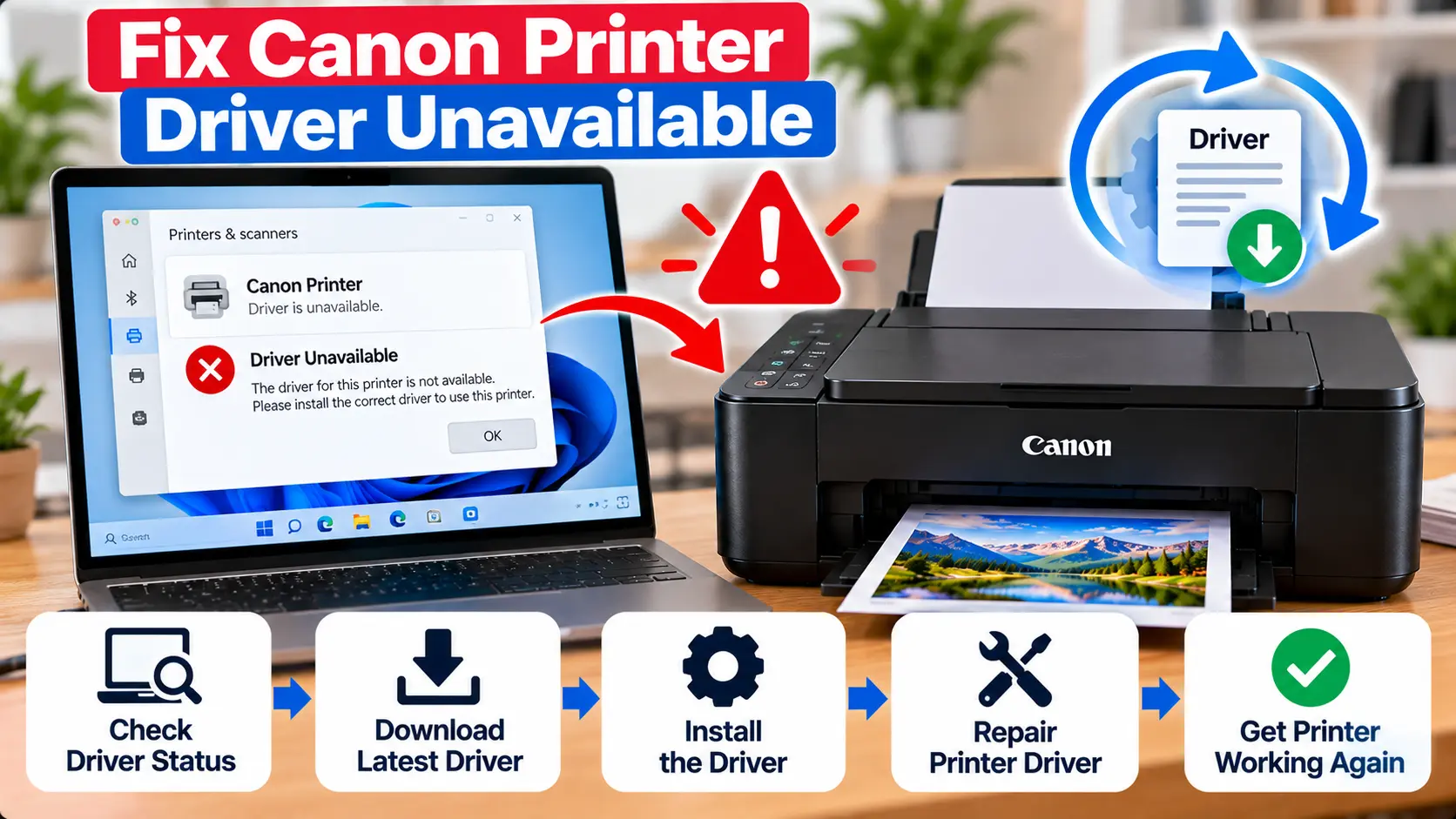
How Do I Fix Canon Printer Driver Unavailable?
Make sure the Canon printer is powered on and properly connected, then restart the printer and computer. On Windows 11, run the printer troubleshooter in Get Help and check Windows Update. If the problem continues, verify the exact Canon model and Windows version, update or reinstall the printer driver, or remove and add the printer again.
What Does Canon Printer Driver Unavailable Mean?
A printer driver allows the operating system and printer to work together. When Windows reports that a printer driver is unavailable, the installed printer may not currently have a usable driver or Windows may be having difficulty using the installed printer software.
This does not automatically mean the Canon printer itself has failed. The problem may be limited to the computer, driver, printer installation, or connection.
Before downloading anything, confirm the exact printer model and determine whether Windows can still detect the device.
Common Causes of Canon Printer Driver Unavailable
Several conditions can contribute to a driver or printer-recognition problem.
- The printer is disconnected from the computer or network.
- The installed driver is outdated or incompatible.
- The driver installation did not complete correctly.
- An old or duplicate printer installation is causing a conflict.
- The wrong printer model software was installed.
- The Windows version and installed driver are not compatible.
- A recent Windows or driver update changed the printer configuration.
- Windows is not currently recognizing the printer correctly.
Step 1: Check the Canon Printer and Connection
Before reinstalling the driver, make sure Windows can communicate with the printer.
Check Printer Power
Turn on the Canon printer and allow it to finish starting. If the printer shows an error or support code, resolve that condition before continuing driver troubleshooting.
Check a USB Connection
If the printer uses USB, make sure the cable is securely connected to both the printer and the computer. If necessary, test another suitable USB port.
Check a Wireless Connection
For a WiFi printer, confirm that the printer is connected to the intended wireless network. Microsoft recommends making sure the Windows PC and wireless printer are on the same network when troubleshooting printer detection problems.
If the printer has lost WiFi connectivity, fix the network problem before repeatedly reinstalling the driver.
Step 2: Restart the Printer and Computer
A normal restart can clear temporary communication or Windows printing problems.
- Close any active print jobs or setup programs.
- Turn the printer off normally.
- Restart the Windows computer.
- Turn the printer back on.
- Wait until the printer is ready.
- Check the printer status again.
A factory reset is not required for normal driver troubleshooting and should not be used as an early step.
Step 3: Run the Windows 11 Printer Troubleshooter
Microsoft recommends starting Windows 11 printer troubleshooting with the automated printer troubleshooter available through the Get Help app.
Run the printer troubleshooter and follow the recommendations it provides before making more extensive changes.
Step 4: Check Windows Update
Windows supports many printers without requiring a separate manual driver installation, and updated printer drivers may also be available through Windows Update.
On Windows 11, open:
Start > Settings > Windows Update
Check for available updates. If Windows provides an applicable printer driver update, install it and restart the computer if required.
After restarting, check whether the Canon printer is recognized and try printing again.
Step 5: Check Your Windows Version and Canon Model
Before manually installing Canon software, confirm both the exact printer model and the version of Windows installed on the computer.
In Windows 11, you can check system information at:
Start > Settings → System → About
Then confirm that any driver you intend to install is listed as compatible with your printer model and operating system.
Step 6: Update the Canon Printer Driver
If Windows recognizes the printer but reports a driver-related problem, check for an updated driver.
One Windows method is to use Device Manager:
- Right-click Start.
- Open Device Manager.
- Expand the relevant Printers or Print queues category when available.
- Locate the correct printer.
- Right-click the device.
- Choose the appropriate driver update option.
- Follow the Windows instructions.
You can also check Windows Update for compatible driver updates.
For more information, see: How to Update Canon Printer Driver .
Step 7: Check Canon Drivers & Downloads
If Windows does not provide the software needed for your printer's full functionality, check the current support information for the exact Canon model.
Canon's support resources provide model-specific Drivers & Downloads information and operating system compatibility details for supported products.
Before installing Canon software:
- Confirm the exact printer model.
- Confirm your Windows version.
- Check the operating-system compatibility listed for the printer.
- Select software intended for that exact model.
- Read the installation instructions associated with the download.
- Follow any model-specific USB or network connection instructions.
Installation procedures can differ between Canon printer families. For example, some Canon driver packages provide specific instructions about when a USB cable should be connected. Follow the instructions supplied for the exact driver package instead of using a generic cable sequence.
See our separate guide: Download Canon Printer Drivers .
Step 8: Remove and Reinstall the Canon Printer
If the printer installation remains damaged or Windows continues to report a driver problem, removing and adding the printer again can refresh its installation.
Remove the Printer
On Windows 11, open:
Start > Settings > Bluetooth & devices > Printers & scanners
Select the affected Canon printer and choose the option to remove it.
Add the Printer Again
Make sure the Canon printer is powered on and properly connected.
Return to:
Settings → Bluetooth & devices → Printers & scanners
Use Add device and allow Windows to search for the printer.
If Windows does not find it automatically, use the available manual-add option and follow the appropriate instructions for your connection type.
Step 9: Reinstall the Printer Driver if Needed
If updating the driver does not resolve the issue, reinstalling the printer or driver can help replace damaged or incompatible installation files.
Microsoft documents Device Manager as one method for uninstalling a printer device when resolving recognition and driver problems. After the device is uninstalled and the computer is restarted, Windows may attempt to install an appropriate driver again.
If your Canon model requires manufacturer software for additional features, check Canon's current model-specific Drivers & Downloads information after confirming your Windows version.
What If the Problem Started After a Driver Update?
If the printer worked before a recent driver update, Windows Device Manager may provide a Roll Back Driver option.
To check:
- Open Device Manager.
- Find the printer under the relevant printer category.
- Right-click the printer and select Properties.
- Open the Driver tab.
- Check whether Roll Back Driver is available.
Driver rollback requires administrator permissions and is mainly relevant when the problem began after a recent driver change.
Step 10: Restart the Windows Print Spooler
If driver troubleshooting is complete but print jobs remain stuck or the printer is unresponsive, check the Windows Print Spooler.
- Press Windows + R.
- Type services.msc.
- Press Enter.
- Find Print Spooler.
- Right-click it.
- Select Restart.
Then try printing again.
Canon Driver Unavailable on Windows 10
Some of the same connection, driver, printer reinstallation, and Print Spooler troubleshooting concepts can apply to Windows 10. However, Microsoft ended Windows 10 support on October 14, 2025.
Because of that change, this guide focuses its current Windows instructions primarily on Windows 11.
What to Avoid When Fixing Printer Drivers
- Do not download drivers from unknown websites.
- Do not install software for a different Canon printer model.
- Do not assume an older driver is compatible with your current Windows version.
- Do not repeatedly uninstall devices without first checking the connection.
- Do not factory-reset the printer simply because Windows reports a driver problem.
- Do not use third-party driver-update utilities when Windows Update or the printer manufacturer's support resources provide the appropriate route.
Related Canon Printer Guides
Frequently Asked Questions
Why does my Canon printer say driver unavailable?
Windows may not currently have a usable driver for the installed printer. Possible causes include an incompatible or damaged driver, incomplete installation, connection problem, old printer entry, or operating-system change.
How do I reinstall my Canon printer driver?
First confirm the exact printer model and Windows version. You can remove and add the printer through Windows Printers & scanners, check Windows Update, or use compatible model-specific software when Canon provides it.
Can Windows automatically install a printer driver?
Yes. Windows supports many printers and can automatically install compatible components in many cases. Additional or updated drivers may also be available through Windows Update.
Should I download a Canon driver from another website?
Avoid unknown third-party driver packages. When manufacturer-specific software is required, use Canon's current support resources for the exact printer model and operating system.
Can a Windows update cause a printer driver problem?
Driver compatibility problems can occur after operating-system or driver changes. If the problem began immediately after a driver update, check whether Device Manager provides an appropriate rollback option.
Do I need to reset my Canon printer?
A factory reset is generally not required for a Windows driver-unavailable problem. Check the connection, Windows troubleshooting, driver, and printer installation first.
Final Canon Driver Troubleshooting Checklist
- Canon printer is powered on.
- No blocking printer error is displayed.
- USB or WiFi connection has been checked.
- Windows 11 Get Help troubleshooter has been considered.
- Windows Update has been checked.
- Exact Canon printer model has been confirmed.
- Windows version has been confirmed.
- Driver compatibility has been checked.
- Printer has been removed and added again if necessary.
- Print Spooler has been checked if print jobs remain stuck.
- A test print has been attempted.
