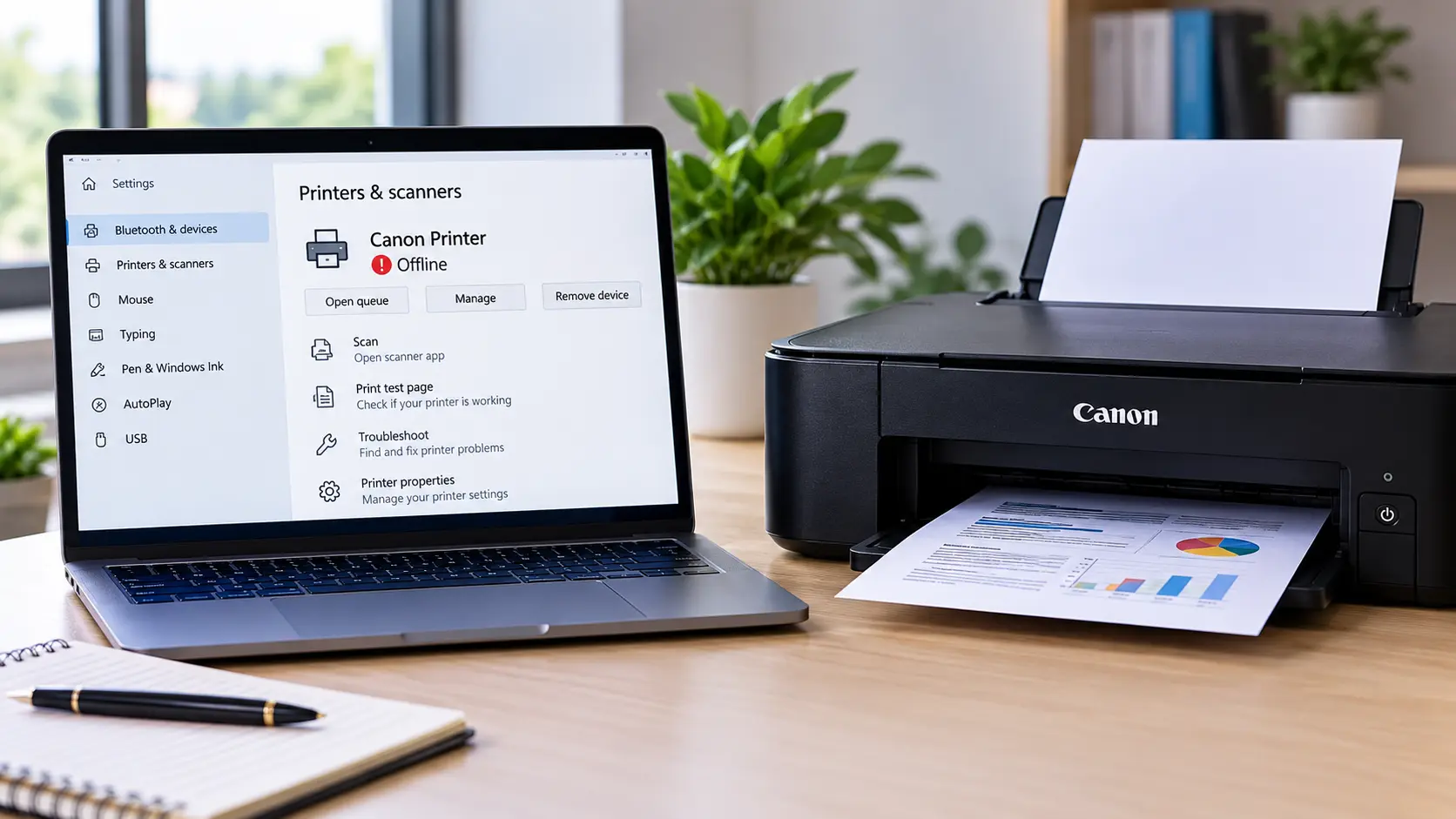
How do I get my Canon printer back online?
First confirm that the printer is turned on and connected to the same network as your computer. Then check the printer status, clear stuck print jobs, confirm the correct printer is selected, restart the devices, and check the printer driver.
Why Is My Canon Printer Offline?
A Canon printer offline message usually means that your computer cannot communicate with the printer at that moment. The printer may still be powered on, but Windows or macOS may not be able to reach it through Wi-Fi, a wired network, or USB.
The problem can be caused by something simple, such as a temporary connection failure or a stuck print job. In other cases, the computer may be using the wrong printer, the wireless connection may have changed, or the printer driver may need attention.
Canon's troubleshooting guidance for supported models recommends checking the connection first, power-cycling the printer, verifying the correct printer and driver, checking the offline setting, and reviewing the printer driver if the problem continues.
Common reasons a Canon printer may show offline
- The printer has lost its Wi-Fi connection.
- The computer and printer are connected to different networks.
- The wrong Canon printer or printer driver is selected.
- A print job is stuck in the Windows print queue.
- Windows is using an incorrect printer configuration.
- The Windows Print Spooler is not working correctly.
- The Canon printer driver is outdated, damaged, or incorrectly installed.
- A USB cable or port is not communicating correctly.
- The router, Wi-Fi name, or wireless password has recently changed.
- The printer is displaying another error that must be resolved first.
Quick Checks Before Troubleshooting
Before changing printer settings, spend a minute checking the basics. This can help you avoid unnecessary driver reinstalls or network changes.
- Make sure the Canon printer is powered on.
- Check the printer screen or status lights for an error.
- Make sure paper is loaded correctly.
- If you use Wi-Fi, check whether the printer still appears connected to the wireless network.
- If you use USB, make sure the cable is firmly connected at both ends.
- Check that you are trying to print to the correct Canon printer.
If the printer has a separate error such as a paper jam, cartridge problem, or error code, resolve that condition before continuing with offline troubleshooting.
Restart the Canon Printer, Computer, and Router
Temporary communication failures can cause a printer that normally works to suddenly appear offline.
Start by turning the printer off. If appropriate for your model, disconnect its power briefly, reconnect it, and turn it back on. Microsoft currently recommends a 30-second power cycle as an early troubleshooting step for offline printers in Windows.
Next, restart the computer. If you are using a wireless printer and other network symptoms are present, restarting the router may also help restore communication.
Check the Canon Printer Wi-Fi Connection
If your Canon printer uses Wi-Fi, confirm that the printer and the computer are connected to the intended network. Microsoft includes checking that the printer is connected to the same Wi-Fi network as the device among its offline-printer troubleshooting steps.
On Canon models with a display, check the printer's wireless or network status. The exact menu and icons vary by model, so use the instructions for your specific printer when necessary.
If the printer recently went offline
Think about whether anything on your network recently changed. A replacement router, changed Wi-Fi password, renamed network, or changed network configuration can prevent a printer from reconnecting with its previous settings.
If your printer is no longer connected to Wi-Fi, reconnect it before making unrelated changes to Windows.
You can also see our Canon printer won't connect to Wi-Fi guide for wireless-specific troubleshooting.
How to Fix Canon Printer Offline on Windows 11
If the connection looks normal but Windows 11 still reports the Canon printer as offline, check Windows printer settings next.
Microsoft currently recommends starting Windows 11 printer troubleshooting with the automated printer troubleshooter available through the Get Help app. If the automated checks do not resolve the problem, continue with the manual steps below.
Open your Canon printer settings
- Open Start.
- Select Settings.
- Select Bluetooth & devices.
- Select Printers & scanners.
- Select the Canon printer you are trying to use.
From here, check the printer status, print queue, and available printer options.
Check the “Use Printer Offline” Setting
For Canon models and Windows configurations where the traditional print-queue menu is available, check whether Use Printer Offline is enabled.
Canon's current Windows guidance for supported models instructs users to open the printer's print queue and make sure Use Printer Offline is not selected.
The exact route can differ depending on the Canon model, driver, and Windows print interface. If you do not see that option, continue with the other troubleshooting steps rather than assuming something is missing.
Set the Correct Canon Printer as the Default Printer
Multiple copies of the same printer can sometimes appear in Windows, especially after reinstalling a printer or changing the connection method.
In Windows 11, open:
Settings → Bluetooth & devices → Printers & scanners
Select the Canon printer you actually use and review its settings. Microsoft notes that if the manual Set as default option is unavailable, Let Windows manage my default printer may be enabled.
Also check that you are not sending the job to an old or duplicate Canon printer entry.
Clear Stuck Print Jobs
A print job that has stopped responding can block other documents in the queue.
In Windows 11:
- Open Settings.
- Go to Bluetooth & devices.
- Select Printers & scanners.
- Select your Canon printer.
- Select Open print queue.
- Cancel print jobs that are stuck or no longer required.
Microsoft documents the same Printers & scanners route for viewing pending print jobs in Windows 11.
Restart the Windows Print Spooler
Windows uses the Print Spooler service to manage print jobs. If the service stops responding, print jobs can remain stuck and printer communication may be affected.
- Open Windows Search.
- Type Services and open the Services app.
- Find Print Spooler.
- Right-click it and select Restart.
- Wait a moment and test the Canon printer again.
Microsoft includes restarting the Print Spooler among its current offline-printer troubleshooting steps.
Check or Reinstall the Canon Printer Driver
If the connection and print queue look normal but the Canon printer remains offline, check the installed printer software and driver.
Canon notes in its troubleshooting documentation that an old or incorrectly installed printer driver can prevent printing. Canon therefore includes driver reinstallation as a later troubleshooting step when basic connection and offline-status checks do not solve the problem.
Before reinstalling anything, confirm your exact Canon printer model and the operating system on your computer. Use software intended for that model and operating system.
For more information, see our Canon printer driver update guide .
How to Fix Canon Printer Offline on Mac
If a Canon printer appears unavailable on a Mac, start with the same physical and network checks: make sure the printer is on, check for errors, and confirm the Mac and printer can communicate over the intended connection.
Then open your Mac's printer settings and check whether the Canon printer is available and whether a print job is paused or stuck. If the problem started after a network change, verify the printer's Wi-Fi connection before removing or reinstalling it.
Because macOS printer menus can vary by macOS release and printer configuration, we will keep model- or macOS-specific instructions separate rather than applying Windows instructions to a Mac.
See our dedicated Canon printer offline on Mac guide for Mac-specific troubleshooting.
Canon Printer Offline When Connected by USB
A USB-connected printer does not depend on Wi-Fi, so focus on the physical connection and whether the computer recognizes the printer. Canon's offline troubleshooting documentation specifically recommends confirming that a USB-connected printer is recognized by the computer.
- Reconnect the USB cable at both ends.
- Check the cable for visible damage.
- If possible, test another suitable USB port.
- Avoid troubleshooting the router when the printer is being used exclusively through USB.
- Check whether Windows shows more than one copy of the Canon printer.
Canon Printer Offline After Changing the Router or Wi-Fi
If the Canon printer worked before a router replacement or Wi-Fi password change, the printer may still be trying to connect using its previous network settings.
Reconnect the printer to the current wireless network using the setup method supported by your Canon model. After the printer reconnects, confirm that the computer can see the correct printer again.
Do not immediately reinstall drivers if the printer itself is not connected to the new Wi-Fi network. Restore the network connection first.
Quick Troubleshooting Table
| Problem | What to Check | Suggested Action |
|---|---|---|
| Printer suddenly offline | Power and connection | Restart the printer and verify connectivity. |
| Offline after Wi-Fi change | Printer network connection | Reconnect the printer to the current Wi-Fi network. |
| Jobs stuck in Windows | Print queue | Cancel stuck jobs and try printing again. |
| Wrong printer receives jobs | Default printer | Select the intended Canon printer. |
| USB printer offline | USB cable and recognition | Reconnect the cable and verify Windows detects it. |
| Offline problem keeps returning | Driver and network stability | Check the driver and investigate the connection. |
What If the Canon Printer Is Still Offline?
If none of the basic steps work, avoid repeatedly changing unrelated settings. Instead, identify which part of the connection is failing.
- Can the printer connect to the network?
- Does Windows or macOS detect the correct printer?
- Can another device print to the same printer?
- Is there an error displayed on the printer itself?
- Did the problem begin after a router, operating-system, driver, or network change?
These checks help distinguish a printer problem from a computer, driver, or network problem.
Frequently Asked Questions
Why does my Canon printer say offline when it is connected to Wi-Fi?
The printer can be connected to Wi-Fi while the computer still cannot communicate with it correctly. Check that both devices are using the intended network, verify the correct printer is selected, and check the print queue and printer status.
How do I change my Canon printer from offline to online?
Start by confirming the connection and restarting the printer. On Windows, check the printer queue and ensure the printer is not intentionally configured for offline use. Also verify the correct printer is selected.
Why does my Canon printer keep going offline?
A recurring offline problem can point to an unstable network connection, changed network settings, a print-queue problem, an incorrect printer entry, or printer-driver issues. Look for a pattern in when the problem occurs before repeatedly reinstalling the printer.
Can a router change make my Canon printer go offline?
Yes. If the Wi-Fi network name, password, router, or relevant network settings change, the printer may need to be connected to the current network again.
Should I reinstall the Canon driver every time the printer is offline?
No. Check power, connectivity, printer selection, and the print queue first. Driver reinstallation is more appropriate when the basic checks do not resolve the problem or there is evidence of a driver-related issue.
Does restarting the printer help with offline errors?
It can. Both Canon and Microsoft include restarting or power-cycling the printer among troubleshooting steps for offline printer problems.
Final Checklist
If your Canon printer is offline, work through the problem in a logical order: check the printer itself, verify the connection, restart the devices, check Windows or macOS printer settings, clear stuck print jobs, and then investigate the driver if the problem remains.
Starting with the simplest checks helps avoid unnecessary changes and makes it easier to identify whether the issue is with the printer, computer, or network.
