Canon Printer Offline on Windows 11/10? How to Fix It
A Canon printer may appear offline in Windows even when the printer is powered on. The problem can be related to WiFi or USB communication, the selected printer, a stuck print queue, printer status, Windows Print Spooler, or printer driver issues. Work through the checks below from the simplest connection fixes to software troubleshooting.
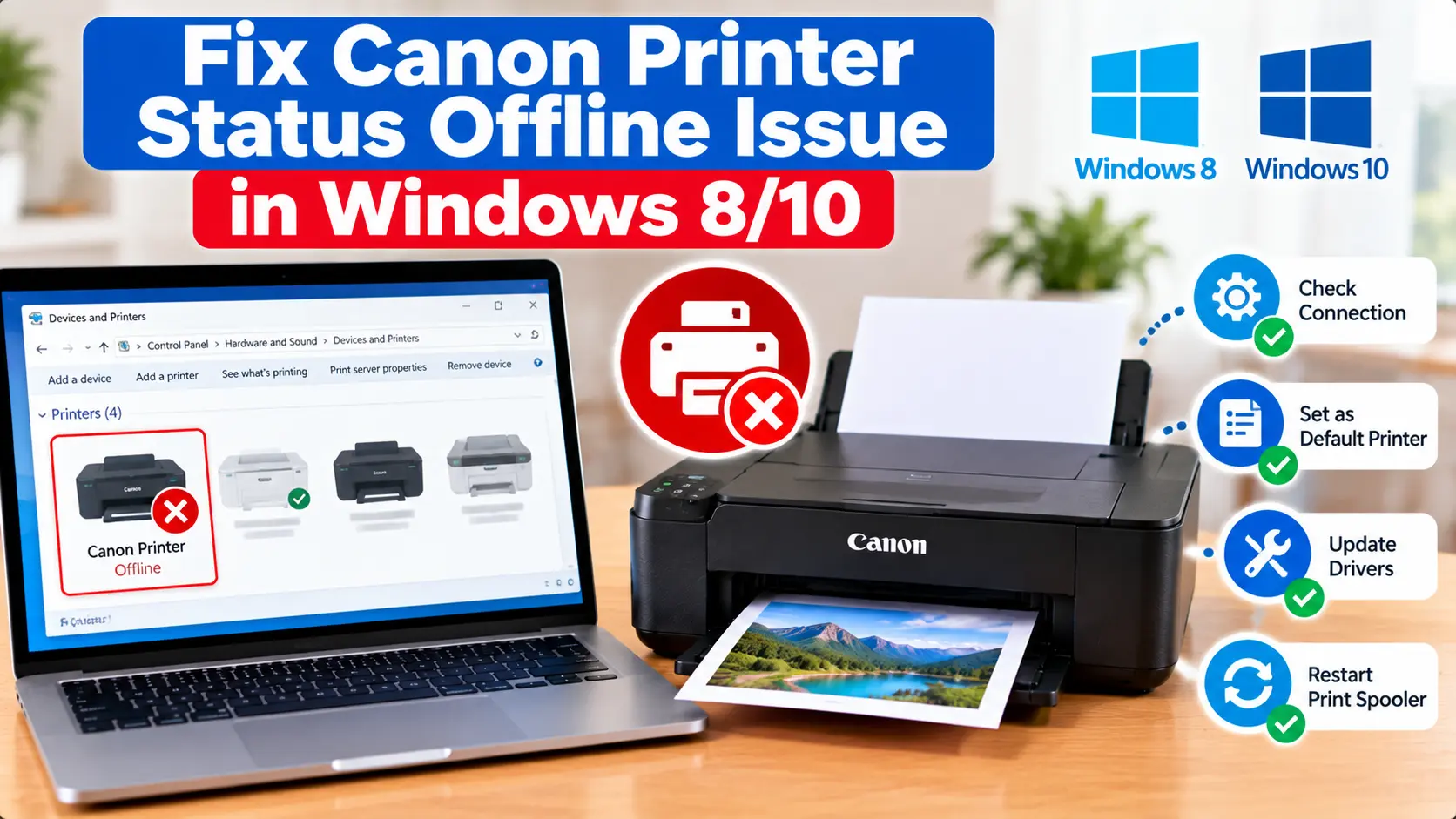
How Do I Get My Canon Printer Back Online in Windows?
Confirm that the printer is powered on and properly connected by WiFi or USB. Make sure Windows is using the correct printer, clear failed print jobs, check that the printer is not intentionally set to work offline, restart the printer and computer, and then check the Print Spooler and printer driver if the offline status continues.
Why Is My Canon Printer Offline on Windows?
The word Offline generally means Windows is not currently communicating with the printer as expected. It does not automatically mean the printer has a hardware failure.
Common causes can include:
- The printer is turned off or not ready.
- WiFi communication has been interrupted.
- A USB cable is loose or disconnected.
- Windows is sending jobs to a different printer.
- Failed jobs are stuck in the print queue.
- An offline printing setting is enabled.
- The Print Spooler is not operating correctly.
- The installed printer driver needs attention.
- The printer's network configuration changed.
1. Start With These Quick Printer Checks
Before changing Windows settings, check the printer itself.
- Make sure the Canon printer is turned on.
- Check the printer display for an error message.
- Confirm paper is loaded correctly.
- Check for a visible paper jam.
- Make sure required covers and trays are properly positioned.
- Confirm the printer is not waiting for user action.
2. Restart the Canon Printer and Windows Computer
A temporary communication problem can sometimes be resolved by restarting the devices.
- Save your work on the computer.
- Turn off the printer using its normal power control.
- Restart the Windows computer.
- Turn the printer back on.
- Wait until the printer is ready.
- Check its status in Windows again.
3. Check the Canon Printer Connection
The next step depends on whether your printer uses WiFi or USB.
For a WiFi Canon Printer
- Confirm the printer is still connected to WiFi.
- Confirm the computer is connected to the intended network.
- Check whether the router was recently replaced.
- Check whether the WiFi name or password changed.
- Reconnect the printer to the network if its stored settings are outdated.
For detailed wireless troubleshooting, see: Canon Printer Won't Connect to WiFi .
For a USB Canon Printer
- Check that the USB cable is firmly connected.
- Inspect the cable for obvious damage.
- Reconnect the cable.
- Try another suitable USB port if necessary.
- Avoid relying on an unstable connection during troubleshooting.
4. Make Sure Windows Is Using the Correct Canon Printer
Multiple printer entries can appear in Windows, especially if the printer has previously been installed using different connection methods.
Open the Windows printer settings and locate the Canon printer you actually want to use. Check for duplicate or old entries and confirm that the current print job is being sent to the intended printer.
If you regularly use one printer, review the available default-printer settings in your version of Windows.
5. Check the “Use Printer Offline” Setting
Depending on the Windows version and interface, printer queue options may include an offline printing setting.
Open the Canon printer's queue or printer options and check whether Use Printer Offline is enabled. If it is enabled unintentionally, turn the option off and check the printer status again.
6. Clear Stuck Print Jobs
A failed or stalled print job can prevent later documents from printing normally.
- Open the Canon printer's print queue in Windows.
- Review the documents waiting to print.
- Cancel failed or unnecessary jobs.
- Allow the queue time to clear.
- Restart the printer if needed.
- Send one simple test document.
Avoid repeatedly sending the same document while troubleshooting because this can create additional queued jobs.
7. Restart the Windows Print Spooler
The Print Spooler is a Windows service that manages print jobs. If it stops responding correctly, printer queues and status information may also stop behaving normally.
- Press Windows + R.
- Type services.msc.
- Press Enter.
- Find Print Spooler.
- Right-click it.
- Choose Restart if that option is available.
- Wait a few moments.
- Check the Canon printer again.
8. Check the Canon Printer Driver
If the connection appears normal but Windows still cannot communicate with the printer, review the installed printer driver.
Make sure the driver or printer software is appropriate for:
- The exact Canon printer model.
- Your Windows version.
- The connection method you are using.
See our Canon Printer Drivers guide for more information.
If Windows specifically reports that the driver is unavailable, see: Canon Printer Driver Unavailable .
9. Remove and Re-Add the Printer If Necessary
If Windows contains an obsolete printer configuration and the earlier checks have not helped, removing the affected printer entry and adding the printer again can create a fresh configuration.
Before doing this, confirm that you know how the printer is connected and that it is available by WiFi or USB.
After adding it again, print a simple test document before changing additional settings.
Canon Printer Offline After Changing Router or WiFi Password
If the printer became offline immediately after a new router, network name, or WiFi password was introduced, the printer may still be configured for the previous wireless network.
Reconnect the printer using the current WiFi details, confirm that it successfully joins the network, and then check its Windows printer entry again.
Canon Printer Offline Troubleshooting Table
| Problem | What to Check |
|---|---|
| Printer suddenly shows offline | Check printer power, connection, error messages, and Windows status. |
| WiFi printer is offline | Confirm the printer and computer can communicate over the intended network. |
| USB printer is offline | Check the USB cable, port, printer power, and Windows printer entry. |
| Printer is online but will not print | Check the print queue, selected printer, printer error state, and driver. |
| Offline after router change | Reconnect the printer using the current WiFi network information. |
| Print jobs remain stuck | Clear failed jobs and check the Windows Print Spooler. |
| Driver unavailable | Check driver compatibility for the exact printer model and Windows version. |
Related Canon Printer Offline Guides
Frequently Asked Questions
Why is my Canon printer offline on Windows 11?
The printer may appear offline if Windows cannot communicate with it. Check printer power, WiFi or USB connectivity, the selected printer, print queue, offline setting, Print Spooler, and driver.
How do I change my Canon printer from offline to online?
First restore communication between the printer and computer. Then check the printer queue, confirm that an offline printing option is not enabled unintentionally, and clear any failed print jobs.
Why is my Canon printer connected to WiFi but still offline?
A WiFi connection alone does not guarantee that Windows is communicating with the correct printer entry. Check the computer's network, printer selection, print queue, and installed printer configuration.
Can the Print Spooler cause a printer to stop printing?
The Windows Print Spooler manages print jobs. Problems with the service can affect print queues and printing, so restarting it can be a useful troubleshooting step when jobs remain stuck.
Why did my Canon printer go offline after changing my router?
The printer may still have the previous network's information stored. Reconnect it using the current WiFi network name and password, then check its Windows printer entry.
Should I reinstall the driver when my Canon printer is offline?
Not necessarily. Check printer power, connectivity, the print queue, printer status, and Windows configuration first. Review or reinstall the driver when there is evidence of a driver or installation problem.
Final Canon Printer Offline Checklist
- Confirm the printer is powered on and ready.
- Check WiFi or USB communication.
- Make sure Windows is using the correct printer.
- Check the offline printing setting.
- Clear failed print jobs.
- Restart the Print Spooler if needed.
- Check the printer driver.
- Reconnect WiFi after router changes.
- Re-add the printer if its Windows configuration is obsolete.
- Test with one simple print job.
