How to Connect Your Printer to WiFi: Step-by-Step Guide
Connecting a wireless printer to WiFi allows compatible computers and mobile devices on the network to send print jobs without a direct USB connection. The exact setup process varies by printer, but most wireless printers follow a similar network configuration process.
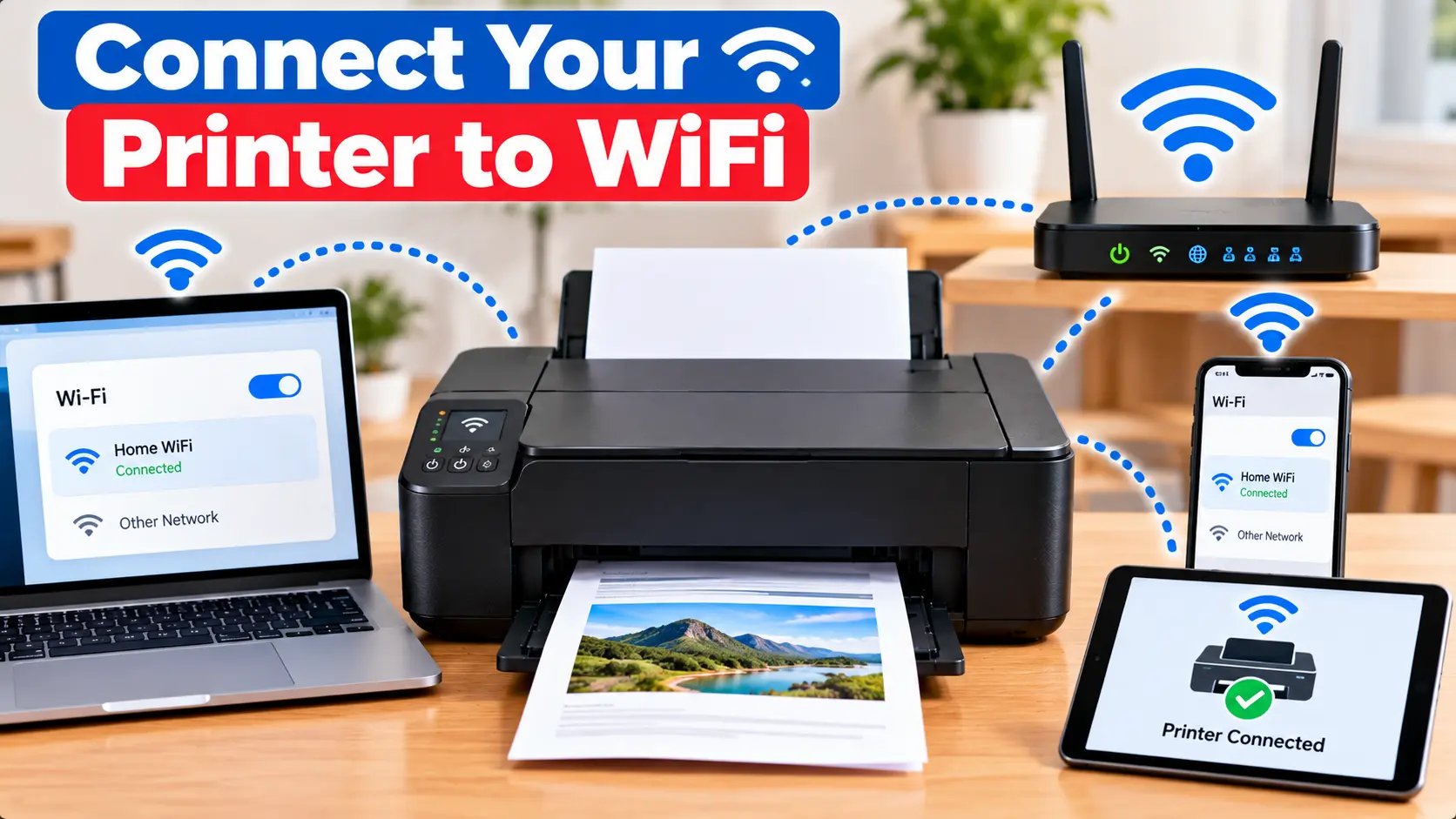
How Do I Connect My Printer to WiFi?
Turn on the printer and make sure your wireless router is working. Open the printer's network or wireless settings, select the correct WiFi network, and enter the network password when requested. After the printer connects, add or select the printer on your computer or mobile device.
Before Connecting Your Printer to WiFi
Before starting wireless setup, collect the information you may need and make sure the basic network is working.
Check the following:
- The printer is powered on and ready.
- Your wireless router is turned on.
- Your computer or phone can connect to the intended WiFi network.
- You know the correct WiFi network name.
- You know the network password if one is required.
- The printer is within a reasonable range of the wireless router.
How to Connect a Printer to WiFi
Printers with a display or control panel commonly provide wireless settings directly on the printer. Menu names vary, but the general process is similar.
- Turn on the printer.
- Open the printer's Settings, Network, or Wireless menu.
- Choose the option for wireless or WiFi setup.
- Allow the printer to search for available networks.
- Select your WiFi network name.
- Enter the wireless password carefully if requested.
- Confirm the settings.
- Wait for the printer to report that the connection has been established.
After connecting the printer to the network, the next step is to add it to the computer or device from which you want to print.
What If the Printer Does Not Have a Display?
Some wireless printers do not provide a full touchscreen or network menu. These models may use physical wireless buttons, a setup application, or another manufacturer-provided setup method.
Because button combinations and setup procedures differ between models, avoid assuming that one sequence works for every printer.
Identify the exact printer model before following a button-based wireless setup procedure.
How to Connect a WiFi Printer to Windows
Once the printer is connected to the wireless network, Windows can usually search for available printers.
- Make sure the printer and Windows computer are connected to the appropriate network.
- Open Settings in Windows.
- Open the printer and device settings.
- Choose the option to add a printer or device.
- Wait while Windows searches for available printers.
- Select the intended printer when it appears.
- Follow the on-screen installation steps.
- Print a test document when setup is complete.
If Windows cannot find the printer, confirm the printer's WiFi connection before reinstalling software unnecessarily.
How to Connect a WiFi Printer to Mac
After the printer joins the wireless network, you can add it from the printer settings available in macOS.
- Make sure the Mac and printer are connected to the appropriate network.
- Open System Settings.
- Open Printers & Scanners.
- Choose the option to add a printer.
- Wait for the printer to appear.
- Select the correct printer.
- Complete the available setup prompts.
- Test printing after installation.
How to Reconnect a Printer After Changing the Router
A printer may stop communicating with other devices after the router, network name, or WiFi password is changed. The printer may still have the old network information stored.
To reconnect:
- Open the printer's wireless or network setup.
- Search for available WiFi networks again.
- Select the new network name.
- Enter the current WiFi password.
- Wait for the printer to reconnect.
- Check the printer on your computer or phone.
- Re-add the printer to the device if necessary.
Why Won't My Printer Connect to WiFi?
If the printer cannot establish a wireless connection, check the network systematically.
1. Check the WiFi Network Name
Make sure you are selecting the intended wireless network, especially if several networks with similar names are available.
2. Recheck the WiFi Password
Wireless passwords are case-sensitive. Re-enter the password carefully if authentication fails.
3. Move the Printer Closer to the Router
A weak wireless signal can make initial setup or ongoing communication unreliable. For testing, move the printer closer to the router when practical.
4. Restart the Printer and Router
If the network was previously working, a normal restart of the printer and network equipment may resolve a temporary communication issue.
5. Check Network Compatibility
Wireless capabilities differ between printer models. Check that the printer supports the network configuration you are trying to use.
6. Check Whether the Network Recently Changed
A changed WiFi password, router, or network name can leave the printer configured with outdated connection information.
Printer Connected to WiFi but Not Printing
A successful WiFi connection does not necessarily mean the computer is ready to print. If the printer reports that it is connected but print jobs fail, check the device-side configuration.
- Confirm that the correct printer is selected.
- Check whether the printer is shown as offline.
- Clear failed or stuck print jobs.
- Confirm the computer is on the intended network.
- Restart the printer and computer.
- Check the installed printer driver or software.
If the printer appears offline, see our guide explaining why a printer may appear offline .
Printer Is on WiFi but Computer Cannot Find It
If the printer reports a successful wireless connection but the computer cannot discover it, first verify that both devices are using the intended network.
Then try:
- Restarting the printer.
- Restarting the computer.
- Running the operating system's add-printer process again.
- Checking the printer's installed software.
- Removing an obsolete printer entry if it points to an old installation.
Printer WiFi Troubleshooting Table
| Problem | What to Check |
|---|---|
| Printer cannot find WiFi | Check router availability, signal strength, and printer network compatibility. |
| WiFi password is rejected | Verify the correct network and carefully re-enter the current password. |
| Printer stopped working after new router | Reconfigure the printer with the new network name and password. |
| Printer says connected but computer cannot find it | Check the network used by both devices and run the add-printer process again. |
| Printer is connected but appears offline | Check printer status, print queue, network communication, and the selected printer. |
| Wireless connection keeps dropping | Check signal strength, router stability, and whether the printer remains connected to the intended network. |
Connecting a Canon Printer to WiFi
If you are specifically setting up a Canon printer, we have separate guides covering Canon wireless setup and connection troubleshooting.
Frequently Asked Questions
How do I connect my wireless printer to WiFi?
Open the printer's wireless or network setup, select the intended WiFi network, enter the password if required, and wait for the printer to confirm the connection.
Why can't my printer find my WiFi network?
Possible reasons include weak signal strength, an unavailable network, incompatible network settings, or limitations of the printer's wireless hardware.
Why is my printer connected to WiFi but not printing?
The computer may be using the wrong printer, the print queue may contain failed jobs, the printer may appear offline, or the installed printer software may need attention.
Do my printer and computer need to use the same WiFi?
For common local network printing setups, the devices need to be able to communicate over the network. Keeping them on the intended local network is an important first check when discovery fails.
Why did my printer stop connecting after I changed routers?
The printer may still contain the previous network information. Reconfigure its wireless settings using the current network name and password.
Can I connect a printer to WiFi without a touchscreen?
Many printers without touchscreens still support wireless setup, but the method varies by model. It may use physical buttons or setup software provided for that printer.
Final WiFi Setup Checklist
- Confirm the router is working.
- Select the correct WiFi network.
- Enter the correct network password.
- Confirm the printer reports a successful connection.
- Add the printer to Windows or Mac.
- Check printer status and print queue.
- Reconfigure WiFi after router or password changes.
- Test with a simple print job.
