Canon Printer Offline on Mac? How to Fix It
If your Canon printer appears offline on a Mac, the problem may be related to the printer connection, WiFi network, USB connection, print queue, an old printer entry, or printer software. Start with the basic checks below and move to the more detailed troubleshooting steps only when necessary.
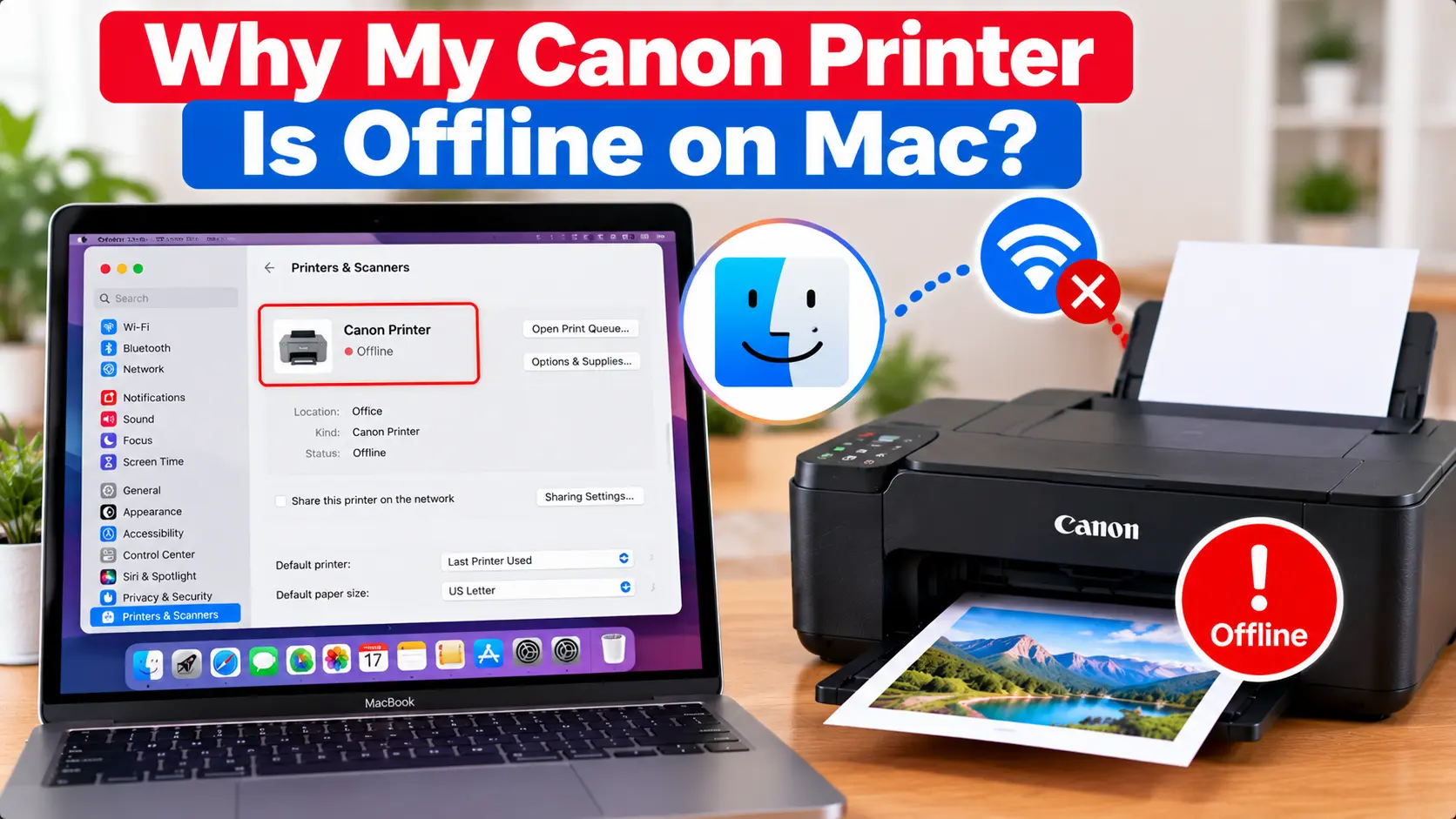
How Do I Get My Canon Printer Back Online on Mac?
Make sure the Canon printer is powered on and ready, then confirm that the Mac can communicate with it over WiFi or USB. Check the print queue for paused or failed jobs, verify that you are using the correct printer, and restart both devices. If the printer remains offline, review its network connection and consider removing and adding the printer again.
Why Is My Canon Printer Offline on Mac?
An offline status generally indicates that the Mac cannot currently communicate with the printer as expected. This does not necessarily mean that the printer has a hardware failure.
Common reasons include:
- The printer is turned off or not ready.
- The printer has lost its WiFi connection.
- The Mac and printer cannot communicate over the intended network.
- A USB cable is loose or disconnected.
- A print job is paused or stuck.
- An old or duplicate printer entry is being used.
- The router, network name, or WiFi password recently changed.
- Printer software or configuration needs attention.
1. Check the Canon Printer First
Before changing settings on your Mac, confirm that the printer itself is ready to print.
- Make sure the printer is powered on.
- Check the printer display for an error message.
- Confirm paper is loaded correctly.
- Check for a paper jam.
- Make sure required covers and trays are positioned correctly.
- Confirm that the printer is not waiting for user action.
2. Restart the Canon Printer and Mac
Restarting both devices can clear temporary communication problems.
- Save any open work on your Mac.
- Turn off the printer using its normal power control.
- Restart the Mac.
- Turn the Canon printer back on.
- Wait until the printer is ready.
- Try one simple print job.
If the printer still appears offline, continue with the connection checks below.
3. Check the Canon Printer WiFi Connection
For a wireless printer, confirm that the printer is still connected to the intended WiFi network.
Check whether:
- The printer is connected to WiFi.
- The Mac is connected to the intended network.
- The router was recently replaced.
- The WiFi network name changed.
- The WiFi password changed.
- The printer was moved to a different network environment.
If the printer is no longer connected to the correct network, reconnect it before changing additional Mac printer settings.
For more help, see: How to Connect Canon Printer to WiFi .
4. Check the USB Connection
If your Canon printer is connected directly to the Mac, inspect the USB connection.
- Make sure the cable is connected securely.
- Check the cable for obvious damage.
- Disconnect and reconnect the cable if needed.
- Check any required adapter or hub connection.
- If possible, test a suitable direct connection while troubleshooting.
If the printer becomes available after reconnecting the cable, try a small test print before making further changes.
5. Check the Canon Printer Queue on Mac
A paused printer or failed print job can prevent new documents from printing normally.
Open the printer's queue from the printer settings available in your version of macOS and review the jobs waiting to print.
Look for:
- A paused printer or queue.
- Failed documents.
- Old print jobs that are no longer needed.
- A job that remains stuck without progressing.
Resume the printer if it was intentionally or accidentally paused, and remove failed jobs that are no longer required.
6. Make Sure You Are Using the Correct Canon Printer
A Mac may contain more than one entry for the same physical printer, especially if the printer has previously been installed using different connection methods.
Open the printer settings on your Mac and check which Canon printer entry is currently available. Make sure the print job is being sent to the printer that matches your current connection.
An older or unavailable entry may continue to show offline even while another printer entry is ready.
7. Remove and Add the Canon Printer Again
If the connection is working but the existing printer entry remains unavailable, removing the affected entry and adding the printer again can create a fresh printer configuration.
Before removing the printer:
- Confirm that the printer is powered on.
- Confirm its WiFi or USB connection.
- Make sure the Mac can discover the printer when you are ready to add it again.
In the printer settings provided by your macOS version, remove the affected printer entry and then use the option to add a printer.
Select the intended Canon printer and complete the setup. Afterward, test with a simple document.
For additional Mac setup information, see: How to Setup Canon Printer on Mac .
Canon Printer Offline on Mac After Changing the Router
If the printer went offline after replacing the router or changing the WiFi name or password, the printer may still be configured with the previous network information.
Reconnect the printer to the current wireless network first. Once the printer has successfully joined the network, check the printer configuration on the Mac again.
You may also need to remove an outdated printer entry and add the printer again if its network configuration has changed significantly.
8. Check Canon Printer Software or Driver Configuration
Modern Mac printer setup can vary depending on the printer model, macOS version, connection type, and supported printing technology.
If basic connection troubleshooting does not fix the offline problem, check that the printer is configured using software or a printing method compatible with your exact model and Mac.
Avoid installing software intended for a different printer model or operating system version.
For related information, see: Canon Printer Drivers .
What If the Mac Cannot Find the Canon Printer?
If the printer does not appear when you try to add it, return to the connection first rather than repeatedly adding printer entries.
For a wireless printer, confirm that the printer has actually joined the intended network. For a USB printer, check the cable, adapter, port, and printer power.
If the printer is still not detected, see: Canon Printer Not Connecting to Computer .
Canon Printer Offline on Mac Troubleshooting Table
| Problem | What to Check |
|---|---|
| Canon printer suddenly shows offline | Check printer power, printer errors, WiFi or USB connection, and the printer queue. |
| Wireless printer is offline | Confirm that the printer is connected to the intended network and that the Mac can communicate with it. |
| USB printer is unavailable | Check the cable, adapter or hub if used, printer power, and Mac printer configuration. |
| Printer queue is paused | Open the printer queue and resume printing if the printer was paused. |
| Print jobs are stuck | Remove failed jobs that are no longer needed and test again with one simple document. |
| Printer went offline after router change | Reconnect the printer using the current WiFi information and then review its Mac printer entry. |
| Mac shows an old printer entry | Confirm the correct printer is being used and remove obsolete entries when appropriate. |
| Mac cannot find printer | Verify WiFi or USB communication before changing additional printer settings. |
Related Canon Printer Guides
Frequently Asked Questions
Why does my Canon printer say offline on my Mac?
The Mac may not be communicating with the printer. Check printer power, WiFi or USB connectivity, the printer queue, the selected printer entry, and the printer's current configuration.
How do I get my Canon printer back online on Mac?
Make sure the printer is ready and connected, restart the printer and Mac, check for paused or failed print jobs, and verify that you are using the correct printer entry. If necessary, remove and add the printer again.
Why is my Canon printer connected to WiFi but offline on Mac?
The printer may be connected to WiFi while the Mac is using an outdated printer entry or cannot communicate with the printer over the intended network. Check both the network and printer configuration.
Why did my Canon printer go offline after changing WiFi?
The printer may still contain the old network settings. Reconnect it to the current WiFi network and then check whether the Mac can find the printer again.
Should I remove and add my Canon printer again?
It can help when the existing printer entry is outdated or no longer matches the current connection. Check the printer's WiFi or USB connection first so it can be found again.
Why is my Canon printer queue paused on Mac?
A queue can be paused after a failed job, printer error, connection interruption, or manual action. Check the printer itself before resuming the queue so the underlying problem does not immediately return.
Final Canon Printer Offline on Mac Checklist
- Confirm the Canon printer is powered on.
- Resolve any error shown on the printer.
- Check the WiFi or USB connection.
- Restart the printer and Mac.
- Check for paused or failed print jobs.
- Make sure the correct printer entry is selected.
- Reconnect WiFi after router or password changes.
- Remove and add the printer again if necessary.
- Review compatible printer software if the issue continues.
- Test with one simple document.
