Why Does My Printer Go Offline?
A printer may go offline when the computer can no longer communicate with it normally. Common causes include a lost WiFi connection, USB connection problems, a changed network, paused or stuck print jobs, printer errors, incorrect printer selection, or software and driver problems. Finding the cause first can help you avoid unnecessary resets or reinstallation.
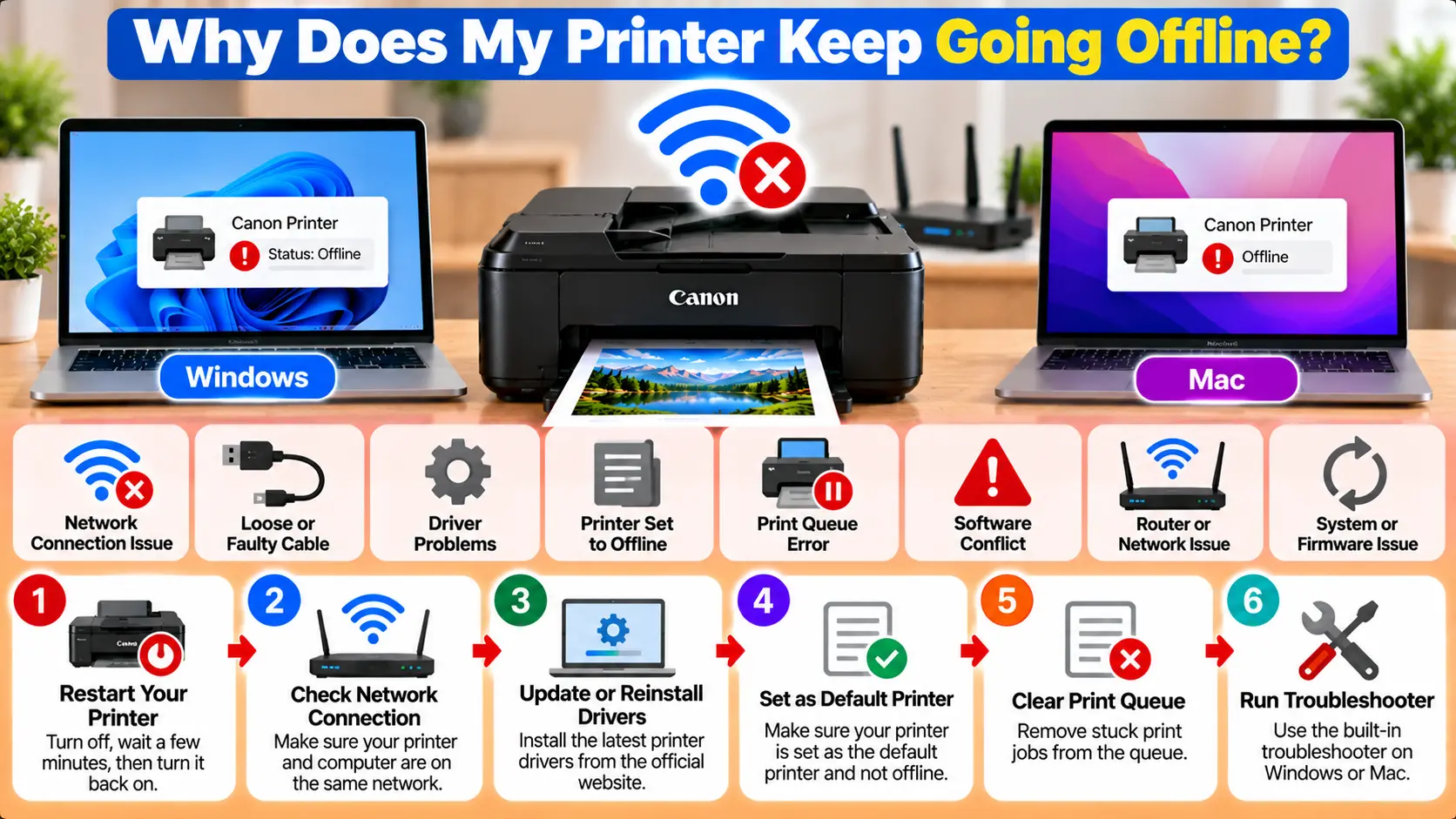
Why Does My Printer Keep Going Offline?
Your printer may keep going offline because the computer is losing communication with it. Check printer power and errors first, then verify the WiFi or USB connection. For wireless printers, make sure the printer and computer are connected to the intended network. Also check the print queue, printer status, drivers, and operating system printer settings.
What Does It Mean When a Printer Is Offline?
An offline status generally means that your computer cannot currently communicate with the printer in the way required to send and complete a print job.
This does not automatically mean the printer is broken. A printer can be powered on and still appear offline because the computer cannot reach it over the network, the USB connection is not working, the print queue is paused, or the printer has an error that requires attention.
The most useful first step is to determine whether the problem is coming from the printer itself, the connection, or the computer.
8 Common Reasons a Printer Goes Offline
1. The Printer Lost Its WiFi Connection
Wireless printers rely on a working network connection. If the printer disconnects from the router, your computer may continue to list the printer but show it as unavailable or offline.
2. The Computer and Printer Are on Different Networks
This can happen when a computer connects to a different WiFi network, guest network, access point, or extender.
The printer may still be connected to WiFi, but that does not necessarily mean the computer can communicate with it.
3. The Router or WiFi Settings Changed
If you recently replaced the router or changed the network name or WiFi password, the printer may still be trying to use its previous wireless configuration.
4. A USB Cable or Port Has a Problem
A USB printer can appear unavailable if its data cable becomes loose, the cable develops a problem, or the computer is no longer detecting the device through that port.
5. The Print Queue Is Stuck or Paused
Failed or paused print jobs can interfere with normal printing. Check the printer queue if documents remain pending and nothing prints.
6. The Printer Has an Error
Paper jams, open covers, paper-loading problems, consumable warnings, support codes, and other printer-side conditions may prevent normal printing.
7. The Wrong Printer Is Selected
Computers can retain multiple printer entries, including older installations of the same printer. A print job may be sent to an unavailable printer entry instead of the device you currently use.
8. Printer Software or Driver Problems
Incorrect, incompatible, outdated, or damaged printer software can contribute to communication and printing problems.
What Should I Check First?
Before changing advanced settings, perform these basic checks.
- Make sure the printer is turned on.
- Wait for the printer to finish starting.
- Check its display or status lights for an error.
- Check the paper supply and accessible paper path.
- Confirm the WiFi or USB connection.
- Check whether the computer can see the intended printer.
- Review the print queue for failed or paused jobs.
Why Does My Wireless Printer Keep Going Offline?
Wireless printer problems often begin with a communication failure between the printer, computer, and network.
Check these areas:
- Make sure wireless networking is enabled on the printer.
- Verify that the printer is connected to the intended network.
- Verify that the computer is connected to the intended network.
- Check whether the router, WiFi password, or network name recently changed.
- Check whether the computer joined a guest network or different access point.
- Confirm that the printer is not displaying a network error.
Microsoft specifically recommends checking that a wireless printer and Windows computer are on the same WiFi network when troubleshooting an offline printer.
For more detailed wireless troubleshooting, see: How to Connect Your Printer to WiFi .
Why Does My USB Printer Go Offline?
If you use a direct USB connection, you can usually ignore WiFi troubleshooting and focus on the physical connection and printer installation.
- Make sure the USB cable is securely connected.
- Check both the printer and computer ends of the cable.
- Try another suitable USB port if needed.
- Check whether Windows or macOS recognizes the printer.
- If you use a USB hub or adapter, check whether it is functioning correctly.
- Make sure you are printing to the correct installed printer.
If the printer works when directly connected to the computer but not through a hub or adapter, inspect that intermediate connection before reinstalling printer software.
Why Does My Printer Go Offline on Windows 11?
Windows can show a printer as offline when it cannot communicate with the device or when there is a problem with the printer configuration or printing system.
Run the Windows Printer Troubleshooter
Microsoft recommends starting Windows 11 printer troubleshooting with the automated printer troubleshooter in the Get Help app.
Check Printers & Scanners
Open:
Start > Settings > Bluetooth & devices > Printers & scanners
Confirm that the printer you want to use appears there and that you are working with the correct printer entry.
Check the Default Printer
If you have multiple installed printers, confirm that print jobs are not being sent to the wrong device.
Windows can manage the default printer automatically, or you can disable that option and manually select a default printer.
Check the Print Queue
In Printers & scanners, select your printer and open its print queue. Cancel failed or unnecessary pending jobs when appropriate.
Restart the Print Spooler
Windows uses the Print Spooler service to manage print jobs. If it is not responding normally, restarting it can help.
- Search Windows for Services.
- Open the Services application.
- Find Print Spooler.
- Right-click it.
- Select Restart.
Remove and Reinstall the Printer
If the printer remains unavailable after the basic checks, Windows provides an option to remove the printer and add it again.
Before doing this, confirm that the printer is powered on and connected.
What If I Still Use Windows 10?
Connection, queue, spooler, and printer reinstallation checks can also apply to Windows 10. However, Microsoft ended Windows 10 support on October 14, 2025, so current Windows guidance should primarily be considered in the context of Windows 11.
Why Does My Printer Go Offline on Mac?
On a Mac, first check the printer itself and its connection. Then inspect the printer and print queue in macOS.
Check Print Centre
Apple's Print Centre lets you view printers added to your Mac and manage their current print jobs.
If the printer or a print job has been paused, Print Centre provides controls to resume printing. Failed or unnecessary jobs can also be removed.
Check Printers & Scanners
Open the printer settings on your Mac and confirm that the correct printer is still installed and available.
Check the Connection
For a wireless printer, make sure the Mac and printer can communicate over the intended network. For USB, check the cable, port, hub, or adapter.
Why Does My Printer Keep Going Offline Again?
If you restore printing but the offline problem repeatedly returns, look for a recurring cause rather than repeatedly reinstalling the printer.
Pay particular attention to:
- Repeated WiFi disconnections.
- Router or access-point changes.
- The computer switching between networks.
- Unreliable USB cables, hubs, or adapters.
- Print jobs repeatedly becoming stuck.
- Duplicate printer installations.
- Driver or software compatibility problems.
- Recurring errors displayed by the printer.
Identifying when the printer goes offline can also help. For example, note whether the issue starts after the router restarts, the computer wakes from sleep, a software update occurs, or a particular print job is submitted.
Can Printer Drivers Cause an Offline Problem?
Driver or printer-installation problems can contribute to printing and recognition issues, particularly when the installed software is incompatible, damaged, or associated with an old printer installation.
However, reinstalling a driver should not automatically be the first step. Check printer power, errors, the physical or wireless connection, and the print queue first.
When driver installation is necessary, identify the exact printer model and operating system and use software intended for that device.
Printer Offline Causes and What to Check
| Possible Cause | What to Check |
|---|---|
| WiFi connection lost | Check the printer's wireless connection and intended network. |
| Different networks | Check whether the printer and computer are connected to the intended network. |
| Router settings changed | Check whether the WiFi name, password, router, or access point changed. |
| USB connection problem | Check the cable, USB port, hub, or adapter. |
| Stuck print queue | Open the queue and remove failed or unnecessary jobs. |
| Windows spooler problem | Restart the Print Spooler service when appropriate. |
| Printer error | Check the printer display or status lights and resolve the specific error. |
| Wrong printer selected | Verify that the print job is being sent to the correct installed printer. |
Common Printer Offline Troubleshooting Mistakes
- Factory-resetting the printer before checking basic connectivity.
- Reinstalling drivers repeatedly without checking the print queue.
- Assuming a WiFi symbol guarantees the computer can reach the printer.
- Ignoring a specific printer error or support code.
- Using setup instructions for a different printer model.
- Installing unknown third-party driver packages.
- Troubleshooting WiFi when the printer actually uses USB.
Related Printer Troubleshooting Guides
Frequently Asked Questions
Why does my printer say offline when it is turned on?
Being powered on does not guarantee that the computer can communicate with the printer. Check the WiFi or USB connection, printer errors, print queue, and computer printer settings.
Why does my printer keep going offline on WiFi?
Check whether the printer remains connected to the intended network and whether the router, WiFi password, network name, access point, or computer network connection has changed.
Why is my printer offline on Windows 11?
Possible causes include connection problems, pending print jobs, incorrect printer selection, a Print Spooler problem, printer errors, or an installation issue. Windows 11 also provides a printer troubleshooter through the Get Help app.
Why is my printer offline on Mac?
Check printer power and connectivity, then review the printer and its print jobs in Print Centre. Resume paused printing or remove failed jobs when appropriate.
Can a stuck print job make my printer stop printing?
Yes. A failed or stuck queue can interfere with new print jobs. Review the queue and remove unnecessary failed jobs before testing again.
Should I reset my printer when it says offline?
A factory reset is generally not the first troubleshooting step. Check printer status, connectivity, the print queue, and computer settings first. Use a model-specific reset only when it is actually required.
Final Printer Offline Checklist
- Printer is powered on.
- No blocking printer error is displayed.
- WiFi or USB connection has been checked.
- Wireless printer and computer are using the intended network.
- Correct printer is selected.
- Print queue has been checked.
- Windows Print Spooler checked when applicable.
- Mac Print Centre checked when applicable.
- Printer installation or driver checked if the problem continues.
- Test print attempted after troubleshooting.
