Canon Printer Won’t Connect to WiFi? Causes and How to Fix It
If your Canon printer won’t connect to WiFi, start by checking the network name, password, printer network status, and router connection. The problem can also appear after changing the router or Wi-Fi password, moving the printer, reinstalling it, or changing network settings. Work through the basic connection checks before reinstalling software or changing advanced settings.
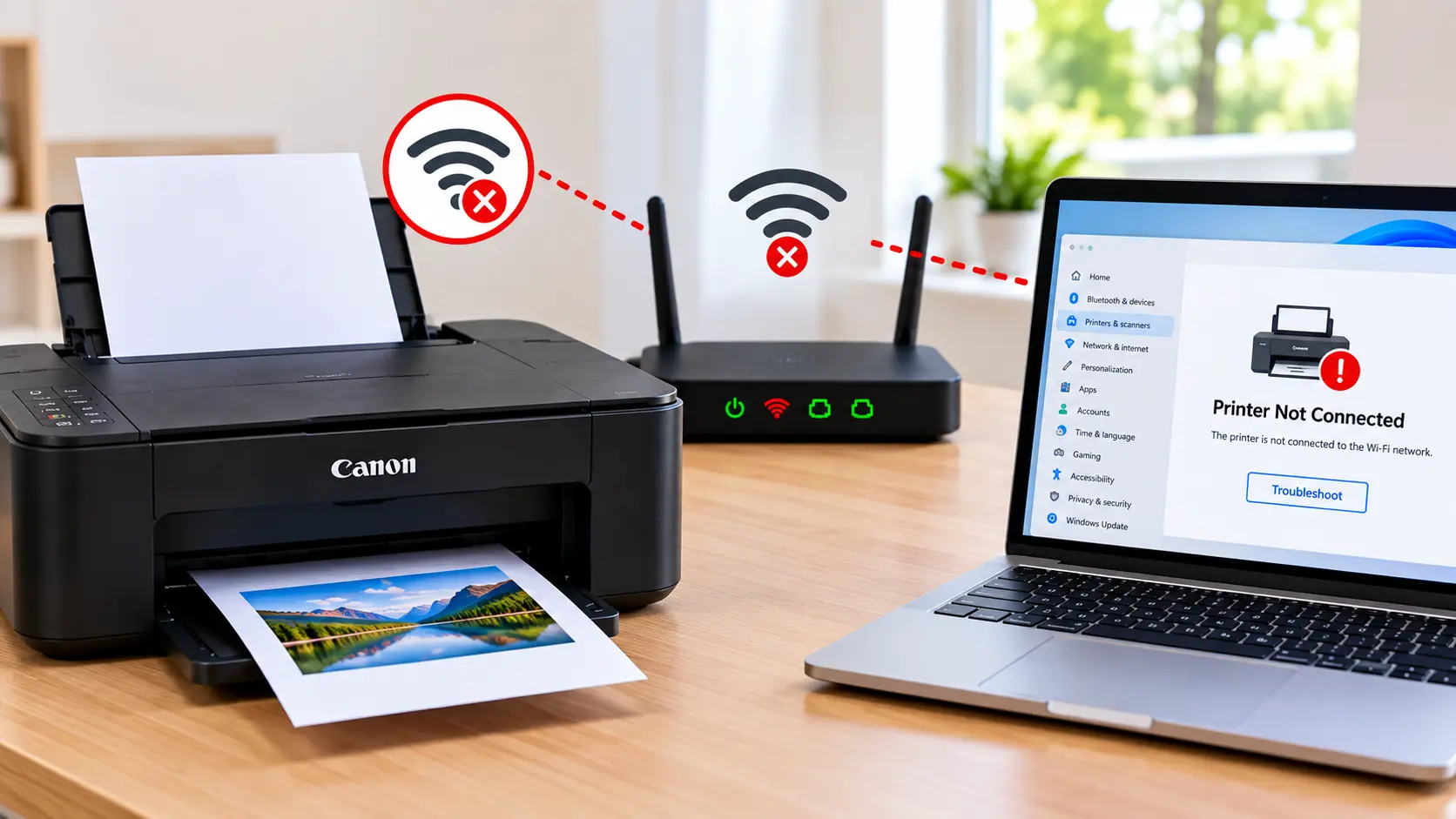
How Do I Fix a Canon Printer That Won’t Connect to WiFi?
Make sure the printer is powered on and has no unresolved error, then verify that you are selecting the correct Wi-Fi network and entering the current password. Restart the printer and router normally, retry the printer’s wireless setup, and confirm that your computer is using the intended network. If the printer connects to Wi-Fi but the computer cannot find it, troubleshoot printer discovery, installation, and software separately.
Why Won’t My Canon Printer Connect to WiFi?
Wireless connection failures do not have one universal cause. The printer may be using old network information, the password may be incorrect, or the printer may not have completed its network setup.
Common possibilities include:
- The wrong Wi-Fi network is selected.
- The Wi-Fi password was entered incorrectly.
- The router or network name was recently changed.
- The Wi-Fi password was changed.
- The printer is still configured for an old network.
- The wireless signal at the printer is weak or unstable.
- The printer has an unresolved error.
- Wireless setup was not completed.
- The printer is connected to Wi-Fi but the computer cannot discover it.
- Printer installation or software needs attention.
1. Check the Canon Printer First
Before changing router or computer settings, check whether the printer itself is ready for network setup.
Confirm that:
- The printer is powered on.
- Startup has completed.
- No paper jam or other obvious error is present.
- No unresolved support code is displayed.
- The printer is not waiting for another setup action.
2. Check the Wi-Fi Network Name and Password
One of the first things to verify is whether the printer is being connected to the intended wireless network.
Check:
- The network name is the one you intend to use.
- The Wi-Fi password is current.
- Uppercase and lowercase characters are entered correctly where applicable.
- You are not accidentally selecting a nearby network with a similar name.
If your router has multiple wireless network names, use a network configuration supported by your particular printer model.
Do not assume that every Canon printer supports every wireless configuration. Network capabilities vary by model.
3. Restart the Printer and Router
Temporary network problems can sometimes be cleared with a normal restart.
- Stop any current printer setup attempt.
- Turn the printer off normally.
- Restart the router using its normal procedure.
- Wait for the network to become available again.
- Turn the printer back on.
- Wait for the printer to finish startup.
- Retry wireless setup.
Avoid repeatedly interrupting the router while it is still starting.
4. Retry the Canon Printer Wi-Fi Setup
If the printer is not currently connected to the intended network, repeat the wireless setup method appropriate for your model.
The exact buttons, menus, and setup method vary by printer model. During setup, pay close attention to the selected network and password.
For the normal connection process, see: How to Connect Canon Printer to WiFi .
5. Canon Printer Won’t Connect After Changing the Router
A printer that worked on the old router may still contain the previous network information.
If you recently replaced or reconfigured the router, check whether any of these changed:
- Wi-Fi network name.
- Wi-Fi password.
- Wireless configuration.
- Router security configuration.
If the network information changed, reconnect the printer using the new details rather than expecting it to automatically use the previous setup.
Canon Printer Stopped Connecting After Wi-Fi Password Change
If only the Wi-Fi password changed, the printer may continue trying to connect with the previously stored credentials.
Run the normal wireless setup again and enter the current network password carefully.
Once the printer reconnects, check whether the computer can still find the printer. In some situations, the existing printer entry may resume working; in others, printer discovery or installation may need to be checked.
6. Check the Computer’s Network Connection
If the printer connects to Wi-Fi but the computer cannot find it, the problem is no longer simply “the printer won’t connect to Wi-Fi.”
Check whether:
- The computer is connected to the intended network.
- The printer has completed wireless setup.
- The computer has the correct printer installed.
- An old printer entry is being selected.
- The printer appears offline.
For printer-to-computer detection problems, see: Canon Printer Not Connecting to Computer .
7. Canon Printer Wi-Fi Troubleshooting on Windows
If the printer has joined the network but Windows cannot print to it, check the Windows printer configuration separately.
Review:
- Whether the intended Canon printer is installed.
- Whether the correct printer is selected.
- Whether the printer appears offline.
- Whether a failed job is blocking the print queue.
- Whether Windows reports a driver problem.
If Windows specifically reports an offline printer, see: Canon Printer Offline on Windows .
8. Canon Printer Wi-Fi Troubleshooting on Mac
On a Mac, first determine whether the printer is connected to Wi-Fi but missing from the printer list, or whether it is already installed and showing offline.
Check:
- The Mac is using the intended network.
- The printer has completed wireless setup.
- The intended printer appears in Printers & Scanners.
- The correct printer entry is selected.
- The print queue is not blocked.
For setup help, see: How to Set Up a Canon Printer on Mac .
If the printer is already installed but appears offline, see: Canon Printer Offline on Mac .
Canon Printer Is Connected to Wi-Fi but Computer Can’t Find It
This symptom should be separated from a printer that cannot join Wi-Fi at all.
If the printer indicates that its wireless connection is established, focus on:
- Computer network connection.
- Printer discovery.
- Existing printer entries.
- Printer installation.
- Driver or software status.
- Offline or print-queue status.
Avoid repeatedly changing the printer’s Wi-Fi settings if it is already connected successfully. Diagnose the computer side first.
9. Check Canon Printer Driver and Software
A driver does not usually fix an incorrect Wi-Fi password or a printer that has not joined the network. However, printer software becomes relevant when the printer is connected but the computer cannot use it correctly.
Check the driver or software when:
- The printer is connected to the network.
- The computer detects the printer incorrectly.
- Windows reports a driver problem.
- The printer was recently reinstalled.
- The operating system was recently updated.
Should You Reset the Canon Printer’s Network Settings?
Resetting network settings should not be the first troubleshooting step. A network reset can remove stored connection information and require the printer to be configured again.
Consider model-specific network reconfiguration only after confirming that the current network details are wrong or the existing wireless setup needs to be replaced.
What If the Canon Printer Still Won’t Connect to WiFi?
If basic wireless setup still fails, collect the details of the failure before making more changes.
Check:
- Exact Canon printer model.
- Whether the Wi-Fi network appears during setup.
- Whether the password is accepted.
- Whether the printer displays a network error.
- Whether the problem started after a router or password change.
- Whether other devices can use the intended network.
- Whether the printer connects but the computer cannot find it.
These details help distinguish a printer network setup problem from a computer discovery or printer installation problem.
Canon Printer Wi-Fi Troubleshooting Table
| Problem | What to Check |
|---|---|
| Printer cannot find Wi-Fi | Network availability, printer wireless setup, router configuration, and model capabilities. |
| Wi-Fi password is rejected | Correct network, current password, and accurate character entry. |
| Problem started after new router | Reconnect the printer using the current network details. |
| Problem started after password change | Repeat wireless setup with the new password. |
| Printer says connected but PC cannot find it | Computer network, printer discovery, installation, and driver. |
| Printer is connected but offline | Correct printer entry, queue, connection, and operating-system printer status. |
| Wi-Fi fails after moving printer | Network availability and connection quality at the new location. |
Wi-Fi Troubleshooting Mistakes to Avoid
- Do not repeatedly reset the printer without identifying the connection problem.
- Do not assume the old Wi-Fi password still applies after network changes.
- Do not reinstall drivers as the first fix for an incorrect Wi-Fi password.
- Do not use random service-mode button combinations.
- Do not create multiple unnecessary printer entries on the computer.
- Do not assume every printer supports every router configuration.
Related Canon Printer Guides
Frequently Asked Questions
Why won’t my Canon printer connect to WiFi?
Check the selected network, current Wi-Fi password, printer network setup, router status, and any printer-side error. If the printer is already connected but the computer cannot find it, troubleshoot computer discovery and printer installation separately.
Why did my Canon printer stop connecting after I changed my router?
The printer may still have connection details for the previous router. If the network name, password, or wireless configuration changed, reconnect the printer using the current network information.
Why won’t my Canon printer accept my Wi-Fi password?
Confirm that you selected the correct network and are entering its current password exactly. Pay attention to uppercase, lowercase, numbers, and other characters where applicable.
Why is my Canon printer connected to Wi-Fi but not showing on my computer?
If the printer has successfully joined the network, check the computer’s network connection, printer discovery, installed printer entry, offline status, and compatible printer software.
Should I reinstall the driver if my Canon printer won’t connect to WiFi?
Not as the first step. A driver will not correct a wrong Wi-Fi password or an incomplete printer network setup. Driver troubleshooting becomes more relevant after the printer is connected but the computer cannot use it correctly.
Should I reset my Canon printer to fix Wi-Fi?
Start with basic network checks and the normal wireless setup procedure. Network-reset procedures vary by model and can remove stored connection information, so they should not be treated as a universal first step.
Can I reconnect my Canon printer after changing the Wi-Fi password?
Yes. Use the wireless setup procedure appropriate for the printer and enter the current network password. After reconnecting, verify that the computer can still detect and use the printer.
Final Canon Wi-Fi Troubleshooting Checklist
- Printer is powered on and ready.
- No unresolved printer support code is present.
- Correct Wi-Fi network is selected.
- Current Wi-Fi password is being used.
- Printer and router have been restarted normally.
- Wireless setup has been retried correctly.
- Old router details are not being used.
- Computer is connected to the intended network.
- Printer discovery and installation are checked if Wi-Fi is already connected.
- Driver troubleshooting is used only when relevant.
