Canon Printer Ink Cartridge Cannot Be Recognized? How to Fix It
If your Canon printer says an ink cartridge cannot be recognized, the problem may involve cartridge installation, compatibility, protective material, cartridge recognition, or another cartridge-related condition. Start by recording the complete message and identifying which cartridge is affected before removing or replacing anything.
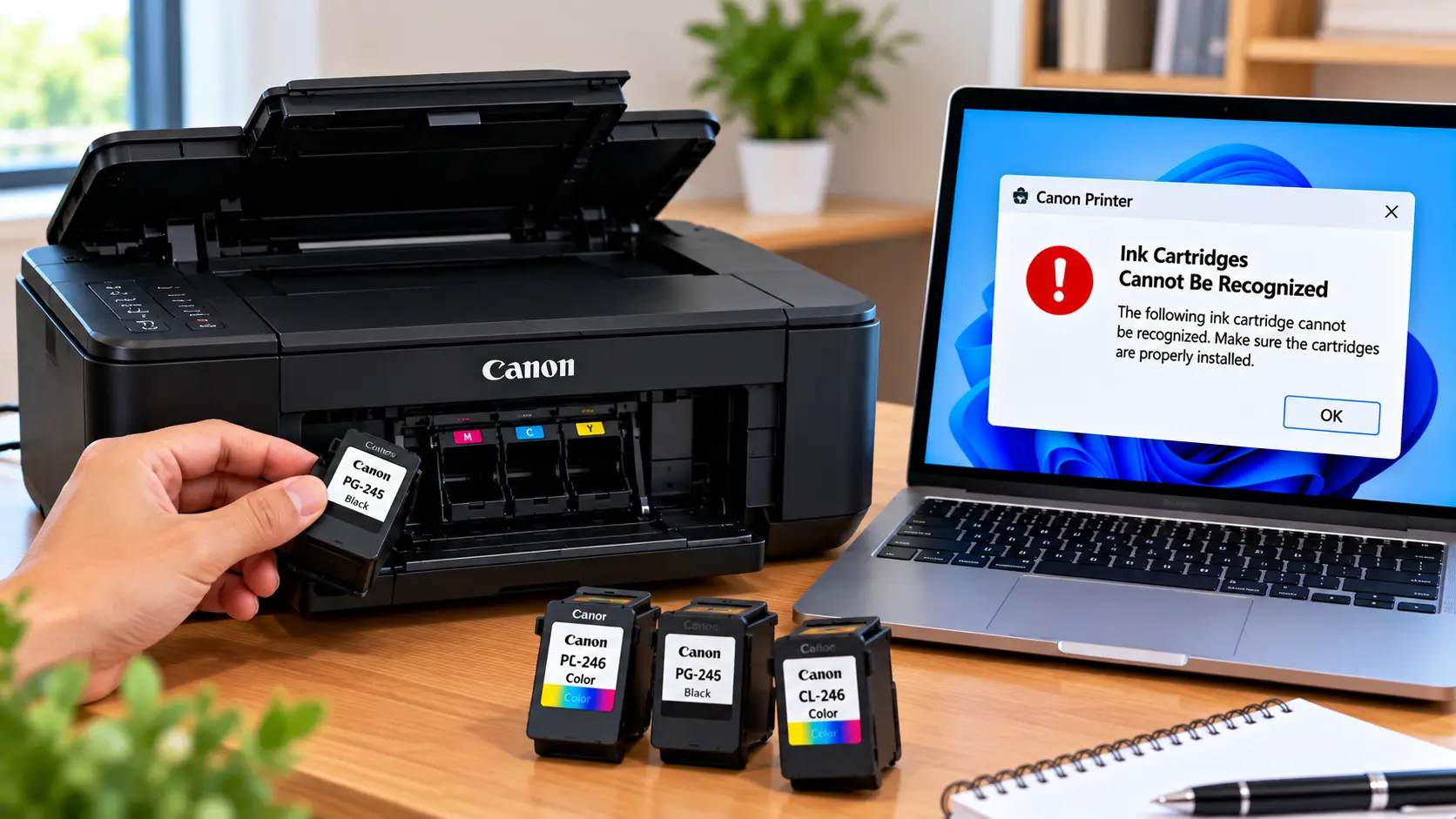
How Do I Fix a Canon Cartridge Recognition Error?
Note which cartridge the printer identifies, restart the printer normally, and check that the affected user-removable cartridge is compatible and installed in the correct position. If it is a new cartridge, make sure required protective material has been removed. Reseat the cartridge only according to the normal procedure for your printer model. Avoid scraping contacts, modifying cartridge chips, or forcing printer components.
What Does “Ink Cartridge Cannot Be Recognized” Mean?
A cartridge recognition message means the printer is not accepting one or more installed cartridges as expected. The exact wording and cause can vary between Canon printer models.
The message may appear immediately after installing a cartridge, after the printer has been moved or restarted, or while the printer is already in use. In some cases, the printer may identify the affected cartridge or position on its display.
Why Is My Canon Printer Not Recognizing the Ink Cartridge?
Possible causes can include:
- The cartridge is not fully seated.
- The cartridge is installed in the wrong position.
- Protective material remains on a new cartridge.
- The cartridge is not appropriate for the exact printer model or region.
- The printer detects a cartridge-related condition.
- Cartridge contact areas appear contaminated or damaged.
- A recently installed cartridge may be defective.
- Another printer condition is interfering with normal cartridge recognition.
Do not assume that every recognition error has the same cause. The exact printer model and full message should guide troubleshooting.
1. Check the Complete Cartridge Error Message
Before removing cartridges, read the entire message shown by the printer or computer.
Look for information such as:
- Which cartridge is affected.
- Whether a cartridge is reported as missing.
- Whether the printer says the cartridge cannot be recognized.
- Whether another support code is displayed.
- Whether the problem began immediately after a cartridge replacement.
A specific support code may require its own troubleshooting procedure.
2. Restart the Canon Printer Normally
If the cartridge appears to be installed normally, try a standard restart.
- Stop sending new print jobs.
- Turn the printer off using its normal power control.
- Allow shutdown to complete.
- Wait briefly.
- Turn the printer back on.
- Wait for startup to complete.
- Check whether the cartridge message returns.
If the same cartridge is still identified, continue with the installation checks below.
3. Check the Ink Cartridge Installation
If the cartridge is intended to be user-removable on your printer model, open the normal cartridge access area and follow the model's standard replacement procedure.
Check that:
- The cartridge is in the correct position.
- It is oriented correctly.
- It is seated normally.
- No obvious packaging material blocks installation.
- The cartridge and holder do not show obvious physical damage.
If appropriate for your model, remove and reinstall only the affected cartridge using the normal replacement procedure.
4. Check a New Cartridge for Protective Material
New cartridges can include protective material that must be removed as part of normal installation. If required material remains in place, the cartridge may not operate as expected.
If the recognition error started immediately after installing a new cartridge, compare the cartridge with its normal installation requirements.
Remove only material specifically intended to be removed during cartridge installation. Do not peel off labels or parts unless they are identified as removable for that cartridge.
5. Confirm Cartridge Compatibility
A cartridge that physically resembles another cartridge is not necessarily compatible with the printer.
Check the cartridge designation against the exact printer model and the requirements for the printer in your market or region.
This is especially important when:
- The problem began with a newly purchased cartridge.
- The cartridge came from another printer.
- The printer was purchased in a different region.
- More than one similar cartridge type is available.
6. Inspect Cartridge Contact Areas Safely
If your printer's normal cartridge replacement procedure exposes the cartridge contact area, you can visually inspect the cartridge for obvious contamination or physical damage.
Avoid touching electrical contact areas unnecessarily. Oils, moisture, scratches, or physical damage can interfere with reliable operation.
Canon Printer Does Not Recognize a New Cartridge
If the old cartridge was recognized but the new cartridge is not, focus first on the newly installed cartridge.
Check:
- The cartridge designation.
- Its installation position.
- Required protective material.
- Any visible physical damage.
- The exact error shown after installation.
If the correct cartridge is installed normally but remains unrecognized, it may require replacement or additional model-specific diagnosis.
What If Multiple Ink Cartridges Are Not Recognized?
If several cartridges suddenly become unrecognized at the same time, avoid repeatedly removing every cartridge without first checking the complete printer message.
Consider whether the problem appeared after:
- Replacing multiple cartridges.
- Moving the printer.
- A printer error or interruption.
- Opening or working around the cartridge area.
Check each user-removable cartridge according to the printer's normal installation procedure. If all cartridges appear correctly installed and the message remains, move to model-specific troubleshooting.
Cartridge Recognition Error With Another Support Code
If the cartridge recognition message appears with a specific Canon support code, the support code may provide more useful troubleshooting information.
For example, some Canon models can display cartridge or print-head related codes that require different checks.
If your printer shows U052, see our Canon Printer Error U052 guide .
If it displays E04, see: Canon Printer Error E04 troubleshooting .
What Should You Avoid?
Cartridge recognition problems can lead users to try aggressive workarounds. Avoid techniques that may damage the cartridge or printer.
- Do not force a cartridge into the holder.
- Do not force the cartridge holder or carriage.
- Do not scrape electrical contacts.
- Do not modify cartridge chips or electrical components.
- Do not use sharp or metal tools inside the printer.
- Do not dismantle the printer to reach cartridge electronics.
- Do not treat random button combinations or service-mode procedures as a universal fix.
What If the Cartridge Still Cannot Be Recognized?
If the error remains after a normal restart and correct installation checks, record the details of the problem.
Note:
- Exact Canon printer model.
- Complete error message.
- Any support code.
- Which cartridge is affected.
- Whether the cartridge is newly installed.
- Whether another cartridge is recognized in the printer.
- Whether several cartridges are affected.
This information can help determine whether the next step should focus on the cartridge, installation, or a printer-side condition.
Canon Cartridge Recognition Troubleshooting Table
| Problem | What to Check |
|---|---|
| New cartridge not recognized | Compatibility, installation position, protective material, and complete printer message. |
| Cartridge appears loose | Reinstall it only through the normal cartridge replacement procedure. |
| Wrong cartridge position | Install each cartridge in the appropriate position for the exact model. |
| Error started after replacement | Recheck the newly installed cartridge first. |
| Several cartridges not recognized | Check the full printer message and installation before repeatedly removing all cartridges. |
| Cartridge has visible damage | Avoid forcing it into the printer; replacement may be necessary. |
| Error includes a support code | Troubleshoot the specific code using instructions for the exact printer model. |
Related Canon Printer Guides
Frequently Asked Questions
Why does my Canon printer say the ink cartridge cannot be recognized?
Possible reasons include incorrect cartridge installation, remaining protective material, incompatible cartridge type, physical cartridge damage, or another cartridge-recognition condition. The exact message and printer model should guide troubleshooting.
How do I get my Canon printer to recognize the ink cartridge?
Confirm the affected cartridge is compatible, installed in the correct position, and seated normally. For a new cartridge, check that required protective material has been removed. Restart the printer normally and review the complete message if the problem remains.
Why is my new Canon cartridge not recognized?
Check the cartridge designation, installation position, protective material, and whether the printer displays another support code. A new cartridge that remains unrecognized after correct installation may require replacement or further diagnosis.
Should I remove and reinstall the cartridge?
If the cartridge is designed for normal user replacement, reseating the affected cartridge can be a useful check. Follow the standard cartridge replacement procedure for the exact printer model and do not force it.
Can dirty cartridge contacts cause recognition problems?
Contamination or physical damage around contact areas may affect operation in some situations. Visually inspect user-accessible cartridge areas, but avoid scraping contacts or applying liquids to printer electronics.
Why are multiple Canon cartridges suddenly not recognized?
If several cartridges are affected at once, check the complete printer message and consider what changed immediately before the problem. Confirm normal cartridge installation before moving to model-specific diagnosis.
Should I reset my Canon printer for a cartridge recognition error?
Start with a normal restart. Avoid random service-mode or button combinations because they are not universal solutions for cartridge recognition problems.
Final Cartridge Recognition Checklist
- Record the complete printer message.
- Identify the affected cartridge.
- Restart the printer normally.
- Check that the cartridge is installed in the correct position.
- Check required protective material on a new cartridge.
- Confirm cartridge compatibility with the exact printer model.
- Inspect for obvious physical cartridge damage.
- Do not force the cartridge or cartridge holder.
- Do not scrape electrical contacts.
- Do not modify cartridge chips.
- Troubleshoot any additional support code.
- Use model-specific diagnosis if the recognition problem continues.
