Canon Printer Paper Jam: How to Clear It Safely
A Canon printer paper jam can occur when paper becomes stuck, feeds at an angle, tears inside the printer, or fails to move correctly through the paper path. The safest approach is to stop printing, identify the accessible jam location, and remove the paper carefully without forcing internal parts.
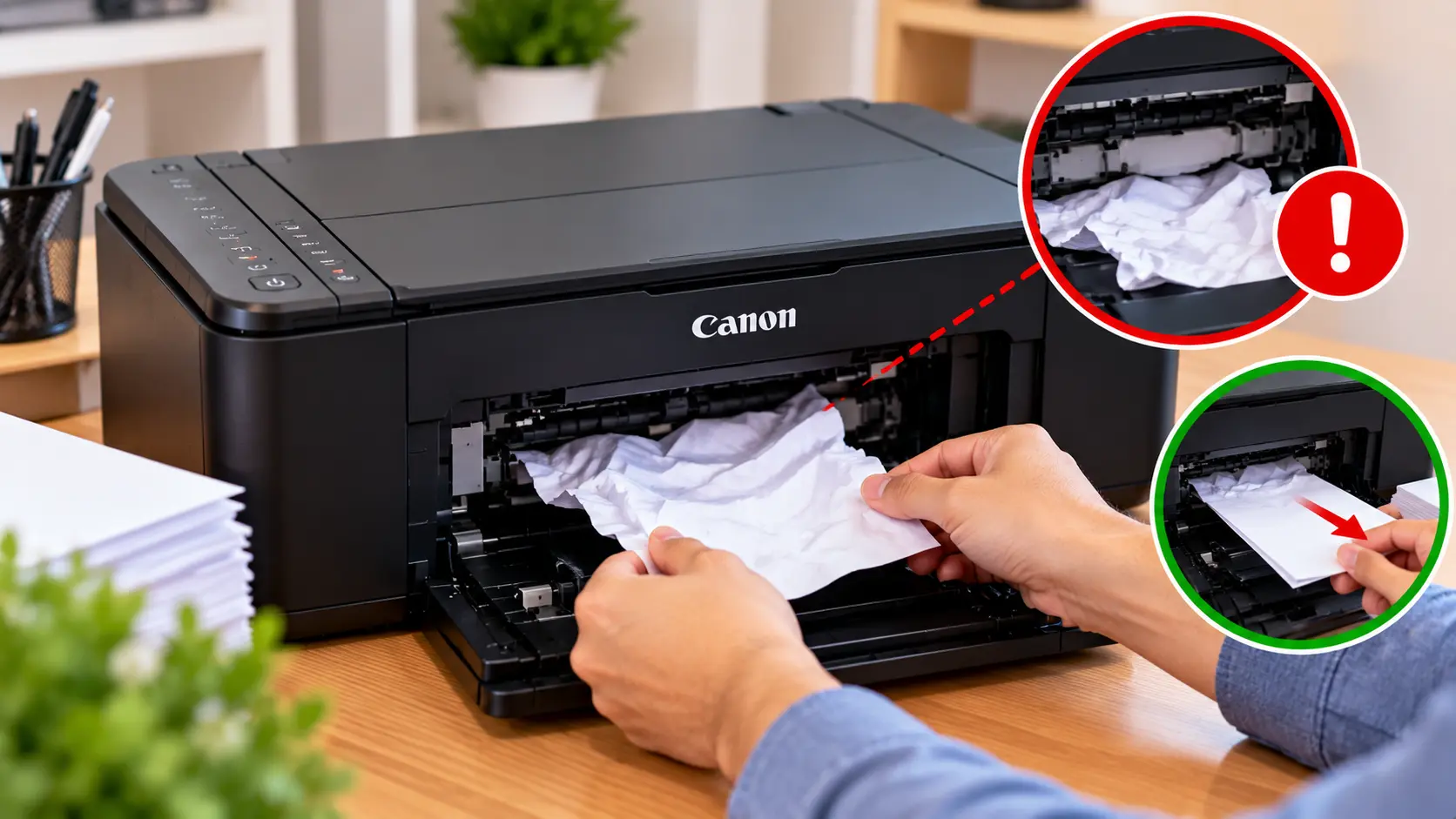
How Do I Clear a Paper Jam in a Canon Printer?
Stop the print job and follow the shutdown or jam-clearing procedure appropriate for your Canon model. Check accessible paper trays, output areas, and other user-accessible paper paths for stuck or torn paper. Remove paper slowly in the natural direction of travel where possible, without forcing rollers, cartridges, or other internal components.
Before Clearing a Canon Printer Paper Jam
Do not immediately pull hard on visible paper. Paper can tear and leave small pieces inside the printer, potentially making the problem harder to locate.
Before proceeding:
- Cancel or stop the current print job.
- Note any error message or support code shown by the printer.
- Follow the model's normal instructions for accessing a paper jam.
- Keep loose objects away from the open printer.
- Avoid touching internal components that are not part of the user-accessible paper path.
Basic Steps to Clear a Canon Printer Paper Jam
The exact jam-clearing procedure varies by model, but the following sequence can help you inspect the common user-accessible areas.
- Stop the print job.
- Check the paper input tray.
- Check the paper output area.
- Look for visible sheets that have fed at an angle.
- Open only the covers intended for normal user access.
- Look carefully for torn pieces of paper.
- Remove accessible paper gently without forcing internal parts.
- Close all opened covers correctly.
- Reload suitable paper neatly.
- Restart or resume the printer as appropriate and test with a simple print job.
Check the Canon Printer Paper Input Tray
A jam can begin before the paper fully enters the printer. Check the loaded paper for folds, wrinkles, damaged edges, excessive sheets, or sheets that are not aligned correctly.
Remove the paper stack and inspect it. Before reloading:
- Remove damaged or curled sheets.
- Make sure the paper is suitable for the printer.
- Align the stack neatly.
- Do not overload the paper tray.
- Adjust the paper guides so they support the stack without bending it.
If a sheet is partly fed into the printer, do not yank it abruptly. Follow the accessible paper path and the instructions appropriate for the model.
Check the Paper Output Area
If the printer started feeding a sheet but stopped before ejecting it, inspect the output area for visible paper.
If paper is clearly accessible and the printer's jam-clearing instructions permit removal from that location, hold the sheet evenly and remove it slowly.
Stop if the paper does not move with reasonable resistance. Excessive pulling can tear the sheet or affect internal components.
Check Accessible Areas Inside the Printer
Some jams occur inside a user-accessible printer compartment. Open only the covers intended for routine user access and inspect the visible paper path.
Look for:
- Folded or crumpled paper.
- Small torn paper fragments.
- Labels or other foreign material.
- Paper caught near accessible rollers.
- An obvious obstruction in the normal paper path.
What to Do If Paper Tears Inside the Canon Printer
Torn paper can cause the printer to continue reporting a jam even after the main sheet has been removed.
Use good lighting to inspect the accessible paper path. Check for small scraps around areas where the sheet was stuck.
If a fragment is clearly visible and can be removed safely from a user-accessible area, remove it carefully. Do not insert knives, screwdrivers, or other sharp objects into the printer.
If the fragment cannot be reached without disassembly, stop rather than risk damaging the printer.
Canon Printer Says Paper Jam but No Paper Is Visible
If the printer continues to display a paper-jam message even though no full sheet is visible, a small paper fragment or another obstruction may still be present in an accessible paper path.
Recheck the input and output areas, accessible covers, and the location where the original jam occurred.
Also confirm that all user-accessible covers and trays have been returned to their normal operating positions.
If no obstruction is visible and the message persists, use troubleshooting specific to the exact Canon model rather than repeatedly forcing paper through the printer.
Why Does My Canon Printer Keep Jamming?
Repeated paper jams can indicate a paper-loading problem, unsuitable media, debris in the paper path, or a feed-related issue.
1. Too Much Paper in the Tray
Overloading the tray can make it difficult for the printer to feed one sheet at a time.
2. Paper Is Curled or Damaged
Bent, wrinkled, damp, or damaged sheets may not travel smoothly through the printer.
3. Paper Guides Are Incorrectly Positioned
Guides that are too loose may allow paper to feed at an angle, while guides that are too tight can distort the stack.
4. Mixed or Unsupported Media
Mixing different paper sizes or types in the same stack can contribute to feeding problems. Use media appropriate for your specific printer and print settings.
5. Paper Fragments or Debris Remain Inside
A small piece of torn paper can interfere with the paper path even when the main jam has already been removed.
6. A Feed Mechanism Needs Attention
If correctly loaded, suitable paper repeatedly jams in the same location and no obstruction is visible, the printer may require model-specific troubleshooting or service.
Canon Paper Jam Troubleshooting Table
| Problem | What to Check |
|---|---|
| Paper will not feed correctly | Check the paper stack, tray load, paper guides, and condition of the sheets. |
| Paper feeds at an angle | Reload the paper evenly and check the position of the paper guides. |
| Paper stops inside printer | Inspect user-accessible paper paths for a visible obstruction. |
| Paper tears during removal | Check carefully for remaining paper fragments before printing again. |
| Jam message remains after paper is removed | Recheck accessible areas for scraps and confirm covers and trays are correctly positioned. |
| Printer jams repeatedly | Check paper condition, media type, tray loading, debris, and whether the jam repeatedly occurs in the same location. |
How to Help Prevent Canon Printer Paper Jams
Correct paper handling can reduce many common feeding problems.
- Use paper suitable for your printer model.
- Store paper in a dry location.
- Avoid loading folded, torn, or badly curled sheets.
- Keep the paper stack within the tray's intended capacity.
- Align paper before loading it.
- Adjust paper guides correctly.
- Remove foreign objects from around the paper input area.
- Use print settings that match the paper size and media being used.
Related Canon Printer Troubleshooting Guides
Frequently Asked Questions
How do I get jammed paper out of my Canon printer?
Stop printing and inspect the user-accessible paper path. If the paper is safely accessible, remove it slowly without forcing internal mechanisms. Check for torn pieces before closing the printer and testing again.
Why does my Canon printer say paper jam when there is no paper?
A small torn piece of paper or another obstruction may remain in an accessible paper path. Recheck the area where the original jam occurred and make sure covers and trays are correctly positioned.
Why does paper keep jamming in my Canon printer?
Repeated jams may be related to damaged or unsuitable paper, an overloaded tray, incorrectly positioned paper guides, debris, or a feed-related issue.
Can I pull jammed paper out of the printer?
If the paper is in a user-accessible location and the model's jam-clearing procedure permits removal there, it can be removed carefully. Avoid forceful pulling because the paper may tear or internal components may be affected.
What should I do if the paper tears inside the printer?
Inspect accessible areas for remaining scraps and remove only pieces that can be reached safely. Do not use sharp tools or disassemble the printer just to reach a fragment.
What if the Canon printer still shows a jam after I clear it?
Check again for small paper fragments, confirm trays and covers are properly positioned, and restart or resume the printer according to its normal procedure. Persistent errors may require model-specific troubleshooting.
Final Paper Jam Checklist
- Stop the current print job.
- Check the input tray.
- Check the output area.
- Inspect user-accessible paper paths.
- Look for small torn paper fragments.
- Do not force internal printer components.
- Reload clean, suitable paper correctly.
- Close all covers and trays correctly.
- Test with a simple print job.
