Canon Printer in Error State? Causes and How to Fix It
A Canon printer in error state may stop accepting print jobs even though it is powered on and connected to the computer. The message can be related to a printer-side error, offline status, Wi-Fi or USB communication, a stuck print queue, paper or cartridge problems, or printer software. Start by checking the printer itself before making advanced changes in Windows.
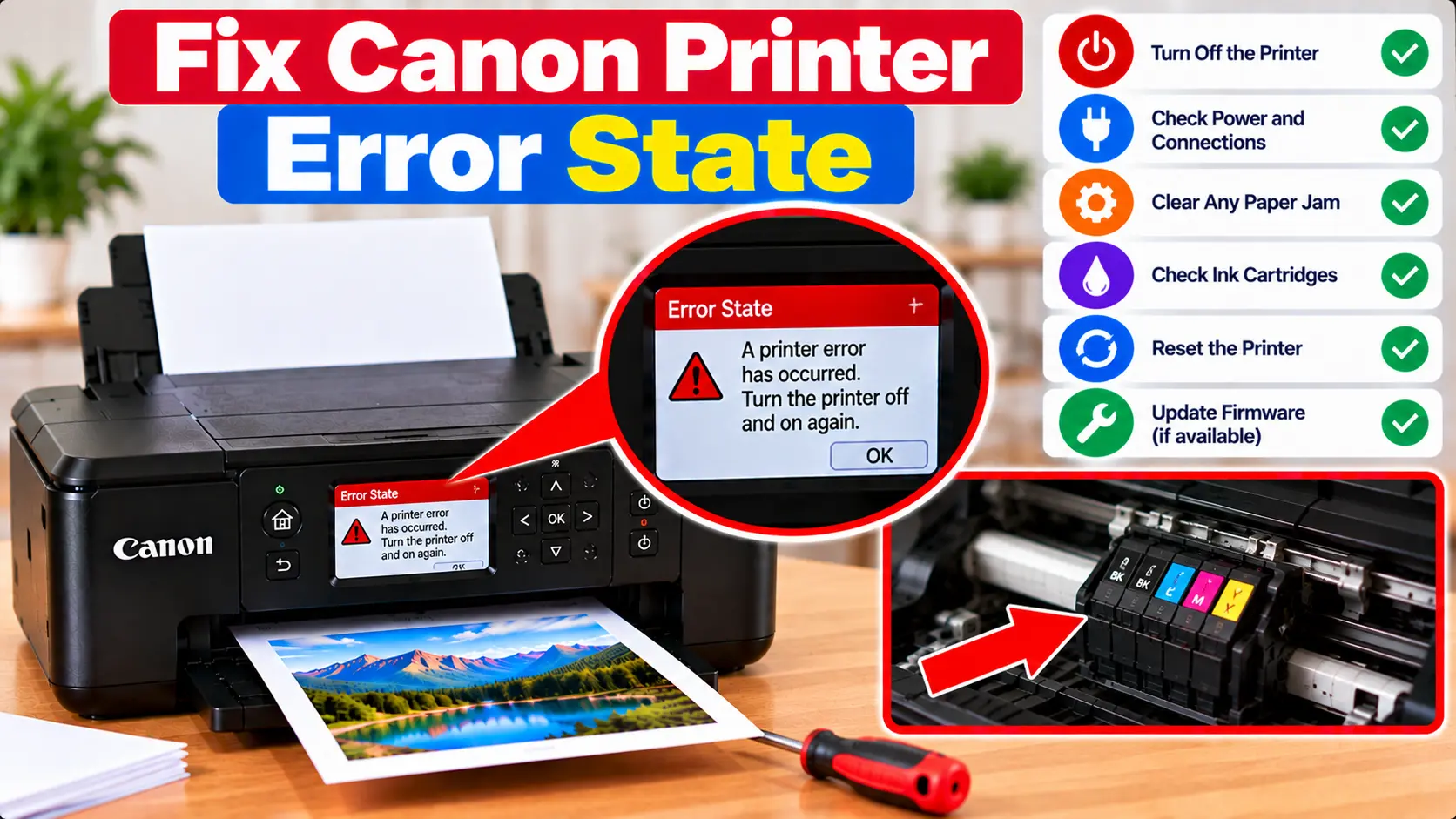
How Do I Fix a Canon Printer in Error State?
Check the printer display for a specific error or support code, make sure paper and cartridges are installed normally, and restart the printer and computer. Then verify the Wi-Fi or USB connection, confirm the correct printer is selected, clear stuck print jobs, and check whether the printer is offline. On Windows, restarting the Print Spooler and checking the printer driver can also help when no printer-side error remains.
What Does “Canon Printer in Error State” Mean?
An error-state message generally indicates that the computer cannot use the selected printer normally. It does not identify one universal Canon printer failure.
The actual cause may be on the printer itself or between the printer and computer. For example, a paper jam can prevent printing, but a disconnected printer or failed print queue can also make the printer appear unavailable.
Why Is My Canon Printer in Error State?
Common causes can include:
- A printer-side error or support code.
- A paper jam or paper-feed problem.
- A cartridge or ink-related warning.
- The printer being shown as offline.
- A lost Wi-Fi connection.
- A loose or unavailable USB connection.
- The wrong printer being selected.
- A failed document blocking the print queue.
- A Windows Print Spooler problem.
- A missing, outdated, or incorrectly configured printer driver.
1. Check the Canon Printer First
Before changing Windows settings, inspect the printer itself.
Check that:
- The printer is powered on.
- No specific support code is displayed.
- Paper is loaded correctly.
- There is no visible paper jam.
- Printer covers are in their normal operating position.
- The printer is not reporting a cartridge problem.
If a specific code appears, use troubleshooting appropriate for that code rather than repeatedly sending print jobs.
2. Restart the Printer and Computer
A normal restart can clear temporary communication or queue problems.
- Save any open documents.
- Stop sending new print jobs.
- Turn the printer off normally.
- Restart the computer.
- Turn the printer back on.
- Wait until startup is complete.
- Try printing one simple document.
If the error state returns, continue with the connection and printer-status checks.
3. Check the Wi-Fi or USB Connection
Canon Printer Connected Through Wi-Fi
Confirm that the printer is still connected to the intended wireless network. A changed Wi-Fi password, new router, changed network name, or weak connection can interrupt communication.
If the wireless connection has failed, see: Canon Printer Won't Connect to WiFi .
For reconnecting the printer, use our Canon Printer Wi-Fi Setup guide .
Canon Printer Connected Through USB
Make sure the USB cable is securely connected at both ends. If appropriate, test another working USB port and avoid unnecessary hubs or adapters while diagnosing the problem.
If the computer cannot detect the printer, see: Canon Printer Not Connecting to Computer .
4. Check Whether the Canon Printer Is Offline
Error-state and offline symptoms can sometimes overlap. If the computer cannot communicate with the selected printer, printing may stop even though the printer itself is powered on.
Check:
- Printer power.
- Wi-Fi or USB connection.
- Correct printer selection.
- Print queue status.
- Whether printing is paused.
For detailed offline troubleshooting, see: Canon Printer Offline .
5. Clear Stuck Print Jobs
A failed print job can block later documents and make the printer appear unavailable.
Open the queue for the intended Canon printer and look for jobs that are:
- Paused.
- Showing an error.
- Stuck on printing.
- Waiting behind an old failed job.
Cancel failed or unnecessary jobs. Once the queue is clear, send one small test document.
6. Restart the Windows Print Spooler
If the printer itself is ready but Windows still cannot process print jobs, restarting the Print Spooler may help.
- Press Windows + R.
- Type services.msc.
- Press Enter.
- Find Print Spooler.
- Right-click Print Spooler.
- Select Restart.
- Wait for the service to restart.
- Try printing again.
This step addresses the Windows print service. It will not correct a paper jam, cartridge error, or other physical printer condition.
7. Check Paper, Jams, and Cartridges
A printer-side condition can appear on the computer as a general error state.
Check the Paper
- Make sure paper is loaded correctly.
- Check for visible jammed or torn paper.
- Check user-accessible paper paths.
- Make sure trays are in their normal position.
If paper is jammed, follow our Canon Printer Paper Jam guide .
Check the Cartridges
Review any cartridge message displayed by the printer. If a cartridge cannot be recognized, see: Canon Ink Cartridge Cannot Be Recognized .
8. Make Sure the Correct Canon Printer Is Selected
Windows can contain multiple printer entries, including old installations or virtual printers. A print job may be sent to the wrong destination.
Open the print dialog and verify that the intended Canon printer is selected.
If several similar printer entries appear, identify the one that corresponds to the connection you are currently using.
9. Check the Canon Printer Driver
If the printer itself shows no physical error and the connection appears normal, check the printer software and driver.
Driver troubleshooting may be useful when:
- The error began after a Windows update.
- The printer was recently installed.
- Windows reports a driver problem.
- The printer is detected but cannot process print jobs.
- An old printer installation remains on the computer.
See: Canon Printer Driver Download and Installation .
If Windows specifically says the driver is unavailable, see: Canon Printer Driver Unavailable .
10. Remove and Re-add the Printer if Necessary
If Windows has an outdated or incorrect printer entry, removing that printer entry and adding the printer again can sometimes restore normal communication.
Before doing this, make sure:
- The printer is powered on.
- Its Wi-Fi or USB connection is working.
- You know which printer entry is actually in use.
- No printer-side support code needs to be fixed first.
After adding the printer again, send one simple test document before changing additional settings.
What If the Canon Printer Still Shows Error State?
If the problem continues, identify whether the failure is coming from the printer itself or from the computer.
Check:
- Does the printer display a support code?
- Does Windows detect the printer?
- Does the printer appear online or offline?
- Does the print job enter the queue?
- Does the queue show an error?
- Can the printer produce its own test or maintenance output?
- Did the problem start after changing the router, driver, cartridge, or Windows configuration?
These details help separate connection, Windows print-service, driver, cartridge, paper, and printer-side problems.
Canon Printer Error State Troubleshooting Table
| Symptom | What to Check |
|---|---|
| Printer displays a support code | Troubleshoot the specific printer code first. |
| Printer shows offline | Power, Wi-Fi or USB, correct printer entry, and queue status. |
| Print job is stuck | Clear failed jobs and check the Windows Print Spooler. |
| Printer not detected | Wi-Fi or USB connection, printer installation, and driver. |
| Error started after router change | Recheck the printer's wireless network connection. |
| Error started after Windows update | Printer selection, queue, driver, and printer installation. |
| Paper or cartridge warning | Resolve the printer-side condition before changing Windows settings. |
| Driver unavailable | Check the appropriate printer driver and installation. |
What Should You Avoid?
- Do not use random reset combinations as a universal fix.
- Do not force printer mechanisms.
- Do not use sharp tools inside the printer.
- Do not dismantle the printer for a general Windows error-state message.
- Do not repeatedly send print jobs while the queue is blocked.
- Do not reinstall drivers before checking an obvious printer-side error.
Related Canon Printer Guides
Frequently Asked Questions
Why is my Canon printer in error state?
An error state can be caused by a printer-side error, offline status, connection problem, blocked print queue, paper or cartridge issue, Windows Print Spooler problem, or printer driver configuration.
How do I get my Canon printer out of error state?
Check the printer for a specific error first, restart the printer and computer, verify the connection, clear stuck print jobs, and confirm the correct printer is selected. If Windows still reports an error, check the Print Spooler and driver.
Why does Windows say my Canon printer is in error state?
Windows may show an error when the selected printer cannot process the job normally. Check whether the printer itself shows an error, whether it is offline, and whether the queue or connection has failed.
Can an offline printer show an error state?
Offline and error-state symptoms can overlap when Windows cannot communicate with the selected printer. Check the connection, selected printer entry, and queue status.
Can a paper jam cause a printer error state?
Yes. A paper jam or another printer-side condition can prevent the printer from processing jobs and may be reflected as an error on the computer.
Can a printer driver cause an error state?
Driver or installation problems can affect communication between Windows and the printer. Check the driver after confirming that the printer itself has no unresolved physical error.
Should I reset my Canon printer to fix error state?
Start with a normal restart. A general error-state message does not justify using random service-mode or reset combinations. Troubleshoot the actual printer or computer condition first.
Final Canon Printer Error State Checklist
- Check the printer display for a support code.
- Check paper and cartridges.
- Restart the printer and computer.
- Check Wi-Fi or USB connectivity.
- Check whether the printer is offline.
- Confirm the correct printer is selected.
- Clear stuck print jobs.
- Restart the Windows Print Spooler if needed.
- Check the printer driver.
- Re-add the printer only when appropriate.
- Troubleshoot any specific printer support code.
