Canon Printer Not Responding: How to Troubleshoot the Problem
A Canon printer not responding can occur when the computer sends a print command but the printer does not start printing or communicate as expected. The cause may involve the printer itself, a stuck print queue, offline status, USB or Wi-Fi communication, printer software, or the computer. Start with basic printer checks and then work through the connection and software steps below.
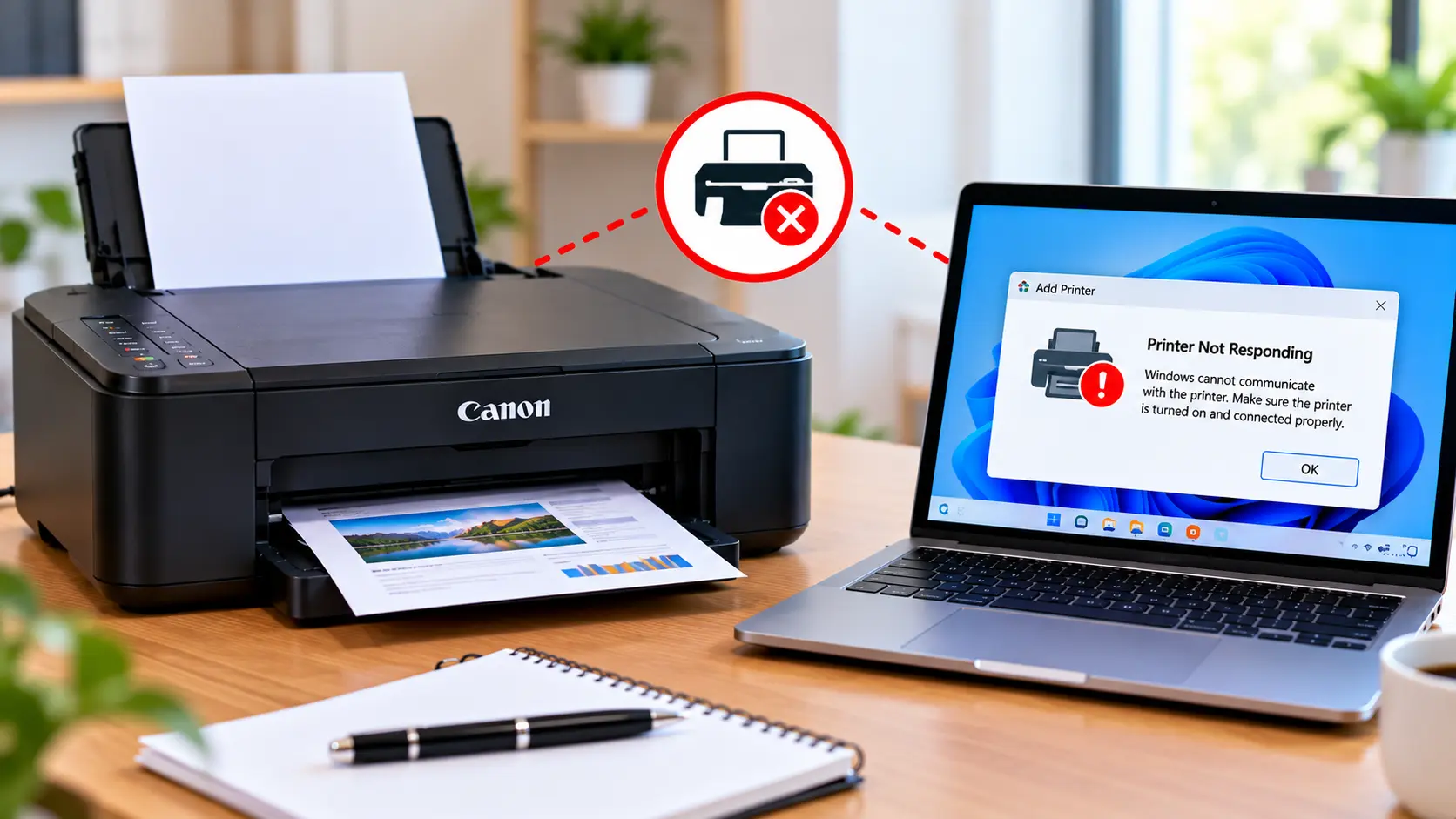
How Do I Fix a Canon Printer That Is Not Responding?
Make sure the printer is powered on and does not show an unresolved error. Restart the printer and computer, then check the print queue for stuck or paused jobs. Confirm the correct printer is selected and that it is not shown as offline. For USB printers, check the cable. For wireless printers, verify the local network connection. If the problem continues, check the printer driver or software.
Why Is My Canon Printer Not Responding?
A printer can be connected or installed but still fail to respond when a print command is sent. Possible causes include:
- The printer is showing an error or warning.
- A document is stuck in the print queue.
- Printing has been paused.
- The printer is shown as offline.
- The wrong printer entry is selected.
- The USB connection is unstable.
- The printer has lost its Wi-Fi connection.
- The computer and printer cannot communicate through the expected network.
- Printer software or the driver is not working correctly.
- The printer itself needs attention before it can process another job.
1. Check the Canon Printer First
Before changing computer settings, look at the printer itself.
Check whether:
- The printer is powered on.
- Startup has completed.
- An orange or warning light is blinking.
- An error or support code is displayed.
- Paper is loaded correctly.
- A paper jam is present.
- User-accessible covers are closed normally.
If the printer displays a specific error, address that error before focusing only on the computer.
If an orange warning light is blinking, see: Canon Printer Orange Light Blinking .
2. Restart the Printer and Computer
A temporary communication or software problem may prevent the printer from responding.
- Turn the printer off normally.
- Restart the computer.
- Turn the printer back on.
- Wait until printer startup finishes.
- Try printing one small document.
Avoid sending several test jobs while diagnosing the problem because this can create a large queue of failed documents.
3. Check for Stuck Print Jobs
A failed print job can prevent later documents from processing normally.
Open the print queue for the Canon printer and check whether documents remain:
- Pending
- Paused
- Printing indefinitely
- In an error state
Cancel jobs that are no longer needed. Once the queue is clear, send a single small test document.
4. Make Sure You Are Printing to the Correct Printer
Computers can contain multiple printer entries, especially after a printer has been reinstalled, switched between USB and Wi-Fi, or added more than once.
Before printing, check the printer selected in the application's print window.
If several similar Canon printer names appear, identify which entry corresponds to the connection currently being used.
5. Check Whether the Canon Printer Is Offline
A printer may be installed correctly but fail to respond because the operating system currently considers it offline.
Check the printer status and print queue. If printing is paused or an offline option is enabled, correct that status before reinstalling the printer.
For detailed offline troubleshooting, see: Canon Printer Offline .
6. Canon Printer Not Responding Through USB
If the printer uses a USB cable, check the physical connection.
- Make sure the cable is securely connected.
- Check the connection at both the printer and computer.
- If practical, connect directly to the computer instead of an unpowered hub.
- Allow the computer time to detect the printer after reconnecting it.
If the computer does not detect the printer at all, the issue is better treated as a connection or detection problem.
7. Canon Printer Not Responding Over Wi-Fi
A wireless printer may stop responding if its network connection changes or drops.
Confirm that the printer is connected to the intended wireless network and that the computer can communicate through the expected local network.
If you recently changed the router, Wi-Fi network name, or password, the printer may need to be reconnected.
For Wi-Fi-specific troubleshooting, see: Canon Printer Won't Connect to Wi-Fi .
8. Canon Printer Not Responding on Windows
If the printer is connected but does not respond on Windows, check:
- The selected printer entry.
- Printer offline status.
- Paused printing.
- Stuck print jobs.
- Duplicate printer entries.
- The printer's active USB or network connection.
- The installed printer driver.
If another application can print successfully but one specific application cannot, the issue may be related to that application's print settings rather than the entire printer connection.
9. Restart the Windows Print Spooler if Needed
Windows uses the Print Spooler service to manage print jobs. If the service stops responding, documents may remain stuck and the printer may appear unresponsive.
Restarting the Print Spooler can be considered when the queue itself is not processing jobs normally.
If the service repeatedly fails, investigate the print jobs, driver, or Windows printing configuration rather than repeatedly restarting the service.
10. Canon Printer Not Responding on Mac
On a Mac, first check whether the correct Canon printer appears in the printer settings and whether its status indicates a problem.
Check:
- Whether the printer is powered on.
- USB or local network communication.
- The selected printer.
- Pending or paused jobs.
- Whether the connection changed after a router or network update.
For Mac-specific setup information, see: How to Set Up a Canon Printer on Mac .
11. Check the Canon Printer Driver
If the printer and connection appear normal but print commands still fail, check the printer software or driver.
Identify the exact printer model and operating system before changing software.
Avoid installing random driver-updater utilities or downloading printer software from unknown websites.
For more information, see: Canon Printer Drivers: Download, Install & Update Guide .
12. Try Printing a Simple Test Document
Once the queue is clear and the printer appears ready, try printing a simple document from another application.
This can help determine whether the issue affects the entire printing system or only one document or application.
If a simple document prints successfully, review the settings or file used when the original problem occurred.
13. Does Printing Fail but Scanning Still Work?
If the computer can scan from the device but cannot print, some communication with the printer already exists.
In that situation, focus on the print queue, selected printer, printing software, and driver rather than assuming the entire printer has lost its connection.
Similarly, if printing works but scanning does not, see: Canon Printer Won't Scan .
14. Should You Reset a Canon Printer That Is Not Responding?
A factory reset should not be the first troubleshooting step.
A reset cannot remove a stuck computer print job, repair a USB cable, select the correct printer entry, or fix incompatible computer software.
Start with the printer status, queue, connection, and software before considering a reset.
What If the Canon Printer Is Still Not Responding?
If the problem continues, identify exactly where communication is failing.
Record:
- The exact Canon printer model.
- The computer operating system.
- Whether the connection is USB or Wi-Fi.
- Whether the computer detects the printer.
- Whether the printer shows offline.
- Whether an error appears on the printer.
- Whether documents enter the print queue.
- Whether scanning still works.
- Whether the issue started after a software, router, or hardware change.
These details can help separate a printer-side problem from a computer, network, queue, or driver problem.
Canon Printer Not Responding Troubleshooting Table
| Problem | What to Check |
|---|---|
| Printer does nothing after Print is selected | Check printer status, selected printer, and print queue. |
| Document remains pending | Clear stuck jobs and check whether printing is paused. |
| Printer shows offline | Check the connection, queue status, and active printer entry. |
| USB printer stops responding | Check the cable and direct computer connection. |
| Wireless printer stops responding | Confirm the printer is connected to the intended local network. |
| Problem began after router change | Recheck the printer's Wi-Fi connection. |
| Only one application cannot print | Test another application and review the affected app's print settings. |
| Connection appears normal but printing fails | Check the queue, printer driver, and operating-system printing setup. |
Common Troubleshooting Mistakes to Avoid
- Do not send dozens of test print jobs.
- Do not reinstall the driver before checking the printer and connection.
- Do not assume every not-responding problem is caused by Wi-Fi.
- Do not create multiple duplicate printer entries unnecessarily.
- Do not download printer drivers from unknown websites.
- Do not factory-reset the printer as the first troubleshooting step.
- Do not ignore a warning or error displayed on the printer itself.
Related Canon Printer Guides
Frequently Asked Questions
Why is my Canon printer not responding?
Possible causes include a printer-side error, a stuck print queue, offline status, the wrong printer selection, USB or Wi-Fi communication problems, or printer software and driver issues.
Why is my Canon printer connected but not responding?
A connection can exist while printing is blocked by a paused queue, offline status, failed print job, wrong printer entry, or software problem. Check the print queue and printer status before reconnecting everything.
Why does my Canon printer not respond when I click Print?
Confirm that the correct printer is selected and check whether the document enters the print queue. If it remains pending or shows an error, troubleshoot the queue, printer status, and connection.
Can a stuck print job make my printer stop responding?
Yes. A failed job can prevent later documents from processing normally. Clear unnecessary failed jobs and test with one small document.
Why is my wireless Canon printer not responding?
Check whether the printer is still connected to the intended local network. Router, network name, or password changes can interrupt the printer's previous wireless connection.
Should I reinstall the Canon printer driver?
Driver reinstallation may help in some software problems, but first check printer status, print queue, USB or Wi-Fi communication, and the selected printer entry.
Should I reset the printer if it is not responding?
A factory reset is generally not the first solution. Identify whether the problem is with the printer, queue, computer connection, network, or software before considering a reset.
Final Canon Printer Not Responding Checklist
- Printer is powered on and ready.
- No unresolved printer-side error is displayed.
- Printer and computer have been restarted.
- Correct printer is selected.
- Print queue has been checked.
- Printing is not paused.
- Printer is not incorrectly shown as offline.
- USB connection has been checked if applicable.
- Wi-Fi connection has been checked if applicable.
- Compatible printer software or driver is installed where needed.
