Canon Printer Orange Light Blinking: What It Means & How to Fix It
A Canon printer orange light blinking usually means the printer is reporting a warning or error that needs attention. The exact meaning can vary by printer model and blink pattern, so avoid assuming that a specific number of flashes has the same meaning on every Canon printer. Start by checking the printer display, paper, cartridges, covers, and other visible conditions.
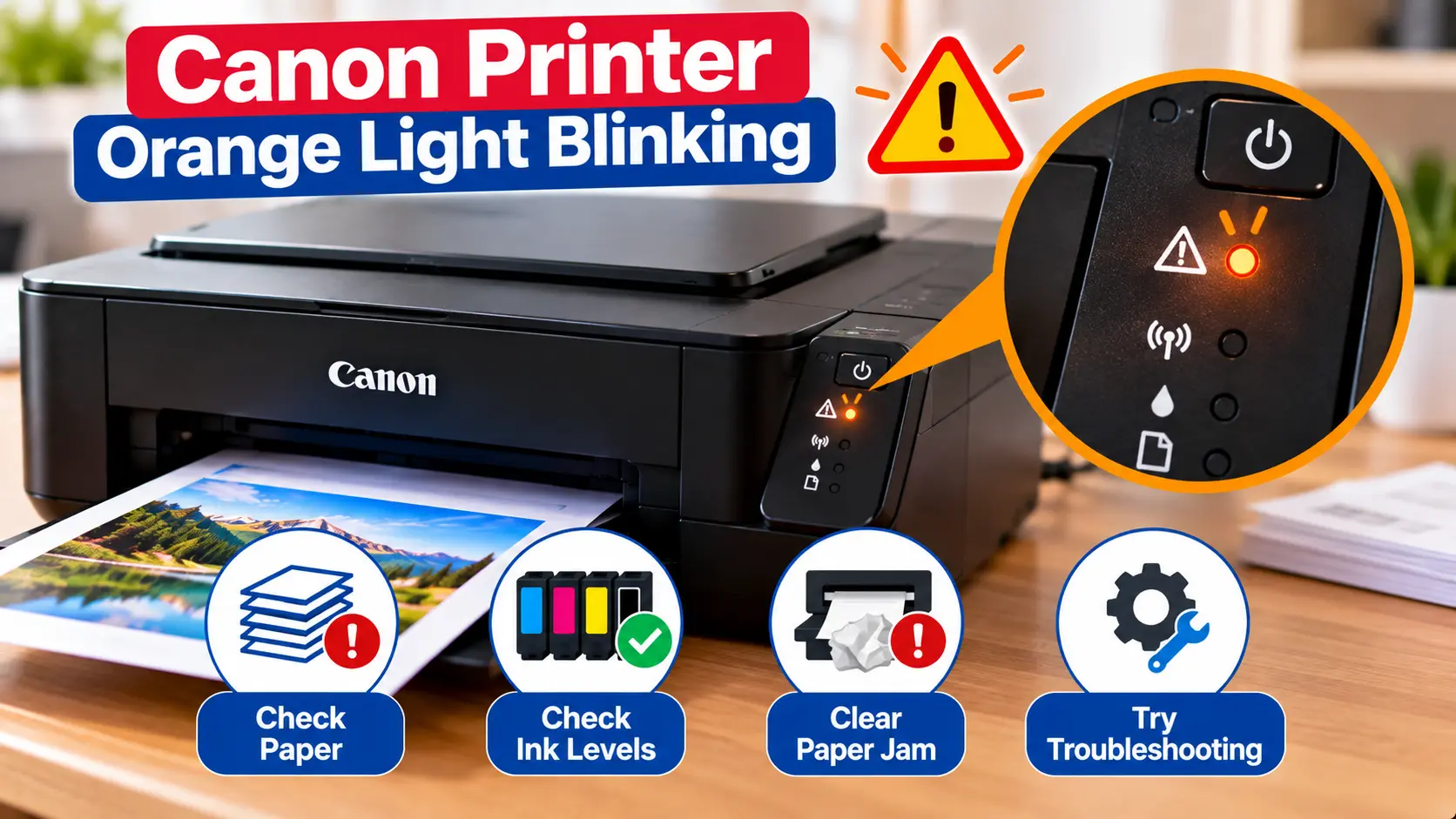
Why Is My Canon Printer Orange Light Blinking?
A blinking orange or alarm light can indicate that the printer needs attention. Check the printer screen or connected device for an error message, then inspect paper loading, accessible paper jams, cartridge installation, and user-accessible covers. Count the flashes if the printer uses a repeating blink pattern, but interpret that pattern using information for your exact printer model.
What Does a Blinking Orange Light Mean on a Canon Printer?
On many printers, an orange or alarm indicator is used to tell the user that the printer has detected a condition requiring attention.
Depending on the model, the warning may relate to paper, ink cartridges, a cover, a paper-feed problem, or another printer condition. Some models may also show an error code or message that gives more specific information.
For this reason, the orange light should be treated as a starting point for diagnosis rather than as a complete diagnosis by itself.
1. Check the Orange Light Blink Pattern
Watch the indicator for a short period and determine whether it follows a repeating pattern.
Note:
- Whether the light stays solid or flashes.
- How many flashes occur before a pause.
- Whether orange and another light alternate.
- Whether the printer display shows a code.
- What the printer was doing when the warning started.
Write this information down along with the exact printer model. This makes model-specific troubleshooting much more accurate.
2. Check for an Error Code or Message
If your printer has a display, check it for an error number, support code, or explanatory message.
Also check the computer or mobile device you were printing from. Printer software may provide more detail about the condition that triggered the warning light.
An actual error code is generally more useful for troubleshooting than the color of the indicator alone.
3. Check the Paper and Paper Path
Paper-loading problems are a common reason a printer may require user attention.
Check whether:
- Paper is loaded in the input area.
- The paper stack is aligned correctly.
- Paper guides are positioned properly.
- Sheets are heavily curled or damaged.
- A paper jam is visible.
If you suspect a jam, turn the printer off before inspecting user-accessible areas. Remove paper only if it can be reached safely without forcing printer mechanisms.
4. Look for Small Paper Fragments
If the warning started after a paper jam, inspect the accessible paper path carefully. A torn piece of paper can remain behind even after the main sheet has been removed.
Use good lighting and inspect only areas intended for normal user access.
5. Check the Ink Cartridges
If the orange light started after changing ink, check the cartridge installation.
Depending on the printer design, verify that:
- The cartridges are compatible with the exact printer model.
- They are installed in their intended positions.
- They are seated normally.
- Required installation material was removed from a new cartridge.
- No cartridge was accidentally disturbed during replacement.
Never force a cartridge into position.
If the printer is not recognizing a cartridge, see: Canon Printer Ink Cartridge Not Recognized .
6. Check Printer Covers and Trays
Make sure user-accessible covers and trays are in their normal operating positions.
If you recently replaced ink, cleared a jam, or loaded paper, check whether a cover was left open or a tray was not returned to its normal position.
Do not force a cover that does not close normally. Check for paper, packaging, or another visible obstruction first.
7. Restart the Canon Printer
After checking obvious paper, cartridge, and cover conditions, perform one normal restart.
- Turn the printer off normally.
- Wait briefly.
- Turn the printer back on.
- Allow the startup process to complete.
- Check whether the orange light returns.
If the warning immediately returns with the same error code or blink pattern, repeated restarting is unlikely to correct the underlying condition.
8. Is a Blinking Orange Light Caused by Wi-Fi or Drivers?
If the printer itself is showing an orange warning light, first investigate the printer-side condition and any accompanying error message.
Changing Wi-Fi settings or reinstalling a computer driver will not remove jammed paper, correctly seat a cartridge, or repair a mechanical problem.
If the printer starts normally and shows no warning but the computer cannot communicate with it, troubleshoot connectivity separately.
9. Should You Reset a Canon Printer With a Blinking Orange Light?
Do not use a factory reset as the first response to every orange-light warning.
A reset cannot physically remove paper, install a cartridge correctly, or repair an internal component. First identify the warning or error being reported.
Also avoid random service-mode button combinations found online. These procedures may be model-specific and are not universal troubleshooting steps.
For more information about reset types, see: How to Reset a Canon Printer .
What If the Canon Printer Orange Light Keeps Blinking?
If the orange light continues after basic checks, collect the information needed for more precise diagnosis.
Record:
- The exact Canon printer model.
- The number and pattern of flashes.
- Any error or support code displayed.
- Any message shown on the computer or printer.
- What happened immediately before the warning began.
If the printer indicates a persistent internal condition and no safely accessible cause is found, model-specific diagnosis or service may be necessary.
Canon Orange Light Troubleshooting Table
| What You Notice | What to Check |
|---|---|
| Orange light starts blinking | Check for a displayed error or support code first. |
| Repeating blink pattern | Count the flashes and identify the exact printer model. |
| Warning after loading paper | Check paper alignment, guides, and accessible paper path. |
| Warning after paper jam | Look for accessible torn paper fragments. |
| Warning after changing ink | Check cartridge position, compatibility, and installation. |
| Cover was recently opened | Make sure user-accessible covers are in their normal operating position. |
| Warning returns after restart | Use the model, blink pattern, and displayed code for further diagnosis. |
What Not to Do
- Do not assume every blink count means the same thing on every Canon printer.
- Do not force the print-head carriage.
- Do not force cartridges into position.
- Do not pull jammed paper aggressively.
- Do not use sharp tools inside the printer.
- Do not dismantle the printer during basic troubleshooting.
- Do not repeatedly perform factory resets.
- Do not use random service-mode button combinations.
Related Canon Printer Guides
Frequently Asked Questions
Why is the orange light blinking on my Canon printer?
A blinking orange or alarm light generally means the printer has detected a condition requiring attention. The specific reason can vary by model, so check for an accompanying error code, message, or repeating blink pattern.
How do I stop the orange light from blinking?
Identify the condition causing the warning first. Check the printer display, paper, accessible paper path, cartridge installation, and covers. After correcting an obvious issue, restart the printer normally.
Should I count the orange flashes?
Yes, if the printer uses a repeating pattern. Record the number of flashes and the exact model, but do not interpret a generic blink-count chart as universal for all Canon printers.
Can a paper jam make the orange light blink?
A paper-related condition can trigger a warning on supported models. Check for jammed paper, misloaded sheets, and accessible paper fragments.
Can an ink cartridge cause the orange light to blink?
Cartridge installation or recognition problems can trigger warnings on some models. If the light started after changing ink, verify the cartridge type, position, and installation.
Will reinstalling the printer driver stop the blinking light?
If the printer itself is reporting a physical or cartridge-related warning, reinstalling a computer driver is generally not the first fix. Diagnose the printer-side warning first.
What if the orange light keeps blinking after a restart?
Record the exact printer model, blink pattern, and any displayed error code. If no safely accessible cause is found, use model-specific troubleshooting or service guidance.
Orange Light Troubleshooting Checklist
- Confirm the exact Canon printer model.
- Check for an error or support code.
- Count a repeating blink pattern.
- Check paper loading.
- Inspect accessible areas for a paper jam.
- Check cartridge installation if ink was recently changed.
- Check user-accessible covers and trays.
- Restart the printer normally.
- Avoid random resets and service-mode procedures.
- Use model-specific diagnosis if the warning persists.
