Canon Printer Won’t Scan? Causes and How to Fix It
If your Canon printer prints normally but won’t scan, the problem may involve the connection, scanner software, computer permissions, driver configuration, or the way the scanning device is being detected. Start with simple checks before reinstalling software or changing advanced settings.
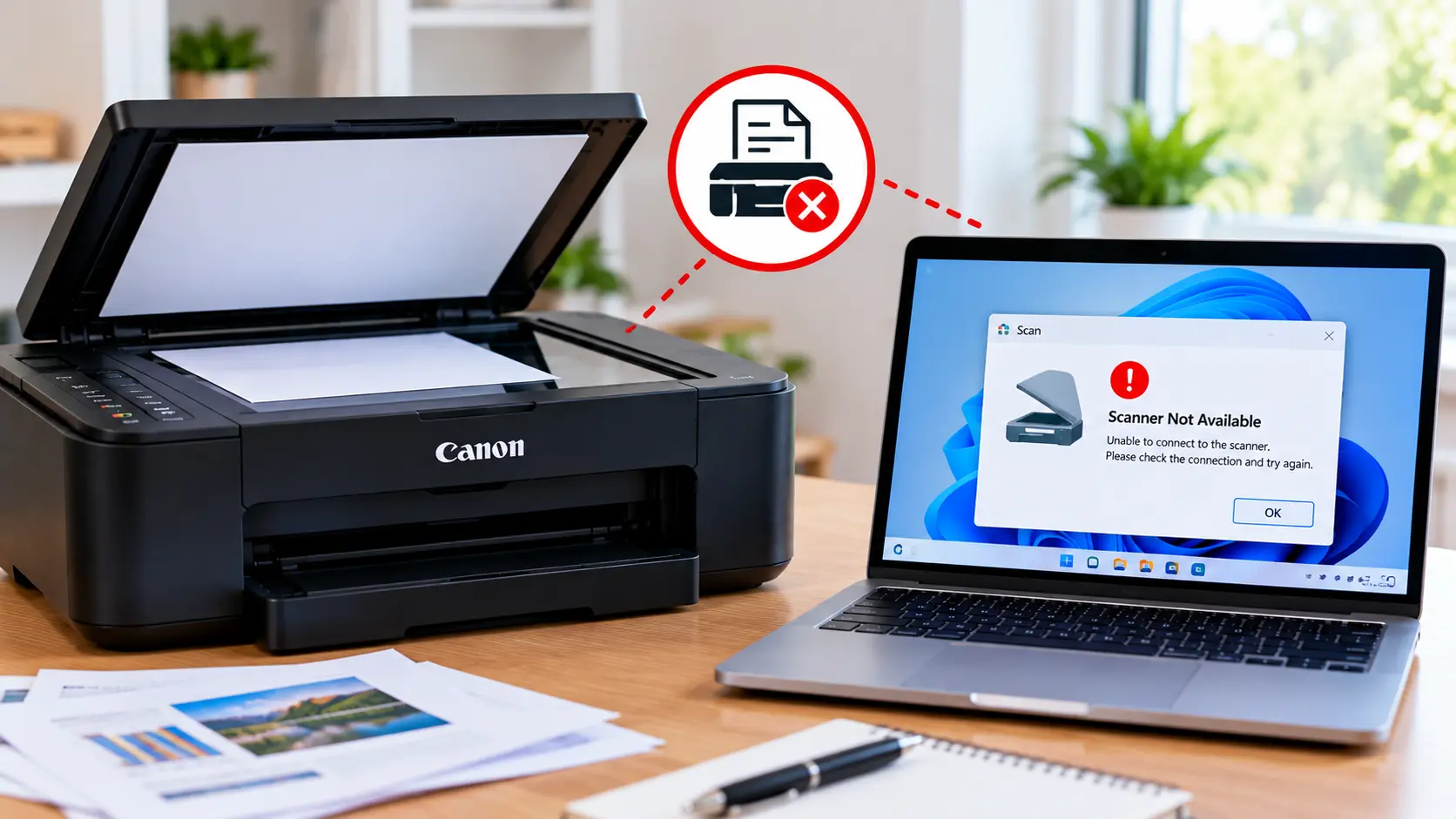
Why Is My Canon Printer Not Scanning?
Check that the printer or scanner is powered on, free of unresolved errors, and properly connected to the computer or network. Restart the printer and computer, verify that the correct scanner is selected, test the connection, and then check the scanning software, driver, and operating-system permissions if the problem continues.
Why Won’t My Canon Printer Scan?
A scanning failure can occur even when printing still works. Printing and scanning may rely on different software components and communication processes.
Common causes include:
- The printer or scanner is not ready.
- Wi-Fi communication has been interrupted.
- A USB connection is loose or unavailable.
- The computer is trying to use the wrong scanner.
- Scanner software cannot detect the device.
- Required printer or scanner software is missing, outdated, or incorrectly configured.
- The operating system is preventing the scanning application from accessing required resources.
- The printer is displaying another error that must be resolved first.
Quick Checks When a Canon Printer Won’t Scan
Before changing drivers or reinstalling software, check the basics.
- Confirm the printer is powered on.
- Check for an error message or support code.
- Make sure the document is positioned correctly for the scanning method being used.
- Check the Wi-Fi or USB connection.
- Confirm that the correct Canon scanner is selected in the scanning application.
- Close unnecessary scanning applications.
- Retry a simple scan.
If a specific printer error appears, troubleshoot that error before repeatedly attempting to scan.
Restart the Canon Printer and Computer
Temporary communication or software problems can sometimes prevent a scanner from being detected.
- Close the scanning application.
- Turn the printer off normally.
- Restart the computer.
- Turn the printer back on.
- Allow the printer to finish starting.
- Open the scanning application again.
- Try a basic scan.
A normal restart is preferable to performing an unnecessary factory reset.
Check the WiFi Connection
If you scan over a wireless network, verify that the printer and computer can communicate on the intended network.
Check:
- The printer is still connected to Wi-Fi.
- The computer is connected to the intended network.
- The Wi-Fi network name or password has not recently changed.
- The router has not recently been replaced without reconfiguring the printer.
- The printer is not showing an offline or connection error.
If the printer itself cannot connect to the wireless network, see: Canon Printer Won’t Connect to WiFi .
Check the USB Connection
For a USB-connected Canon printer or scanner, inspect the physical connection before changing software.
- Confirm the cable is securely connected.
- Check that the computer recognizes the device.
- Avoid relying on a loose connection.
- If practical, test an appropriate working USB port.
- Restart the scanning application after the connection is restored.
If the computer cannot detect the printer at all, continue with: Canon Printer Not Connecting to Computer .
Canon Printer Won’t Scan on Windows
If scanning fails on Windows, first determine whether Windows can see the intended printer or scanner.
Check the Selected Scanner
If more than one printer or scanner has previously been installed, make sure the scanning application is using the correct device.
Close and Reopen the Scan Application
Close the application completely and reopen it after confirming that the printer is online and connected.
Check Windows Device Detection
Review the printers and scanners available in Windows. If the intended device is missing, focus on connection and installation rather than scan settings.
Test With a Simple Scan
Use a simple document and standard scan settings. This helps separate a general scanner problem from a particular file format, destination, or advanced setting.
Canon Printer Won’t Scan on Mac
On a Mac, confirm that the printer or scanner is available to macOS before troubleshooting a particular scanning application.
- Make sure the printer is powered on and connected.
- Open System Settings.
- Review Printers & Scanners.
- Confirm that the intended Canon device is available.
- Open the scanning application and select the correct device.
- Test a basic scan.
Older macOS versions may use different menu wording. If the printer itself needs to be configured again, see: How to Set Up a Canon Printer on Mac .
Check Canon Scanner Software
If the computer detects the printer but the scanning application cannot use it, check the scanner software and selected device.
Depending on the printer model and operating system, scanning may be performed through supported Canon software or operating-system scanning tools.
Check that:
- The intended scanner is selected.
- The application opens without an error.
- Another scanning application is not interfering.
- The software matches the printer model and operating system where applicable.
If your model uses Canon IJ Scan Utility, see: Canon IJ Scan Utility Download and Setup .
Check the Canon Printer Driver and Software
Driver or software problems become more relevant when the printer is connected correctly but the computer cannot access its scanning functions.
Before reinstalling anything, confirm that the connection itself works. Reinstalling software will not correct a wrong Wi-Fi password, disconnected USB cable, or unresolved printer-side error.
If software needs attention, make sure it corresponds to the correct Canon model and your operating system.
See: Canon Printer Driver Guide .
Check Scanning App Permissions
Modern operating systems may restrict an application's access to devices, files, folders, or network resources. If scanning suddenly stopped after an operating-system or application change, review the relevant permissions for the scanning application.
Only enable permissions that are appropriate for the application and the scan destination you intend to use.
Canon Scanner Is Not Detected
If the scanning application says no scanner is available, determine whether the problem is with the printer connection or only the application.
Check in this order:
- Printer power and error status.
- Wi-Fi or USB connection.
- Computer detection of the printer or scanner.
- Correct scanner selection.
- Scanning application.
- Driver or scanner software.
This order helps avoid reinstalling software when the actual problem is simply a lost connection.
Canon Printer Scans but the Result Is Blank
A blank scan is different from a scanner that cannot be detected. Check the original document, its placement, the selected scan source, and the scan preview when available.
Make sure the document is positioned according to the printer's normal scanning method and that the correct source is selected if your device provides more than one scanning source.
Canon Printer Won’t Scan to Computer
When scanning directly to a computer fails, verify that the computer is available, the printer can communicate with it, and the required scanning software is running correctly.
If the printer can print from the computer but scanning fails, focus on scanner detection, software, and permissions instead of repeating the entire printer setup immediately.
Canon Scanner Troubleshooting Table
| Problem | What to Check |
|---|---|
| Scanner not detected | Power, connection, computer detection, selected scanner, and software. |
| Printing works but scanning does not | Scanner software, selected device, permissions, and scan-specific configuration. |
| Wireless scanning stopped | Printer Wi-Fi connection, computer network, router changes, and device discovery. |
| USB scanning fails | Cable connection, USB port, device detection, and scanning software. |
| Scanner missing on Windows | Device installation, connection, correct printer entry, and software. |
| Scanner missing on Mac | Connection, Printers & Scanners, selected device, and scanning app. |
| Scan result is blank | Document placement, scan source, and preview/settings. |
What to Avoid When Troubleshooting Scanning
- Do not factory-reset the printer as the first scanning fix.
- Do not repeatedly reinstall drivers before checking the connection.
- Do not use software intended for a different printer model.
- Do not download drivers or utilities from unknown sources.
- Do not use random service-mode button combinations.
- Do not dismantle the scanner mechanism during normal troubleshooting.
Related Canon Printer Guides
Frequently Asked Questions
Why is my Canon printer not scanning?
Check the printer status, Wi-Fi or USB connection, selected scanner, scanning application, driver or scanner software, and operating-system permissions.
Why does my Canon printer print but not scan?
Printing and scanning can rely on different software components. If printing works, check scanner detection, scan software, the selected device, and permissions before changing the printer's entire connection.
Why is my Canon scanner not detected on Windows?
Confirm the scanner is powered on and connected, then check whether Windows recognizes the correct device. If it does, review the scanning application and scanner software.
Why is my Canon printer not scanning on Mac?
Check that the printer or scanner is connected and available in macOS, select the correct device in the scanning application, and review relevant application permissions if needed.
Can WiFi cause Canon scanning problems?
Yes. If wireless communication between the printer and computer is interrupted, scanning may fail. Check the printer's network connection, computer network, and recent router or password changes.
Should I reinstall the Canon driver if scanning does not work?
Check the printer connection and scanner detection first. Driver or software reinstallation is more relevant when the device is connected correctly but the computer cannot use its scanning functions.
Should I reset my Canon printer when it won’t scan?
A factory reset is generally not the first troubleshooting step. Start with the connection, scanner selection, software, permissions, and a normal restart.
Final Canon Scanning Checklist
- Printer or scanner is powered on.
- No unresolved printer error is displayed.
- Wi-Fi or USB connection is working.
- Correct scanner is selected.
- Computer detects the intended device.
- Scanning application opens correctly.
- Required scanner software is checked.
- Relevant permissions are reviewed.
- A simple test scan has been attempted.
