Why Is My Canon Printer Not Printing Black When Ink Is Full?
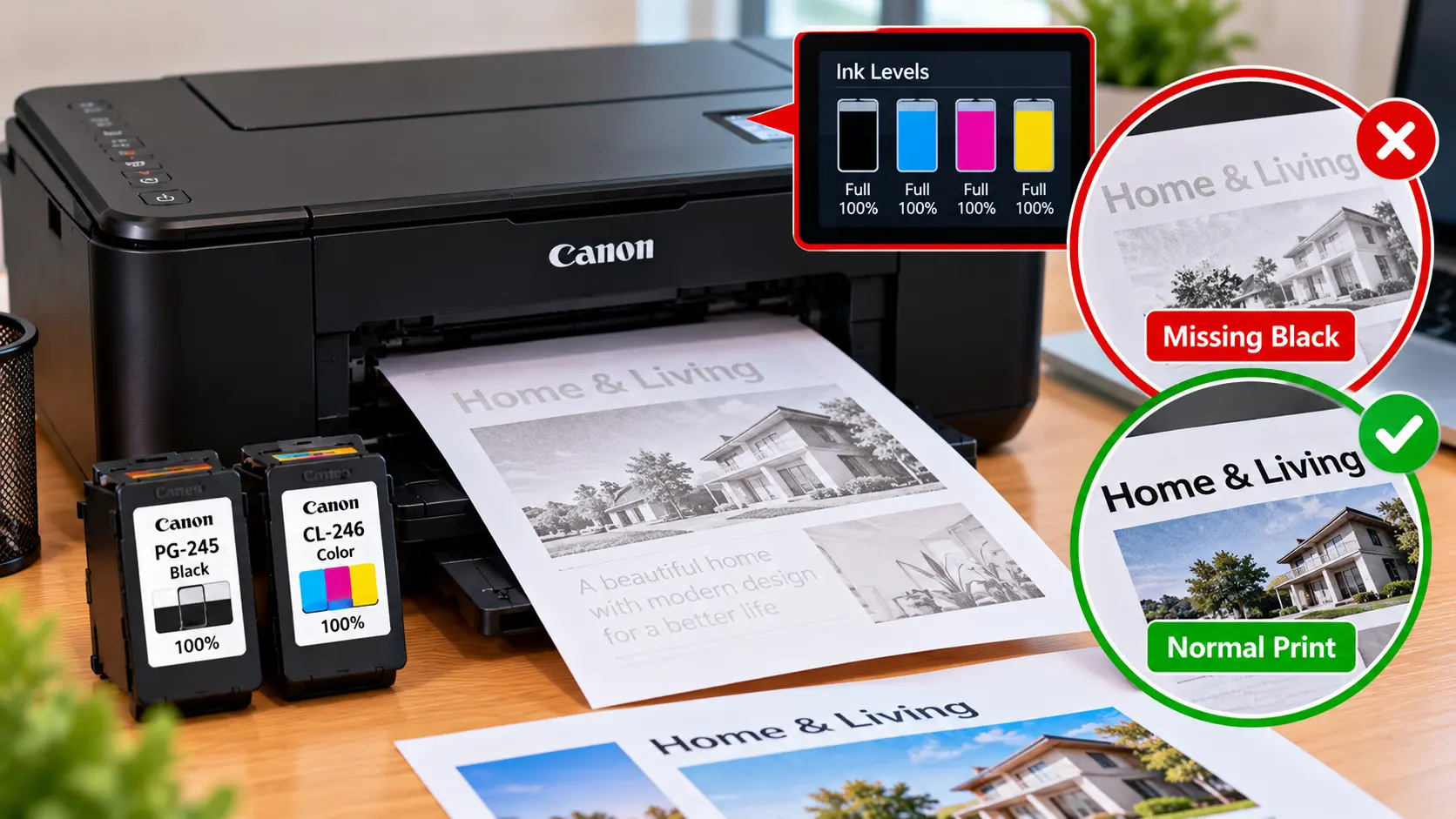
A Canon printer can stop printing black even when the ink indicator shows ink is available. The cause may involve cartridge installation or recognition, a clogged or restricted nozzle, print settings, maintenance requirements, or a software-related problem. Start with simple checks before attempting repeated cleaning or replacing printer components.
How Do I Fix a Canon Printer That Is Not Printing Black?
Confirm that the printer recognizes the correct ink cartridge or tank and is not displaying an ink or cartridge error. Check the print settings, then run a nozzle check if your model provides that maintenance option. If the black pattern is missing or broken, perform the appropriate cleaning procedure once and test again. Avoid repeatedly running cleaning cycles without checking the result.
Why Is My Canon Printer Not Printing Black Even Though Ink Is Full?
An ink-level reading alone does not confirm that ink is flowing correctly onto the page. The printer may report that black ink is available while another condition prevents normal black printing.
Possible causes include:
- The black cartridge or tank is not recognized correctly.
- A cartridge is not seated correctly.
- Protective material remains on a newly installed cartridge.
- Black nozzles are clogged or partially blocked.
- Print settings are producing unexpected output.
- The printer requires an appropriate maintenance operation.
- Printer software or the application is affecting the print job.
- A printer-side error is preventing normal printing.
The exact ink system and maintenance options vary by Canon printer model.
Step 1: Perform Basic Printer Checks
Before running maintenance procedures, check whether the printer is reporting another problem.
- Make sure the printer is powered on and ready.
- Check for an error or support code.
- Confirm that paper is loaded correctly.
- Check whether the printer recognizes the ink supply.
- Print a simple document containing black text.
If the printer displays a specific cartridge or support-code message, troubleshoot that message before performing unrelated maintenance.
Step 2: Check the Black Cartridge or Ink Tank
If your Canon model uses replaceable cartridges, check whether the black cartridge is installed correctly and recognized by the printer.
If the cartridge was recently replaced:
- Confirm that it is intended for the printer.
- Check that required protective material was removed according to the cartridge instructions.
- Make sure the cartridge is seated in the correct position.
- Check whether the printer reports a cartridge recognition error.
For printers using refillable ink tanks, follow the model-specific ink-system instructions rather than treating the tank like a removable cartridge.
If the printer does not recognize the ink supply, see: Canon Printer Ink Cartridge Cannot Be Recognized .
Step 3: Check the Print Settings
Before assuming the print head is clogged, check the settings used for the current print job.
Review settings such as:
- Selected Canon printer.
- Paper type.
- Print quality.
- Color or grayscale options where available.
- Application-specific printing preferences.
Available options differ by printer, operating system, driver, and application.
Try printing a simple black-text document from another application. If black prints from one program but not another, the issue may be related to application or print-job settings rather than the printer hardware.
Step 4: Run a Nozzle Check
Many inkjet printers provide a nozzle-check maintenance function. When available for your model, a nozzle check can help determine whether black ink is being delivered correctly.
Print the nozzle-check pattern and inspect the black portion.
If the black pattern is complete, the problem may involve print settings, the document, or software. If black is missing, faint, or contains broken sections, an appropriate cleaning operation may be useful.
Step 5: Run the Appropriate Print-Head Cleaning
If the nozzle check indicates missing or broken black output, use the normal cleaning function available for your printer model.
A sensible process is:
- Run the normal cleaning operation.
- Allow the procedure to finish.
- Print another nozzle-check pattern.
- Compare the new pattern with the previous one.
Avoid running cleaning cycles repeatedly without checking the result. Cleaning consumes ink, and repeatedly running maintenance is not a substitute for diagnosing a cartridge, ink-flow, or printer-side problem.
If your model provides additional or deeper cleaning options, use them only according to the appropriate model-specific procedure.
Step 6: Check Print-Head Alignment
Alignment problems more commonly affect print positioning, lines, or overall print quality rather than causing black ink to disappear completely. However, if black is printing but the output looks distorted or poorly aligned, an alignment procedure may help.
Use the alignment function available for your printer model and follow the on-screen or printer-specific instructions.
What If the Canon Printer Prints Blank Pages?
If the entire page is blank rather than only the black portion being missing, broaden the troubleshooting.
Check all installed ink supplies, cartridge recognition, nozzle patterns, printer errors, and the document being printed.
Step 7: Check the Printer Driver and Software
If the nozzle check looks normal but black output is missing only from certain computer print jobs, investigate the software side.
Check:
- Whether the correct printer is selected.
- Application print settings.
- Current printer preferences.
- Whether the issue started after an operating system or software change.
- Whether compatible printer software is installed.
Do not reinstall the driver automatically if the printer itself produces a faulty nozzle-check pattern. A computer driver is unlikely to repair a physical ink-delivery problem visible in the printer's own maintenance output.
For driver-related guidance, see: How to Update Canon Printer Driver .
Step 8: Print a Simple Test Document
After completing the relevant checks, print a basic document containing plain black text.
A simple test helps separate the printer problem from complex documents, images, special paper settings, or application-specific options.
If the test document prints correctly, return to the original application and compare its print settings.
What If Black Ink Still Does Not Print?
If black remains completely missing after the printer recognizes the ink supply, the settings are correct, and the appropriate maintenance procedures have been performed, avoid repeatedly running cleaning cycles.
At this stage, the exact printer model and the results of the nozzle check become important. Persistent missing black output may require model-specific diagnosis or service.
Do not dismantle the printer, force internal components, or use unapproved cleaning liquids as a general troubleshooting method.
Canon Printer Not Printing Black: Troubleshooting Table
| Symptom | What to Check |
|---|---|
| Black ink shows full but does not print | Check ink recognition, installation, nozzle pattern, and print settings. |
| Black nozzle pattern is missing | Use the appropriate normal cleaning procedure and test the nozzle pattern again. |
| Black output is faint or broken | Check the nozzle pattern and use model-appropriate maintenance. |
| New cartridge will not print black | Check compatibility, installation, protective material, and cartridge recognition. |
| Nozzle check is normal but document lacks black | Check application settings, selected printer, print preferences, and software. |
| Entire page is blank | Check all ink supplies, recognition, printer errors, and nozzle output. |
| Black disappeared after software change | Compare printer settings and compatible software, especially if the nozzle check remains normal. |
Common Mistakes to Avoid
- Running many cleaning cycles without checking the nozzle pattern between them.
- Assuming a full ink indicator guarantees normal ink flow.
- Reinstalling drivers when the printer's own nozzle test is faulty.
- Forcing cartridges into position.
- Scraping cartridge contacts.
- Modifying cartridge chips.
- Using sharp tools or unapproved liquids inside the printer.
- Dismantling the printer without model-specific service knowledge.
- Using random service-mode or reset combinations.
Related Canon Printer Guides
Frequently Asked Questions
Why is my Canon printer not printing black when the ink is full?
A full ink reading does not necessarily mean black ink is reaching the page correctly. Check cartridge or ink recognition, installation, nozzle output, print settings, and any printer-side errors.
Can a clogged nozzle stop black ink from printing?
Yes. On an inkjet printer, missing or restricted nozzle output can cause black text or parts of the black pattern to disappear. A nozzle check can help determine whether this is occurring.
Should I clean the print head if black ink is not printing?
If a nozzle check shows missing or broken black output, the normal cleaning procedure provided for the printer model may help. Check the result afterward instead of repeatedly running cleaning cycles.
Why is my new black cartridge not printing?
Check whether the cartridge is compatible, installed in the correct position, recognized by the printer, and free of any protective material that should have been removed during installation.
Why does my Canon printer print color but not black?
This can indicate an issue specific to the black ink path, cartridge or tank, nozzle output, or print settings. Run the appropriate checks for the exact printer model.
Will reinstalling the driver fix missing black ink?
Not necessarily. If the printer's own nozzle check also lacks black, the problem is unlikely to be fixed by reinstalling a computer driver. Driver troubleshooting is more relevant when printer maintenance output is normal but computer print jobs are incorrect.
Should I keep running deep cleaning until black ink prints?
No. Repeated cleaning consumes ink and may not solve a persistent cartridge, ink-flow, or printer-side problem. Follow the maintenance procedure appropriate for your model and check the result after each relevant step.
Final Troubleshooting Checklist
- Printer error messages checked.
- Black ink supply recognized.
- Cartridge installation checked where applicable.
- Print settings reviewed.
- Simple black-text document tested.
- Nozzle-check pattern inspected.
- Appropriate cleaning performed only when needed.
- Cleaning result checked before repeating maintenance.
- Software checked if printer maintenance output is normal.
- Unsafe manual cleaning or dismantling avoided.
