How to Fix Canon Printer Offline: Step-by-Step Guide
If your Canon printer shows offline even though it is turned on, the problem may involve the printer connection, print queue, selected printer, network, operating-system settings, or printer software. Start with basic checks before changing drivers or resetting the printer.
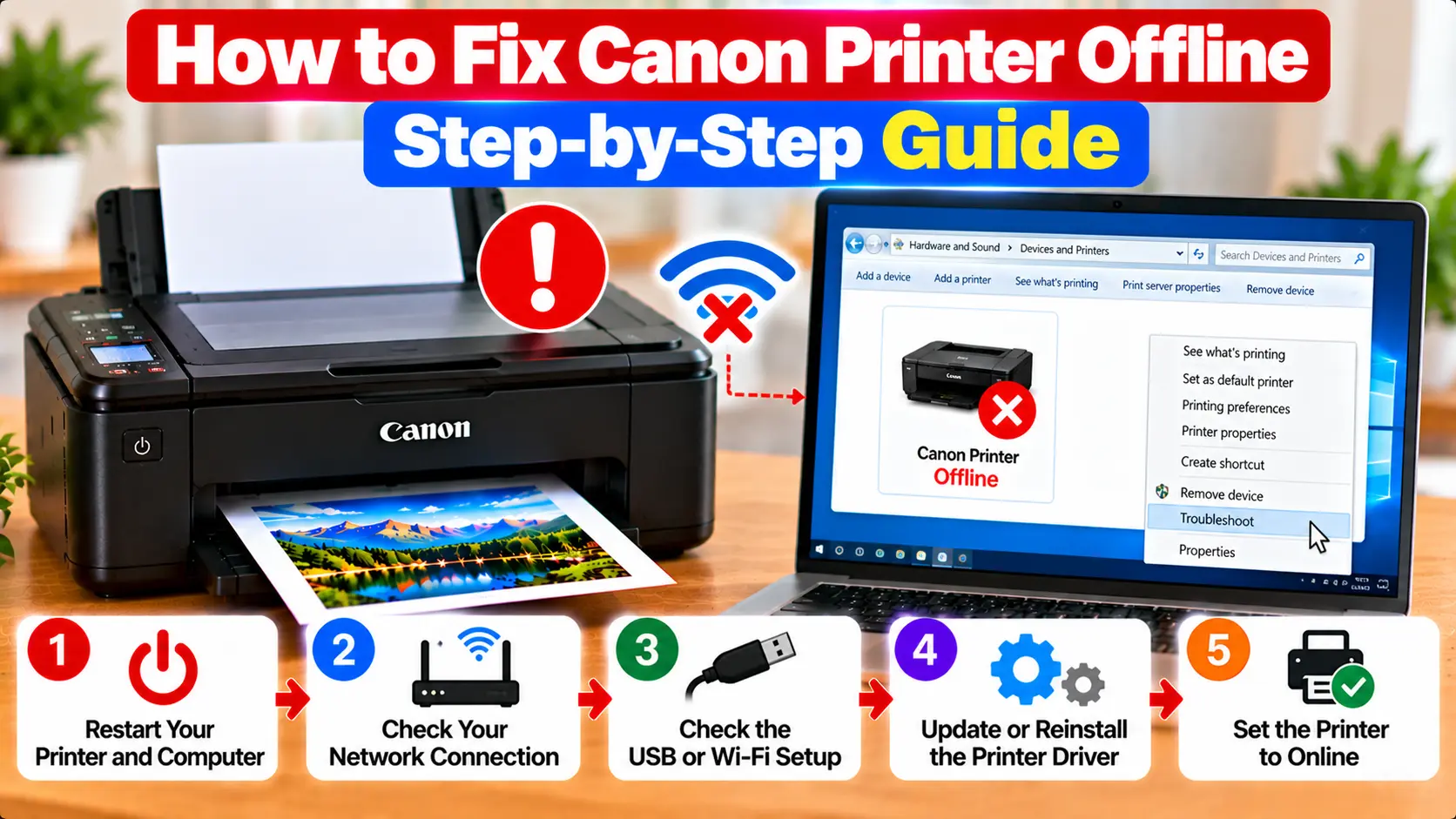
How Do I Get My Canon Printer Back Online?
Make sure the printer is powered on and free of visible errors. Check its USB or Wi-Fi connection, confirm that the correct printer is selected, clear stuck print jobs, and make sure printing is not paused or intentionally set to offline. Restart the printer and computer. If the problem continues, check the network, Windows or Mac printer settings, and compatible printer software.
Why Is My Canon Printer Offline?
An offline status generally means the computer cannot currently communicate with the printer as expected. The cause is not always the printer driver.
Common causes include:
- The printer is turned off or not ready.
- A USB cable is disconnected or unstable.
- The printer lost its Wi-Fi connection.
- The computer and printer are not communicating over the expected local network.
- A wrong or old printer entry is selected.
- Print jobs are stuck in the queue.
- Printing is paused or an offline setting is active.
- The printer has a paper, cartridge, or other device-side error.
- Printer software or the operating system is not communicating correctly with the device.
Step 1: Check the Canon Printer First
Before changing computer settings, inspect the printer itself.
- Make sure the printer is powered on.
- Check the printer display or indicator lights for an error.
- Make sure paper is loaded correctly.
- Check for an obvious paper jam.
- Make sure required covers and trays are in their normal positions.
- Check whether the printer is waiting for a cartridge or other printer-side issue to be resolved.
Step 2: Restart the Printer and Computer
A normal restart can clear temporary communication problems without changing printer settings.
- Save any work on the computer.
- Cancel or note important pending print jobs.
- Turn the printer off normally.
- Restart the computer.
- Turn the printer back on.
- Wait until the printer finishes its normal startup.
- Try printing one simple document.
Do not perform a factory reset simply because the printer appears offline. A reset can erase useful network or device settings without fixing the underlying communication problem.
Step 3: Check the USB or Wi-Fi Connection
The next step depends on how the printer connects to the computer.
If You Use USB
- Check both ends of the USB cable.
- Make sure the printer is connected to the intended computer.
- Check whether the computer detects the printer.
- If practical, avoid an unreliable hub while troubleshooting.
If You Use Wi-Fi
- Confirm that the printer is connected to the intended wireless network.
- Check whether the router name or Wi-Fi password recently changed.
- Confirm that the computer has network access.
- Reconnect the printer if its wireless settings are no longer valid.
If the printer has lost Wi-Fi completely, see: Canon Printer Won't Connect to Wi-Fi .
Step 4: Fix Canon Printer Offline on Windows
On Windows, first confirm that you are working with the correct printer entry. Settings and menu names can vary between Windows versions.
- Open the Windows printer settings.
- Locate the correct Canon printer.
- Check whether more than one similar printer entry exists.
- Open the printer queue or available printer controls.
- Check whether printing is paused.
- If your Windows configuration provides a "Use Printer Offline" option, make sure it is not intentionally enabled.
- Confirm that the correct printer is being used for the print job.
Do not delete every printer entry just because one appears offline. First identify which entry belongs to the current USB or network connection.
Step 5: Check the Selected or Default Printer
A computer can contain old printer entries from previous installations, USB connections, or network configurations.
When printing, confirm that the application is sending the document to the Canon printer you are actually using.
If the wrong printer entry is selected, the job may remain pending while the working printer appears to do nothing.
Step 6: Clear Stuck Print Jobs
A failed print job can sometimes prevent later jobs from processing normally.
- Open the print queue for the correct printer.
- Review the pending jobs.
- Cancel jobs that are clearly stuck or no longer needed.
- Wait for the queue to clear.
- Send one small test document.
If the queue will not clear normally on Windows, the Print Spooler may need attention.
Step 7: Restart the Windows Print Spooler
The Windows Print Spooler manages print jobs. If it stops responding, printer jobs can remain stuck or fail to process.
On supported Windows versions, open the Services management interface, locate Print Spooler, and use the available restart option.
After restarting the service, return to the printer queue and test printing again.
Step 8: Fix Canon Printer Offline on Mac
If a Canon printer appears offline on Mac, start with the printer connection and the printer entry in macOS.
- Make sure the printer is turned on and ready.
- Check the USB or network connection.
- Open the Mac printer settings.
- Confirm that the expected Canon printer appears.
- Check the print queue for paused or stuck jobs.
- Resume printing if it has been paused.
- Clear failed jobs where appropriate.
- Test with a simple document.
If the printer is missing entirely, investigate the connection before repeatedly removing and adding printer entries.
For Mac-specific offline troubleshooting, see: Why Is My Canon Printer Offline on Mac? .
Step 9: Check Whether the Wi-Fi Network Changed
A wireless printer may go offline after changes to the router, network name, password, or other wireless configuration.
If your Wi-Fi details changed recently, check the printer's network status. It may still be trying to use the previous network information.
Reconnect the printer using the setup method appropriate for the exact model rather than changing unrelated computer settings.
Step 10: Check the Canon Printer Driver
Driver or printer-software problems can contribute to an offline condition, but they should not be assumed to be the cause before checking the connection and printer status.
Consider the driver when:
- The problem started after an operating-system update.
- The printer installation appears incomplete.
- The computer detects the device incorrectly.
- The installed software is not compatible with the current operating system.
- The printer was recently moved to a different computer.
For driver guidance, see: How to Update Canon Printer Driver .
Avoid unknown third-party driver sites and generic driver-updater utilities.
Should You Remove and Re-Add the Printer?
Removing and adding the printer again can sometimes help when the existing printer configuration is damaged or points to an outdated connection. However, it should not be the first troubleshooting step.
Before removing the printer, confirm that you know how it connects and have the information needed to add it again.
If the printer cannot be found during reinstallation, troubleshoot the USB or network connection instead of repeatedly creating new printer entries.
Printer Is Online but Still Not Responding
If the offline status disappears but print commands still do not work, the problem has changed.
Check the print queue, selected printer, application, printer-side errors, and software communication.
See: Canon Printer Not Responding .
Canon Printer Offline Troubleshooting Table
| Problem | What to Check |
|---|---|
| Printer suddenly shows offline | Check printer power, displayed errors, connection, and print queue. |
| USB printer offline | Check cable connection, computer detection, and correct printer entry. |
| Wi-Fi printer offline | Check the printer's network connection and whether router settings recently changed. |
| Windows says printer offline | Check the queue, pause/offline options, selected printer, and connection. |
| Mac says printer offline | Check the printer connection, queue, paused jobs, and printer entry. |
| Jobs stuck in queue | Cancel failed jobs and, on Windows, check the Print Spooler if needed. |
| Offline after router change | Check whether the printer needs to reconnect using the new network details. |
| Offline after OS update | Check connection first, then compatible printer software if the problem continues. |
Common Mistakes to Avoid
- Factory-resetting the printer before checking the connection.
- Reinstalling the driver before checking for a printer-side error.
- Deleting every printer entry without identifying the active one.
- Assuming every offline problem is caused by Wi-Fi.
- Installing drivers from unknown websites.
- Changing several settings at once and then not knowing which change affected the printer.
- Ignoring a paper, cartridge, or support-code message displayed by the printer.
Related Canon Printer Guides
Frequently Asked Questions
How do I fix my Canon printer when it says offline?
Check that the printer is powered on and free of errors, verify its USB or Wi-Fi connection, select the correct printer, clear stuck print jobs, and check whether printing is paused or intentionally set to offline.
Why does my Canon printer say offline when it is on?
The printer can be powered on but still lack communication with the computer. Check the USB or network connection, printer entry, queue, and any errors displayed on the printer.
How do I fix a Canon printer offline on Windows?
Verify the printer connection, open the correct printer entry, check the queue, make sure printing is not paused or intentionally set offline, and restart the Print Spooler if stuck Windows print jobs require it.
How do I fix a Canon printer offline on Mac?
Check the printer's USB or network connection, confirm that the expected printer appears in macOS, review the print queue, resume paused printing, and clear failed jobs where appropriate.
Why does my Canon printer keep going offline on Wi-Fi?
Repeated offline status can involve unstable network communication, changed router settings, outdated network information, or a printer connection that is no longer active. Check the printer's current network status first.
Will reinstalling the driver fix a Canon printer offline?
Not always. Offline status can be caused by the printer connection, network, queue, printer selection, or a device-side error. Reinstalling software is more appropriate when there is evidence that the current installation is damaged or incompatible.
Should I reset my Canon printer if it is offline?
A factory reset should not normally be the first offline troubleshooting step. Check the connection, queue, printer status, network, and software first because resetting can remove useful settings.
Final Canon Printer Offline Checklist
- Printer is powered on.
- No unresolved printer error is displayed.
- Paper and basic printer status checked.
- USB or Wi-Fi connection confirmed.
- Correct printer entry selected.
- Printing is not paused.
- Offline setting checked where applicable.
- Stuck print jobs cleared.
- Windows Print Spooler checked if necessary.
- Driver checked only after basic connection troubleshooting.
- Simple test document printed.
