How to Reset a Canon Printer Safely: Restart, Network & Factory Reset
Resetting a Canon printer can mean several different things. You may only need a normal restart, while a Wi-Fi problem may require network settings to be configured again. A factory or settings reset is a more significant step and can remove saved preferences. Because reset options vary by model, identify the problem before resetting anything.
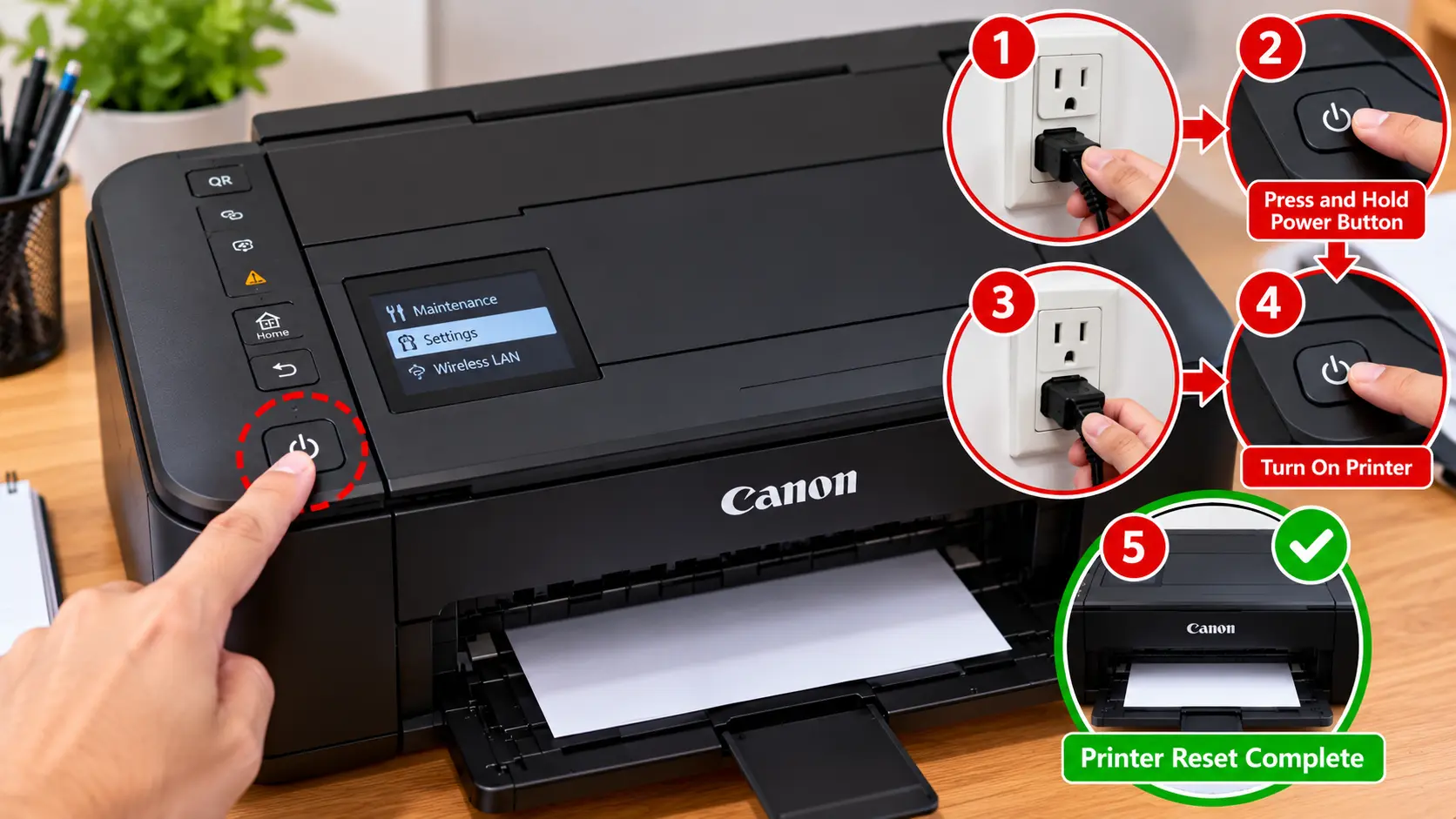
How Do You Reset a Canon Printer?
Start with the least disruptive option. If the printer is temporarily unresponsive, perform a normal restart using its power controls. For Wi-Fi problems, check the connection before considering a network-settings reset. Use a factory or settings reset only when appropriate for your exact printer model, because saved network information and other preferences may need to be configured again.
What Does Resetting a Canon Printer Mean?
The word “reset” is often used for several different troubleshooting actions. They are not all the same.
Normal Restart
A normal restart turns the printer off and back on using its regular controls. This is usually the safest first step for a temporary problem.
Power Cycle
A power cycle gives the printer a fresh startup after it has been shut down properly. It may help with temporary communication or responsiveness problems, but it does not repair a physical fault.
Network Settings Reset
A network reset clears or changes stored network configuration. The printer may then need to be connected to Wi-Fi again.
Factory or Settings Reset
Some models provide options for restoring certain settings or initialization values. The exact options and what they erase vary by printer model.
What to Check Before Resetting a Canon Printer
Resetting should not automatically be the first troubleshooting step.
Before proceeding, check:
- Whether the printer displays a specific support or error code.
- Whether paper is jammed.
- Whether a cartridge or ink-related warning is displayed.
- Whether the problem is only with Wi-Fi.
- Whether the printer is simply showing offline on the computer.
- Whether a failed print job is blocking the queue.
- Whether the printer has actually frozen or stopped responding.
Identifying the symptom first can prevent you from erasing settings unnecessarily.
How to Restart a Canon Printer
For a temporary problem, begin with a normal restart.
- Allow any active printer operation to stop when possible.
- Use the printer's normal power control to turn it off.
- Wait for the printer to shut down completely.
- Turn the printer back on normally.
- Wait for startup to finish.
- Check whether the original problem remains.
If a normal restart fixes the problem, there is usually no reason to perform a more disruptive reset.
How to Power Cycle a Canon Printer
If the printer remains unresponsive after a normal restart, a basic power-cycle check may be useful.
- Turn the printer off normally when possible.
- Wait until it has completed shutdown.
- Disconnect the printer from power if appropriate for the situation.
- Wait briefly.
- Reconnect power securely.
- Turn the printer on normally.
- Allow startup to complete before testing.
How to Reset Canon Printer Network Settings
A network reset may be relevant when the printer contains outdated wireless information, especially after a router, network name, or Wi-Fi password change.
Before resetting network settings, remember that stored Wi-Fi information may be removed. You should have the current network name and password available so the printer can be configured again.
The location and wording of the network reset option varies by Canon model. Depending on the printer, network settings may be managed through its display, control panel, or supported setup procedure.
After resetting network settings, reconnect the printer using the correct wireless setup procedure. See: How to Connect Canon Printer to WiFi .
How to Factory Reset a Canon Printer
A factory or settings initialization is more disruptive than a normal restart. It should be used only when the reset option is appropriate for the exact printer model and the problem you are trying to solve.
Depending on the model and reset option, you may need to reconfigure:
- Wireless network information.
- Printer preferences.
- Device-specific settings.
- Computer or mobile-device connections.
Some printers provide more than one initialization or settings-reset option. Do not assume that every option removes the same information.
Should You Reset a Canon Printer That Won’t Connect to Wi-Fi?
Not immediately. First verify the Wi-Fi network, password, printer status, and router connection.
A network reconfiguration may make sense if:
- You replaced the router.
- The Wi-Fi network name changed.
- The Wi-Fi password changed.
- The printer is still configured for an old network.
If the printer has never connected to the current network, start with: Canon Printer Won’t Connect to WiFi .
Should You Reset a Canon Printer That Shows Offline?
A factory reset is usually not the first step for an offline printer. “Offline” can result from a lost network connection, incorrect printer selection, print-queue problems, or communication issues between the printer and computer.
Start by checking the connection and printer status. See: Canon Printer Offline Troubleshooting .
If the printer is offline specifically on a Mac, see: Canon Printer Offline on Mac .
Can Resetting a Canon Printer Clear Error Codes?
A restart may clear a temporary condition in some situations, but resetting should not be treated as a universal way to remove Canon printer error codes.
An error may indicate an underlying issue involving paper feeding, a cartridge, the print system, a sensor, an obstruction, or another printer component.
If the same support code returns after a normal restart, troubleshoot the meaning and cause of that specific code rather than repeatedly resetting the printer.
Should You Reset a Canon Printer That Is Not Printing?
Not printing does not automatically mean the printer needs a factory reset.
First check:
- Printer power and error status.
- Paper and ink or cartridge status.
- Wi-Fi or USB connection.
- Correct printer selection.
- Print queue.
- Driver or printer software.
Continue with: Canon Printer Not Printing .
What to Do After Resetting a Canon Printer
The next steps depend on the type of reset that was performed.
After a Normal Restart
Wait for startup to complete and test the original function again.
After a Network Reset
Reconnect the printer to the intended network using the current Wi-Fi information.
After a Settings or Factory Reset
Review the printer settings that need to be configured again. Depending on the model and reset performed, this may include network and other preferences.
Check Your Computer
After network changes, confirm that Windows or Mac can still find and use the intended printer. If necessary, review the existing printer entry before creating another one.
Canon Printer Reset Troubleshooting Table
| Problem | Best First Check |
|---|---|
| Printer temporarily unresponsive | Try a normal restart before a deeper reset. |
| Wi-Fi stopped working after router change | Check current network information and reconnect the printer. |
| Wi-Fi password changed | Reconfigure the wireless connection with the new password. |
| Printer shows offline | Check connection, printer selection, and print queue before resetting. |
| Specific error code appears | Troubleshoot that code rather than repeatedly resetting the printer. |
| Printer is not printing | Check status, queue, connection, paper, cartridges, and software. |
| Old network settings remain | Consider the model-appropriate network reconfiguration procedure. |
Canon Printer Reset Mistakes to Avoid
- Do not factory-reset the printer for every minor problem.
- Do not use random button combinations intended for another Canon model.
- Do not repeatedly interrupt power while the printer is operating.
- Do not assume a reset permanently fixes a recurring hardware or consumable problem.
- Do not use service-mode procedures simply to hide an unresolved error.
- Do not dismantle the printer as part of a normal reset procedure.
- Do not reset network settings unless you are prepared to reconnect the printer.
Related Canon Printer Guides
Frequently Asked Questions
How do I hard reset my Canon printer?
The exact meaning and procedure for a “hard reset” varies by Canon printer model. Start with a normal restart. If you specifically need to initialize network or printer settings, use the reset option documented for your exact model rather than a universal button combination.
Will resetting my Canon printer erase Wi-Fi settings?
A normal restart should not be confused with a network or settings reset. A network reset or certain initialization options may remove saved network information, depending on the printer model and reset selected.
Should I reset my Canon printer if it is offline?
Start with connection, printer-status, queue, and computer-side checks. A factory reset is generally not the first troubleshooting step for an offline printer.
Can a reset fix a Canon printer that will not connect to Wi-Fi?
It depends on the cause. If old network information is the problem, network reconfiguration may help. First verify the network name, password, router status, and normal wireless setup.
Does restarting a Canon printer remove its settings?
A normal power restart is different from a settings initialization or network reset. It is intended to restart the device rather than deliberately erase its configuration.
Will a factory reset fix every Canon printer error?
No. Many error codes point to a specific underlying condition. If an error returns after a normal restart, troubleshoot that error rather than repeatedly resetting the printer.
What should I do after resetting my Canon printer?
Allow the printer to restart fully, then reconfigure any settings removed by the reset. If network information was cleared, reconnect the printer to Wi-Fi and verify that your computer can still use it.
Final Reset Checklist
- Identify the actual printer problem first.
- Start with a normal restart.
- Check specific error codes before resetting.
- Check Wi-Fi credentials before a network reset.
- Know that network settings may need to be configured again.
- Use only reset procedures intended for the exact printer model.
- Avoid random service-mode combinations.
- Reconnect Wi-Fi after a network reset when required.
- Test printing after setup is restored.
