How to Reset Canon Printer WiFi Password and Reconnect
If you changed your home or office WiFi password, your Canon printer may continue trying to connect with the old network credentials. In most cases, you do not need to reset the entire printer. Instead, update or reconfigure its wireless network settings and connect it again using the current WiFi network name and password.
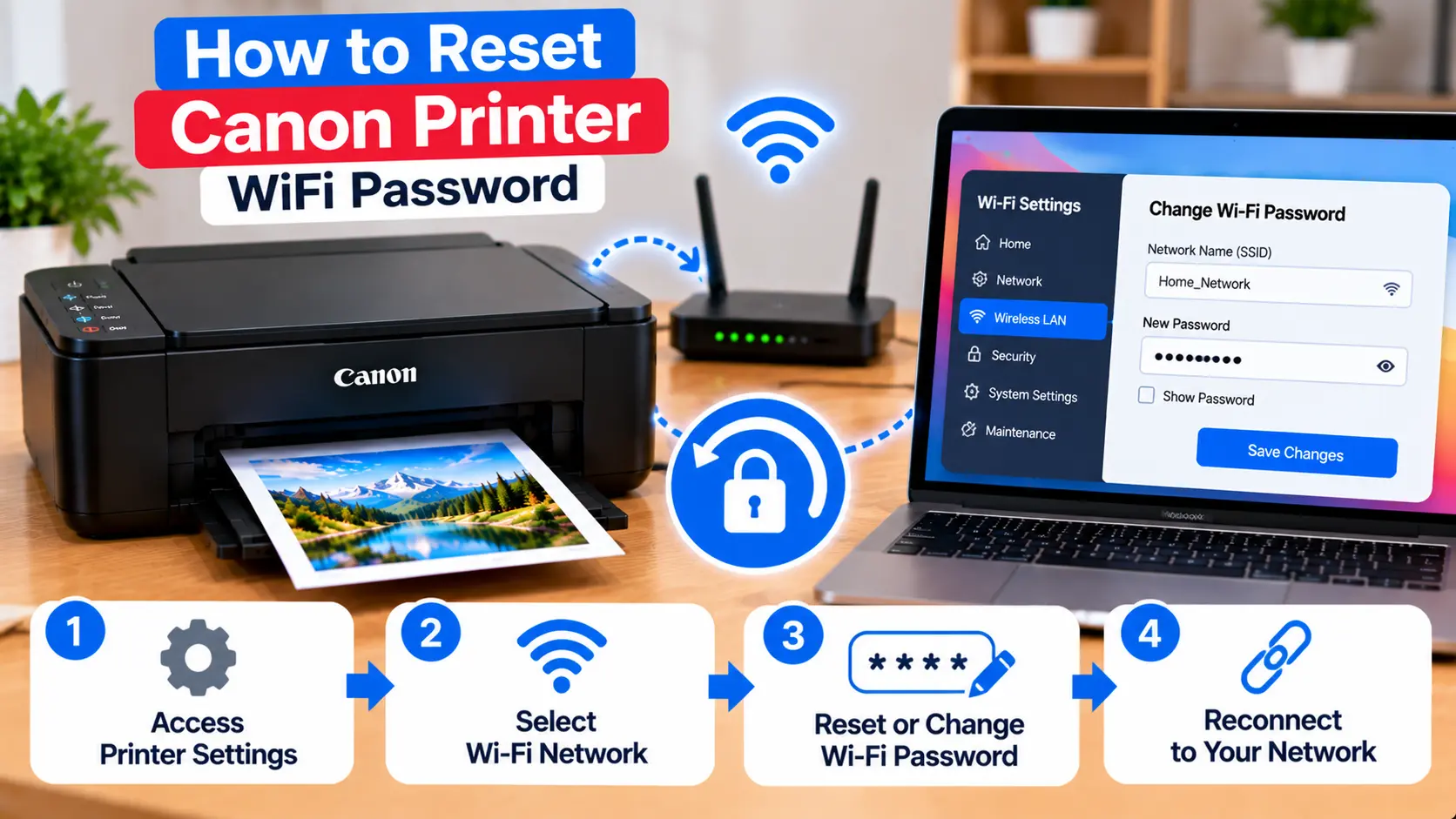
How Do I Reset the WiFi Password on My Canon Printer?
If your router's WiFi password has changed, reconnect the Canon printer to the wireless network using the new password. Open the printer's available network or wireless setup options, select the correct WiFi network, and enter the current password. The exact menu or setup method varies by Canon model, so a full factory reset is usually not the first step.
First Understand Which WiFi Password You Mean
The phrase "Canon printer WiFi password" can refer to different things. Identifying the correct one helps avoid unnecessary resets.
Router or Wireless Network Password
This is the password used by devices to join your home or office WiFi network. If this password changes, a printer using the old credentials may need to be connected again.
Stored Network Settings on the Printer
The printer may retain information about a previously configured wireless network. Updating or reconfiguring the network connection allows it to use the current network credentials.
Direct Wireless Connection Password
Some compatible Canon models can create a direct wireless connection for supported devices. The password used for that connection is not necessarily the same as your router's WiFi password.
Before Resetting or Updating Canon WiFi Settings
Gather the correct network information before starting.
- Confirm the exact Canon printer model.
- Make sure the printer is turned on and ready.
- Check for any printer error message.
- Confirm the correct WiFi network name.
- Confirm the current WiFi password.
- Check that the router is operating normally.
- Keep the printer within a practical wireless range during setup.
Network names and passwords can be case-sensitive. Enter them exactly as configured on your network.
How to Reconnect a Canon Printer After Changing the WiFi Password
If only the router's wireless password changed, the goal is generally to update the printer's network connection rather than erase all printer settings.
A general process is:
- Turn on the Canon printer.
- Confirm that the wireless router is working.
- Open the printer's available wireless or network setup method.
- Choose the intended WiFi network.
- Enter the current WiFi password carefully.
- Allow the printer time to establish the connection.
- Check the printer's available network status or connection indicator.
- Test printing from a connected computer or mobile device.
The exact menus, buttons, and setup sequence vary by Canon model.
For a broader wireless setup guide, see: How to Connect Canon Printer to WiFi .
Canon Printer With a Display: Update the WiFi Connection
On models with a screen or control panel, look for the available network, LAN, wireless, or WiFi setup settings.
The general goal is to:
- Open the printer's network setup options.
- Start the available wireless connection setup.
- Select the correct network name.
- Enter the new network password.
- Confirm the settings.
- Wait for a successful connection indication.
Menu wording differs across Canon product families, so do not follow button sequences intended for a different model.
Canon Printer Without a Display: How to Reconnect WiFi
Printers without a full display may use a model-specific wireless setup method involving supported setup software, a mobile device, router features, or printer buttons.
Because button combinations differ by model, avoid using a random sequence found for another Canon printer.
First identify the exact model, then use the wireless setup method supported for that printer. The goal remains the same: replace the old network connection information with the current network credentials.
Canon Printer Won't Connect After Replacing the Router
Replacing a router can change the WiFi network name, password, security configuration, or other network characteristics.
If the printer still has the previous router's settings, reconnect it using the new network information.
Check:
- New WiFi network name.
- New WiFi password.
- Router wireless service is enabled.
- Printer is within usable wireless range.
- The printer's supported wireless capabilities are compatible with the network configuration.
If the printer cannot establish a connection, see: Canon Printer Won't Connect to WiFi .
Canon Printer Says the WiFi Password Is Incorrect
If the printer rejects the password, do not immediately reset the entire device.
Check the following:
- Confirm you selected the intended WiFi network.
- Re-enter the password carefully.
- Check uppercase and lowercase characters.
- Check numbers and special characters.
- Make sure you are not entering an old network password.
- Make sure you are not confusing the router password with a direct wireless password.
A device that cannot join the network because of an incorrect password will not be fixed by repeatedly reinstalling the printer driver.
What If I Don't Know My WiFi Password?
The printer cannot determine a forgotten router password for you simply by resetting its printer settings.
If you do not know the current wireless network password, verify it through the network or router administration method available to you before attempting to reconnect the printer.
Avoid changing router security settings solely to make printer setup easier unless you understand the effect on all other connected devices.
Reconnect the Computer After Updating Printer WiFi
Once the printer is connected to the intended network, check whether the computer can still communicate with it.
If the printer does not appear:
- Confirm the printer remains connected to WiFi.
- Confirm the computer has access to the intended local network.
- Check the computer's printer list.
- Select the correct printer entry.
- Re-add the printer if necessary and appropriate.
- Print a simple test document.
If the computer still cannot detect the printer, see: Canon Printer Not Connecting to Computer .
Canon Printer Offline After Changing WiFi Password
A printer can remain installed on the computer while its actual network connection is no longer working. This commonly happens when the router credentials change but the printer still has the previous network information.
First reconnect the printer to the current WiFi network. Then check the printer entry, print queue, and computer connection.
For more help, see: How to Fix Canon Printer Offline .
Reconnect Your Phone After Changing Printer WiFi Settings
If you print from a phone, make sure the phone and printer are using the intended connection after the network change.
If mobile printing stops working after you update the router or printer WiFi settings, confirm the printer's new network connection before troubleshooting the mobile application.
Do I Need to Factory Reset the Canon Printer?
Usually, a full factory reset should not be the first response to a changed WiFi password.
A factory reset may remove more than wireless information and can require additional setup afterward. If your model provides a way to reconfigure only the network connection, that is generally more targeted than erasing unrelated printer settings.
If a reset is genuinely required, use the model-specific procedure intended for your exact printer rather than a generic button combination.
For general reset information, see: How to Reset a Canon Printer .
Canon Printer WiFi Password Troubleshooting Table
| Problem | What to Check |
|---|---|
| WiFi password recently changed | Reconfigure the printer connection using the current network credentials. |
| Router was replaced | Check the new network name, password, and printer connection. |
| Printer says password is incorrect | Verify the network, password, capitalization, numbers, and special characters. |
| Printer cannot find WiFi | Check router operation, network availability, printer range, and model-supported wireless setup. |
| Printer connected but computer cannot find it | Check the computer's network and printer configuration. |
| Printer appears offline | Confirm the printer is actually connected to the current network before troubleshooting the queue. |
| Phone cannot print | Confirm the phone and printer are using the intended network or supported connection method. |
Common WiFi Password Reset Mistakes
- Confusing the router password with a printer direct-connection password.
- Entering the old WiFi password.
- Selecting the wrong network name.
- Ignoring uppercase and lowercase characters.
- Reinstalling printer drivers when the real issue is network authentication.
- Factory-resetting the entire printer too early.
- Following button combinations for a different Canon model.
- Changing router security settings without considering other connected devices.
Related Canon WiFi Guides
Frequently Asked Questions
How do I reset the WiFi password on my Canon printer?
If your router password changed, reconfigure the printer's wireless connection using the current network name and password. The exact setup method varies by Canon model.
Why won't my Canon printer connect after I changed my WiFi password?
The printer may still be trying to use the old wireless credentials. Reconnect it to the intended network using the new password.
Do I need to reinstall my Canon printer after changing the WiFi password?
Not necessarily. First reconnect the printer to the wireless network. If the computer cannot communicate with it afterward, check or re-add the printer entry as appropriate.
Is the Canon printer password the same as my router password?
Not always. A router WiFi password and a password used for a model-supported direct wireless connection can be different. Identify which connection you are configuring.
Should I factory reset my Canon printer to change WiFi?
Usually not as the first step. If the printer provides a supported way to reconfigure its wireless connection, updating the network settings is more targeted than resetting unrelated printer settings.
Why does my Canon printer say the WiFi password is wrong?
Check that you selected the correct network and entered the current password exactly, including uppercase letters, lowercase letters, numbers, and special characters.
Why is my Canon printer offline after changing the router password?
The printer may no longer be connected to the wireless network even though it remains installed on the computer. Reconnect the printer using the current network credentials first.
Final WiFi Reconnection Checklist
- Exact Canon model confirmed.
- Correct WiFi network identified.
- Current network password confirmed.
- Router operating normally.
- Printer wireless setup opened.
- Correct network selected.
- New password entered carefully.
- Printer connection confirmed.
- Computer or phone connection tested.
- Test print completed.
- Factory reset avoided unless genuinely needed.
