How to Fix a Canon Printer Not Printing
If your Canon printer is not printing, start with the basic checks before reinstalling software or changing advanced settings. Power, connectivity, the print queue, printer selection, paper settings, ink status, and printer errors can all prevent a print job from starting or completing.
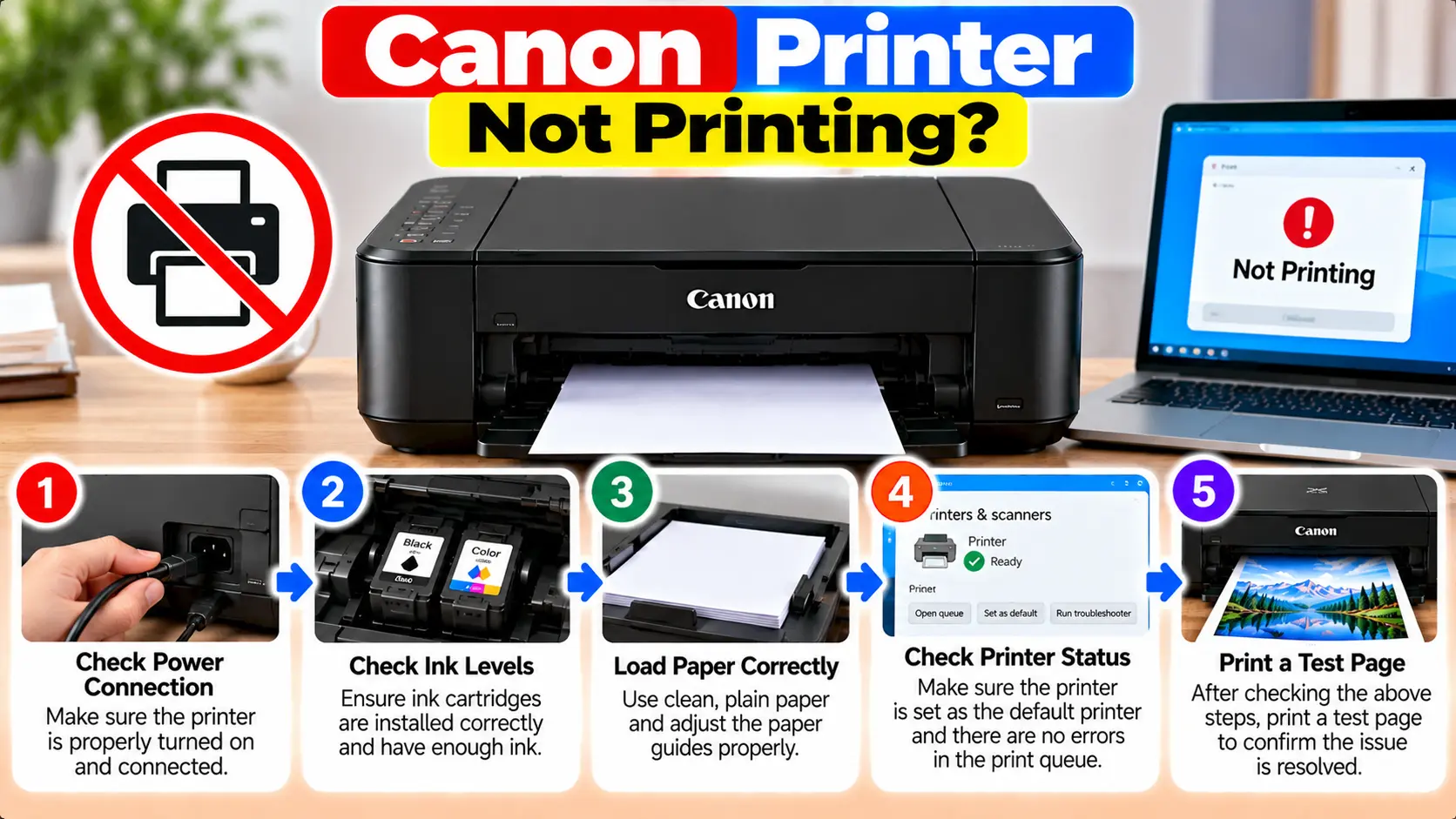
What Should I Do If My Canon Printer Is Not Printing?
Make sure the printer is turned on and has finished initializing. Check the USB or network connection, confirm the correct Canon printer is selected, remove stuck print jobs, check paper and ink, and resolve any error shown by the printer. If the problem continues, check the printer software or driver and test again.
Why Is My Canon Printer Not Printing?
A printer can appear ready while a problem elsewhere prevents the job from reaching the paper. Before assuming the printer has failed, identify where the printing process stops.
Common causes include:
- The printer is off or still initializing.
- The USB connection is loose or unavailable.
- The printer is no longer connected to WiFi.
- The computer is sending the job to another printer.
- A previous job is stuck in the print queue.
- The printer is shown as offline.
- Paper is missing, jammed, or loaded incorrectly.
- Paper settings do not match the loaded media.
- An ink or cartridge issue is present.
- The printer is displaying an error or support code.
- The printer driver or software is not working correctly.
Step 1: Make Sure the Canon Printer Is Ready
Check the printer before changing anything on the computer.
- Make sure the power cord is securely connected.
- Turn on the printer.
- Wait while the printer initializes.
- Check the display or indicator lamps for an error.
- Make sure covers and trays are positioned correctly.
Some printers take time to initialize or process a large print job. If the power indicator shows that the printer is still processing, allow it time to become ready before sending additional jobs.
Step 2: Check the Printer Connection
The next step depends on whether the printer uses USB or a network connection.
If the Canon Printer Uses USB
- Check that the cable is firmly connected to both the printer and computer.
- Try a different working USB port if available.
- If practical, connect the printer directly to the computer while troubleshooting instead of using an intermediate USB hub.
- If another suitable cable is available, test whether the original cable is causing the communication problem.
If the Canon Printer Uses WiFi
- Make sure the printer's network connection is active.
- Confirm that the wireless router is working.
- Check that the computer and printer are using the intended network.
- If the router name or password changed, set up the printer for the current network again.
- Move the printer closer to the router temporarily if the wireless signal is weak.
Step 3: Make Sure the Correct Canon Printer Is Selected
If several printers or old printer installations appear on the computer, a document may be sent to the wrong device.
Before printing:
- Open the application's Print window.
- Review the selected printer.
- Select your actual Canon printer model.
- Check that an old or disconnected printer is not selected.
- Send a small test document.
The printer driver selected for the job should correspond to the printer you are actually using.
Step 4: Clear Stuck Print Jobs
One failed job can sometimes prevent later documents from printing.
- Open the print queue for the Canon printer.
- Look for jobs that are paused, stuck, or showing an error.
- Cancel unnecessary jobs.
- Allow the queue to clear.
- Send one simple test page.
Avoid repeatedly clicking Print while a job is already stuck. This can create a longer queue and make troubleshooting more confusing.
Step 5: Check Whether the Canon Printer Is Offline
If the computer reports that the printer is offline, confirm the physical or network connection first.
On systems that provide an offline printing option, open the printer queue and check whether an offline mode has been enabled. If it was enabled unintentionally, disable it and test printing again.
Do not treat the offline setting as the only cause. A printer can also appear offline because the computer can no longer communicate with it.
For a WiFi printer, recheck the network connection. For a USB printer, recheck the cable and USB port.
Step 6: Check Paper and Paper Settings
A printer may stop before printing if it cannot feed paper correctly or if its paper settings require attention.
- Make sure paper is actually loaded.
- Remove badly curled, folded, or damaged sheets.
- Align the paper stack before loading.
- Position the paper guides correctly.
- Check for a paper jam or torn paper.
- Make sure the output path is clear.
- Check whether the selected paper size and media settings match the intended print job.
If the printer displays a paper-related message, resolve that message before repeatedly resending the document.
Step 7: Check Ink, Cartridges, and Print Quality
If the printer accepts the job but the page is blank, faded, missing a color, or otherwise incomplete, the problem may be related to ink or print quality rather than communication.
Check:
- Whether an ink warning or cartridge error is displayed.
- Whether cartridges or tanks are installed correctly.
- Whether protective material was removed from a new cartridge.
- Whether the printer reports low or unavailable ink.
- Whether a nozzle check shows missing lines or colors.
If a nozzle check indicates a print-quality issue, use the maintenance procedure appropriate for your exact Canon printer model.
Step 8: Check for an Error or Support Code
If the printer shows a specific error code, support code, warning light pattern, or message, use that information as the main troubleshooting clue.
A paper jam, cartridge problem, cover warning, connection issue, or another printer condition may prevent printing until the displayed problem is resolved.
Do not ignore a recurring code and repeatedly power cycle the printer without identifying what the code represents.
Step 9: Check the Canon Printer Driver and Software
If the printer is powered on, connected, and free of visible errors but the computer still cannot print, check the printer installation.
- Confirm that the installed printer corresponds to the exact Canon model.
- Check whether the operating system still detects the printer.
- Restart the computer if printing stopped after a temporary software or communication problem.
- If the printer driver is missing, outdated, or damaged, install the appropriate software for the exact model and operating system.
- Test with a simple document after installation.
Avoid installing random printer-driver packages from unknown download websites.
Step 10: Restart the Printer, Computer, and Network
After checking the obvious causes, a controlled restart can help restore communication.
- Cancel unnecessary print jobs.
- Turn off the printer normally.
- Restart the computer.
- If the problem is network-related, make sure the router is functioning normally.
- Turn the printer back on.
- Wait until it is ready.
- Send one test page.
If the printer repeatedly loses its network connection after restarting, troubleshoot the wireless connection rather than continuing to restart it.
Canon Printer Not Printing: Quick Diagnosis
| Symptom | First Things to Check |
|---|---|
| Nothing happens after clicking Print | Power, connection, correct printer, and print queue. |
| Printer shows offline | WiFi or USB communication and offline queue setting. |
| Jobs remain in queue | Cancel stuck jobs and test with one simple document. |
| Printer feeds no paper | Paper supply, paper guides, jam, loading, and paper settings. |
| Blank or faded pages | Ink status, cartridges or tanks, nozzle check, and print quality. |
| Stopped after router change | Reconnect the printer using the current WiFi network information. |
| Error code displayed | Troubleshoot the specific code or printer condition first. |
| USB printer not detected | Cable, direct USB port, printer power, and software installation. |
Canon Printer Not Printing From a Computer
When the printer itself appears ready but printing fails only from a computer, focus on communication, printer selection, the print queue, and the printer installation.
Test whether the problem affects every application or only one program. If one application cannot print but others can, the problem may be related to that application's print settings rather than the printer itself.
If no application can print, return to the connection, queue, printer selection, and driver checks above.
Canon Printer Connected to WiFi but Not Printing
A successful WiFi connection does not automatically guarantee that the computer is communicating with the correct printer installation.
Check that:
- The printer remains connected to the intended network.
- The computer is on the appropriate network.
- The correct Canon printer is selected.
- The print queue is not paused or blocked.
- No printer error is preventing printing.
If the printer was recently moved to a new router, update its network configuration and make sure the computer can discover it again.
Common Mistakes to Avoid
- Reinstalling drivers before checking whether the printer is simply turned off.
- Sending the same document repeatedly while the queue is blocked.
- Selecting an old printer installation with a similar name.
- Assuming WiFi is working because the router itself has internet access.
- Ignoring a paper, cartridge, or support-code warning.
- Using an unreliable USB hub while troubleshooting.
- Downloading drivers from unknown third-party websites.
- Running repeated maintenance cycles without checking print-quality results.
Related Canon Printer Guides
Frequently Asked Questions
Why is my Canon printer not printing?
Check printer power, USB or WiFi communication, the selected printer, print queue, paper, ink, and any displayed error. If those checks pass, inspect the printer software or driver.
Why is my Canon printer connected but not printing?
The printer may be connected but the computer could be using the wrong printer, a job may be stuck in the queue, or a paper, ink, driver, or printer error may still be blocking printing.
Why does my Canon printer say offline?
An offline status can occur when the computer cannot communicate with the printer or when an offline printing setting is enabled. Check the network or USB connection and the printer queue.
Why are my Canon print jobs stuck in the queue?
A failed or paused job can block later jobs. Cancel unnecessary jobs, confirm the printer is connected and ready, and then send one simple test page.
Why is my Canon printer printing blank pages?
Check ink status, cartridge or tank condition, and print quality. A nozzle check can help determine whether the issue is related to ink delivery rather than the computer connection.
Should I reinstall the Canon printer driver?
Reinstallation can help when the printer software is missing or not working correctly, but first check power, connection, printer selection, the print queue, and displayed errors so a simpler problem is not overlooked.
Final Canon Printer Printing Checklist
- The printer is powered on and ready.
- No unresolved error or support code is displayed.
- WiFi or USB communication is working.
- The correct Canon printer is selected.
- The print queue is clear.
- The printer is not unintentionally set offline.
- Paper is loaded correctly.
- No paper jam is present.
- Ink or cartridge status has been checked.
- The correct printer installation is available.
- A simple test page has been tried.
