Canon Printer Error U052: Causes and How to Fix It
Canon printer Error U052 is associated on some models with a print-head or ink-system recognition problem. You may also see a more detailed message indicating that the print head is incorrect, missing, or cannot be recognized. The exact message and recommended procedure can vary by Canon model, so begin by identifying the complete error shown on your printer.
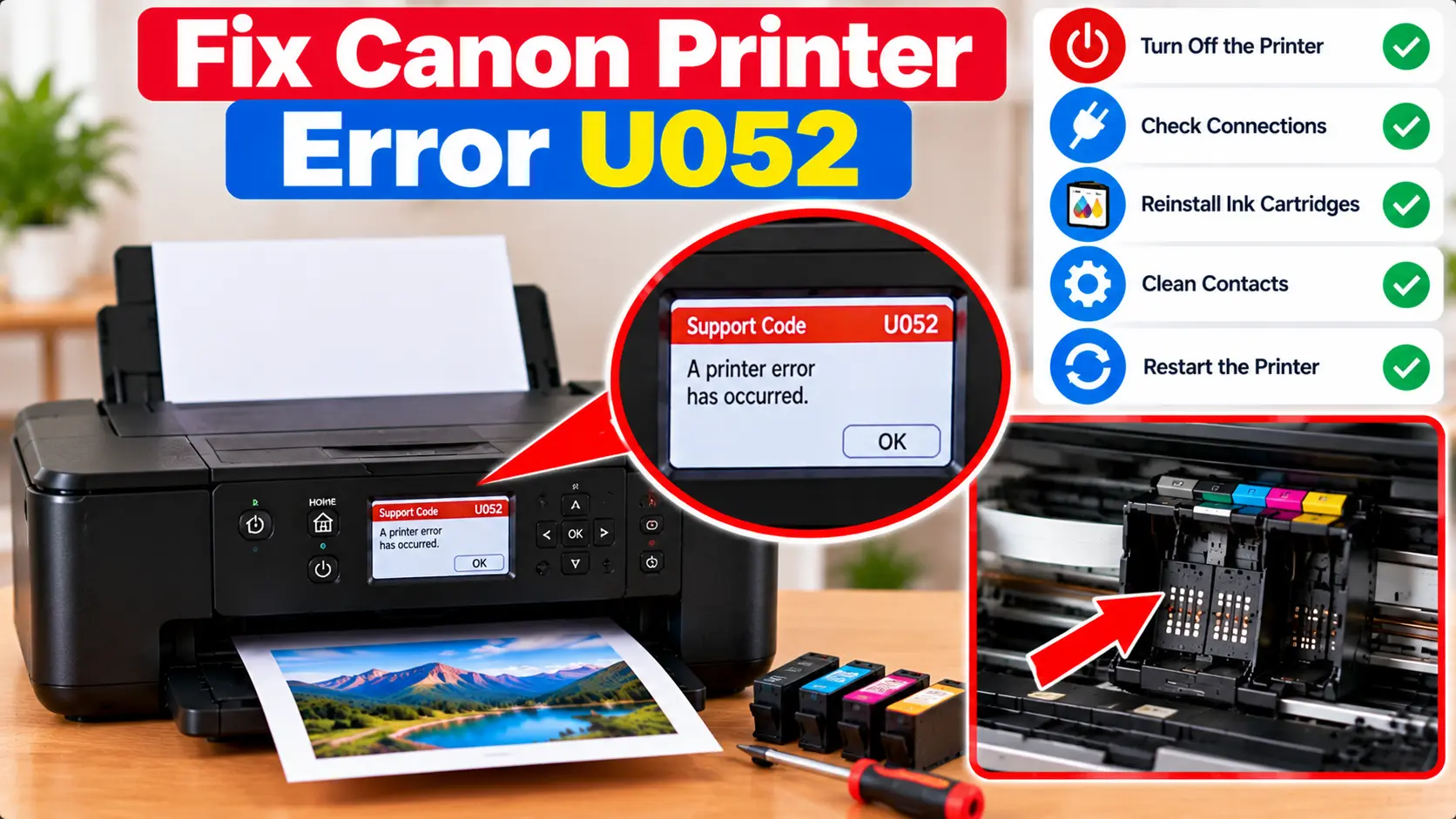
What Should I Do When My Canon Printer Shows U052?
Start by reading the complete U052 message and identifying your exact Canon printer model. Restart the printer normally. If the error appeared after changing cartridges or performing user-accessible maintenance, verify that the correct cartridges are installed properly. Only inspect or reinstall a removable print head if your exact printer's normal user instructions specifically provide that procedure.
What Does Canon Printer Error U052 Mean?
On some Canon printers, U052 indicates that the printer has detected a problem related to the print head or its recognition. The printer may display additional wording that gives more specific information about the condition.
The important point is that U052 should not be treated as an identical problem across every Canon printer. Some models use different ink and print-head designs, and the user-accessible maintenance procedures can also differ.
Possible Causes of Canon Error U052
Depending on the printer model and the exact message, possible factors may include:
- The printer cannot recognize the expected print head.
- A user-removable print head is not installed as expected on a model that uses one.
- An incompatible component has been installed.
- An ink cartridge is not correctly installed.
- The problem appeared after cartridge or user-accessible maintenance work.
- A print-head or printer condition requires model-specific diagnosis.
1. Check the Complete U052 Error Message
Before removing anything from the printer, read the full message shown on the printer display or computer.
Record:
- The exact Canon printer model.
- The U052 error code.
- Any text displayed with the code.
- Whether another support code is shown.
- What happened immediately before the error appeared.
This is especially important because troubleshooting can differ depending on whether the printer reports an incorrect, missing, or unrecognized component.
2. Restart the Canon Printer
If U052 appeared unexpectedly, perform a normal restart before making hardware changes.
- Stop sending new print jobs.
- Turn the printer off using its normal power control.
- Allow the printer to finish shutting down.
- Turn it back on.
- Wait for the normal startup process.
- Check whether U052 returns.
If the error immediately returns, continue with checks appropriate for the exact printer model.
3. Check the Ink Cartridges
If U052 appeared after changing ink cartridges, check that the cartridges are installed according to the printer's normal replacement procedure.
Look for:
- A cartridge that is not fully seated.
- A cartridge installed in the wrong position.
- A cartridge that does not match the printer.
- Protective material that should have been removed before installation.
Do not force a cartridge into position. If it does not fit normally, verify that it is intended for your exact printer.
For related troubleshooting, see: Canon Printer Ink Cartridges Cannot Be Recognized .
4. Check the Print Head Information for Your Model
Canon printers do not all use the same print-head design. On some models the print head may be part of a normal user-accessible installation or maintenance procedure, while on others it should not be treated as a routine removable component.
Therefore, do not remove the print head simply because U052 appears.
If your model does provide a normal print-head installation procedure, follow that procedure carefully and avoid touching sensitive electrical contacts or nozzle areas unnecessarily.
5. Check Component Compatibility
Similar-looking cartridges and printer components are not automatically interchangeable.
If U052 began after replacing a cartridge, print-head component, or another user-replaceable part, confirm that the replacement is intended for the exact printer model.
Also confirm that each cartridge is installed in its intended position and that all normal installation steps were completed.
Avoid Risky U052 “Reset” Methods
A U052 message should not automatically lead to printer disassembly or aggressive cleaning. Random reset sequences cannot correct every underlying hardware or recognition problem.
Avoid:
- Forcing the cartridge holder to move.
- Removing printer parts not intended for routine user maintenance.
- Scraping electrical contacts.
- Using sharp or metal tools inside the printer.
- Applying liquids to internal electronics.
- Repeatedly performing unverified reset combinations.
These actions can create additional problems without resolving the original U052 condition.
What If Canon Error U052 Does Not Clear?
If U052 remains after a normal restart, cartridge checks, and any model-approved user maintenance, stop repeating the same removal and installation steps.
Note the following information:
- Exact printer model.
- Complete U052 message.
- Any additional error or support code.
- Whether cartridges were recently replaced.
- Whether any user-removable component was recently installed.
- Whether the printer can complete its normal startup process.
A persistent U052 condition may require diagnosis specific to the printer model rather than further general troubleshooting.
Canon Error U052 Troubleshooting Table
| Situation | What to Check |
|---|---|
| U052 appears unexpectedly | Record the full message and perform a normal printer restart. |
| U052 appears after changing ink | Check cartridge compatibility, position, installation, and removable protective material. |
| Printer reports a print-head problem | Identify the exact printer model and determine whether its print head is intended for user installation or maintenance. |
| Component does not fit normally | Do not force it. Verify model compatibility and the intended installation position. |
| U052 returns after restart | Use the complete error message and exact model to determine the next model-specific check. |
| Basic checks do not resolve U052 | Avoid printer disassembly and seek model-specific diagnosis. |
Related Canon Printer Error Guides
Frequently Asked Questions
What does U052 mean on a Canon printer?
On some Canon models, U052 is associated with a print-head or ink-system recognition problem. The complete message and exact meaning can vary by printer model.
How do I fix Canon printer Error U052?
Read the complete error message, identify the exact printer model, restart the printer, and check recently installed cartridges. Only perform print-head removal or installation when the exact model's normal user procedure specifically allows it.
Can ink cartridges cause a U052 error?
Cartridge installation or compatibility may be relevant in some situations, particularly when the error begins after changing ink. Check that the correct cartridges are installed properly.
Should I remove the Canon print head to fix U052?
Not automatically. Print-head design varies by model. Remove or reinstall it only if the normal user instructions for your exact printer specifically provide that procedure.
Will resetting my Canon printer clear U052?
A normal restart can be tried, but there is no single reset procedure that can be assumed to correct every U052 condition. A persistent recognition or hardware problem may require model-specific diagnosis.
What should I do if U052 keeps returning?
Record the complete error message and printer model, confirm cartridge installation and compatibility, and stop repeating invasive procedures. Persistent U052 errors may require further model-specific diagnosis.
Final Canon Error U052 Checklist
- Confirm the exact Canon printer model.
- Read and record the complete U052 message.
- Restart the printer normally.
- Check recently installed ink cartridges.
- Confirm cartridge compatibility.
- Make sure cartridges are correctly positioned.
- Do not force the cartridge holder.
- Do not remove a print head unless the model's user procedure permits it.
- Avoid scraping contacts or dismantling the printer.
- Use model-specific diagnosis if U052 continues.
