Canon Printer Error 5100: Causes and Troubleshooting
Canon printer error 5100 can appear when the printer detects a problem that prevents normal internal movement or operation. An obstruction, paper debris, incorrectly seated cartridge, or another mechanical issue may be involved. Start with simple visual checks before attempting more involved troubleshooting.
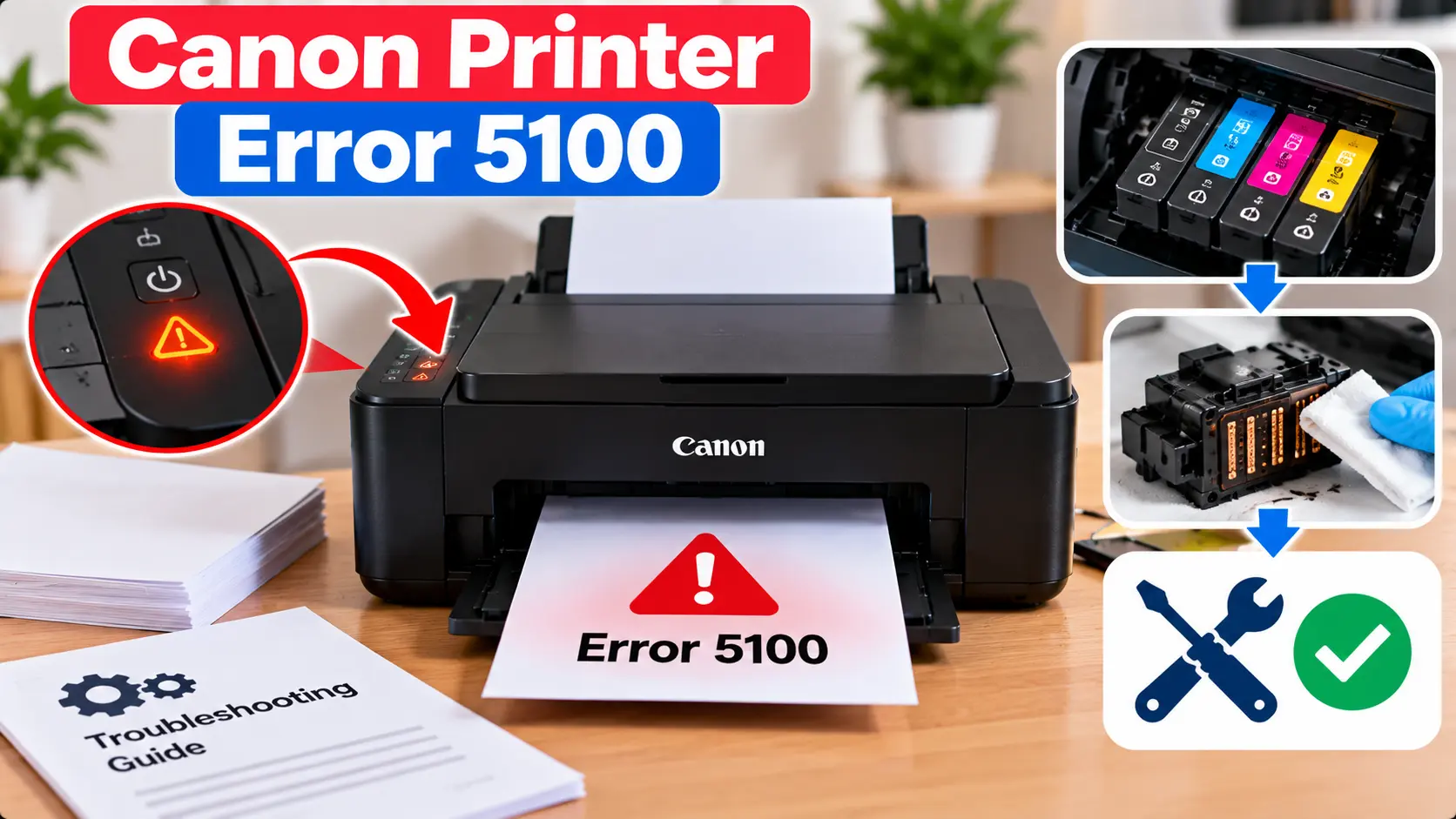
How Do I Troubleshoot Canon Printer Error 5100?
Turn the printer off and inspect accessible areas for jammed paper, torn paper pieces, packing material, or other visible obstructions. Check that accessible ink cartridges are installed correctly according to the printer's instructions. Remove only objects that can be reached safely without forcing internal components, then restart the printer.
What Does Canon Printer Error 5100 Mean?
Error 5100 generally indicates that the printer has detected an operational problem involving internal movement or a related mechanism. The exact cause can vary by printer model and the circumstances in which the error appears.
Because the error can be associated with a physical obstruction, one of the first useful troubleshooting steps is to inspect the printer carefully for anything that could interfere with normal operation.
Common Causes of Canon Printer Error 5100
The specific cause depends on the printer, but common areas worth checking include:
- Jammed or partially fed paper.
- Small pieces of torn paper inside the printer.
- Packaging or protective material left inside after setup.
- A foreign object blocking an accessible internal area.
- An ink cartridge that is not seated correctly.
- Restricted movement of an internal printer mechanism.
- A temporary operational problem.
- A mechanical issue that requires further inspection or service.
1. Restart the Canon Printer
If the error appeared unexpectedly, begin with a normal restart.
- Turn the printer off using its power control.
- Wait until the printer has stopped operating.
- Disconnect the power only when appropriate for your printer and troubleshooting situation.
- Wait briefly.
- Reconnect power if it was disconnected.
- Turn the printer back on.
- Check whether error 5100 returns.
If the error immediately returns, continue with a visual inspection rather than repeatedly restarting the printer.
2. Check the Printer for Jammed Paper
A full sheet of paper is not always visible when a paper-related obstruction occurs. Small torn pieces can remain inside the paper path and interfere with printer operation.
With the printer powered off where appropriate, inspect accessible areas such as:
- Paper input area.
- Paper output area.
- Accessible interior areas intended to be opened by the user.
- Areas where a previous paper jam occurred.
If you find loose paper, remove it carefully without tearing it further. Do not insert sharp objects into the printer or disassemble parts that are not intended for routine user access.
You can also review our Canon printer paper jam troubleshooting guide .
3. Look for Foreign Objects or Packing Material
If the printer was recently moved, unpacked, or serviced, inspect the accessible interior for protective material or another object that should not be there.
Small objects can sometimes fall into printers. Only remove an object if it is clearly visible and can be reached safely without forcing printer components.
4. Check the Ink Cartridges
On applicable models, an incorrectly installed or poorly seated cartridge may interfere with normal operation.
If your printer's normal user instructions permit cartridge access:
- Open the appropriate printer cover.
- Wait for the printer mechanism to reach the appropriate accessible position if required.
- Check that the cartridges are installed in their intended positions.
- Look for a cartridge that appears loose or improperly seated.
- Reinstall a cartridge only according to the procedure intended for your model.
- Close the printer correctly and test it again.
Avoid manually forcing the cartridge holder to a different position.
5. Check for Anything Restricting Printer Movement
Error 5100 may persist when an internal component cannot complete its expected movement. You can visually inspect accessible areas for obvious obstructions, but this does not mean internal components should be manually forced.
Look for visible paper scraps, loose packaging, labels, or another object that may interfere with operation.
If nothing obvious is visible, avoid dismantling the printer simply to search for a hidden obstruction.
6. Check Whether Error 5100 Started After a Paper Jam
If error 5100 began immediately after clearing a paper jam, inspect the accessible paper path again. A small piece of torn paper may have remained inside even though the main sheet was removed.
Also check that covers and trays opened during the paper-jam procedure have been returned to their normal positions.
7. Check Whether the Error Started After Cartridge Replacement
If the error first appeared after changing an ink cartridge, recheck the installation. Make sure the cartridge is appropriate for the printer and has been seated using the normal replacement procedure.
Also check for any removable protective material that should have been taken off before installation, following the instructions for the cartridge and printer.
What If Canon Error 5100 Does Not Go Away?
If you have restarted the printer and found no accessible paper, debris, cartridge installation problem, or visible obstruction, the error may require model-specific troubleshooting or further inspection.
At this stage, avoid repeatedly forcing internal parts or disassembling the printer. A persistent mechanical fault may not be suitable for a basic home troubleshooting procedure.
Record the printer model and the exact error shown. Also note whether the error occurs immediately at startup or only after attempting to print. That information can help narrow down the next troubleshooting step.
Canon Error 5100 Troubleshooting Table
| Situation | What to Check |
|---|---|
| Error appeared after a paper jam | Inspect accessible paper paths for torn paper or remaining debris. |
| Error appeared after changing ink | Check whether the cartridges are installed and seated correctly. |
| Printer was recently unpacked | Check for accessible protective or packing material that should have been removed. |
| Error appears immediately at startup | Restart once and inspect for an obvious obstruction. Persistent errors may require further model-specific diagnosis. |
| Visible object inside printer | Remove it only if it can be safely reached without forcing or dismantling printer components. |
| No obstruction is visible | Avoid forcing internal mechanisms. Consider model-specific guidance or further service if the error persists. |
Related Canon Printer Error Guides
Frequently Asked Questions
What does error 5100 mean on a Canon printer?
Error 5100 generally indicates an operational problem involving internal printer movement or a related mechanism. The exact cause can vary by model.
Can a paper jam cause Canon error 5100?
A paper obstruction or torn piece of paper may interfere with normal printer operation, so checking accessible paper paths is a useful troubleshooting step.
Can an ink cartridge cause error 5100?
On applicable models, an incorrectly seated cartridge or another issue around the cartridge area may interfere with normal operation. Check cartridge installation according to the instructions for your printer.
Should I manually move the cartridge holder?
Do not force the cartridge holder or other internal mechanisms. Follow the normal access procedure intended for your printer model.
What should I do if error 5100 keeps returning?
If basic checks reveal no accessible obstruction or installation problem, stop forcing or repeatedly operating the printer. Further model-specific diagnosis or service may be necessary.
Final Error 5100 Checklist
- Restart the printer once.
- Check for jammed paper.
- Look for torn paper pieces.
- Check for accessible foreign objects.
- Check for leftover packing material.
- Verify cartridge installation where applicable.
- Do not force internal printer components.
- Note when and how the error occurs if it persists.
