How to Set Up a Canon PIXMA MG3620
Setting up a Canon PIXMA MG3620 involves preparing the printer, installing the FINE cartridges, loading paper, choosing a connection method, and adding the printer to your computer or mobile device. The MG3620 supports wireless and USB connections, so you can choose the setup method that best matches how you plan to use the printer.
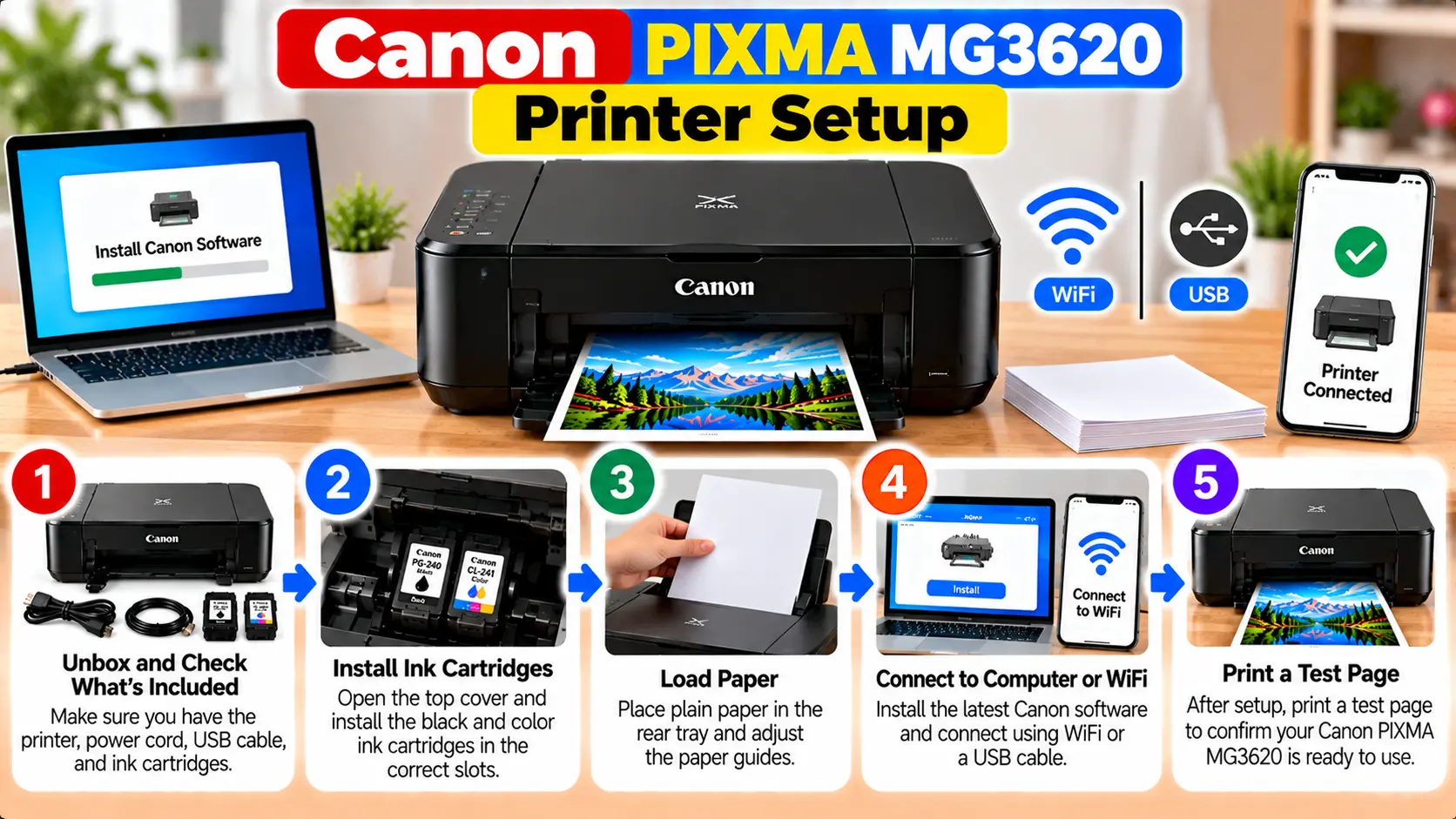
How Do I Set Up a Canon PIXMA MG3620?
Unpack the MG3620, remove its protective materials, connect the power, install the black and color FINE cartridges, and load plain paper. Then choose WiFi or USB as your connection method. Complete the printer installation on your computer or mobile device and run a test print and scan.
Before Setting Up the Canon PIXMA MG3620
Start by preparing the printer and the device you want to use with it. If you plan to connect through WiFi, also have your wireless network information available.
- Canon PIXMA MG3620 printer
- Power cord
- Compatible black and color FINE cartridges
- Suitable plain paper for initial testing
- Computer, smartphone, or tablet
- Wireless router if using network WiFi
- WiFi network name and password when required
- USB cable if you prefer a wired connection
Prepare the Canon PIXMA MG3620 for First Use
Step 1: Remove the Packaging
Place the printer on a stable, level surface. Remove the external packaging and any protective materials used to secure the printer during shipping.
Step 2: Connect the Power
Connect the power cord and turn on the printer. Allow the printer to complete its startup process before continuing.
Step 3: Install the FINE Cartridges
Open the printer as directed for cartridge installation and wait for the cartridge holder to become accessible.
Remove the protective material from the cartridges carefully. Avoid touching the electrical contacts and ink nozzles.
Install both the black and color FINE cartridges securely in their correct positions.
Step 4: Load Plain Paper
After the cartridges are installed, prepare plain paper for the initial setup and test print. Align the edges of the paper before loading it.
Adjust the paper guides correctly and avoid loading damaged, folded, or heavily curled sheets.
Choose How to Connect the Canon MG3620
The MG3620 provides more than one connection option. Choose the method that matches your devices and network.
| Connection | Best For |
|---|---|
| WiFi with wireless router | Multiple computers and mobile devices on the same home network. |
| Direct wireless connection | Connecting a supported device directly to the printer without using a wireless router. |
| USB | A simple direct connection between one computer and the printer. |
For a normal home network with several devices, connecting the printer through the wireless router is usually the most convenient configuration.
How to Connect Canon PIXMA MG3620 to WiFi
The MG3620 supports wireless networking. Canon's setup process can place the printer into a wireless setup state and then continue configuration from the setup application on a computer or mobile device.
Prepare the Printer for Wireless Setup
- Make sure the MG3620 is turned on.
- If the WiFi lamp is already flashing, press the Stop button before beginning a new wireless setup attempt.
- Press and hold the WiFi button until the ON lamp flashes.
- Press the Color button.
- Press the WiFi button again.
- Confirm that the WiFi lamp is flashing quickly and the ON lamp remains lit.
- Return to the setup application on your device and continue the network configuration.
The setup application will guide you through the remaining network steps. Keep the printer close enough to the router for a stable signal during initial setup.
Can the MG3620 Use WPS?
Yes. Canon's MG3600-series setup documentation also provides WPS and WPS PIN connection procedures for compatible wireless routers.
If your router does not support WPS, use the standard wireless setup process instead.
How to Set Up Canon MG3620 With USB
USB provides a direct connection between the printer and one computer. This can be useful when you do not need network printing.
- Prepare the printer and install the required software on the computer.
- Choose the USB connection option when the setup process asks for the connection method.
- Connect the USB cable when instructed.
- Connect the other end directly to an available USB port on the computer.
- Keep the printer powered on while the computer detects it.
- Complete the remaining installation prompts.
If the printer is not detected, check the USB cable and try another working USB port before reinstalling everything.
Add the Canon MG3620 to a Computer
After establishing WiFi or USB connectivity, complete the printer installation on the computer. Use software intended for the exact MG3620 model and the operating system currently installed.
For a Wireless Computer
Make sure the computer and printer are using the intended network. Complete the installation process so the MG3620 is discovered and added as an available printer.
For a USB Computer
Keep the USB connection secure while completing printer detection and configuration.
After Installation
Open the computer's printer settings and confirm that the Canon MG3620 appears as an available printer.
If you have several printers installed, verify that the MG3620 is selected when sending your first test document.
Connect Canon MG3620 to a Phone or Tablet
The MG3620 supports mobile printing and scanning. When using a normal wireless-router setup, connect the printer and compatible mobile device to the appropriate network and complete the mobile setup.
Canon lists support for the Canon PRINT app as well as compatible mobile printing technologies such as Apple AirPrint and Mopria Print Service.
Availability and exact options can depend on the mobile device and operating system.
Test Printing and Scanning After Setup
Do not consider setup complete until you confirm that the printer can perform the functions you plan to use.
Test Printing
- Load suitable paper.
- Open a simple document.
- Select the Canon MG3620.
- Send a test print.
- Confirm that paper feeds normally.
- Check that the output is readable and complete.
Test Scanning
- Place a document on the platen glass.
- Open your compatible scanning software.
- Select the MG3620 when required.
- Run a test scan.
- Confirm that the scanned file is created correctly.
If printing works but scanning does not, troubleshoot scanner detection separately before changing the entire printer connection.
Canon PIXMA MG3620 Setup Troubleshooting
MG3620 Cannot Find the WiFi Network
Check that the router is operating and that the wireless configuration is compatible with the printer. Move the printer closer to the router during setup if the signal is weak.
Printer Will Not Enter Wireless Setup
Restart the wireless setup sequence carefully. Check the WiFi and ON lamps as you perform the button sequence.
Computer Cannot Find the MG3620
Confirm that the printer and computer are connected through the intended method. For WiFi, verify the network connection. For USB, check the cable and USB port.
Printer Was Working Before a Router Change
If the router, network name, or WiFi credentials changed, the printer's previous network configuration may no longer be valid. Run the wireless setup again using the current network.
MG3620 Is Connected but Will Not Print
Confirm that the MG3620 is selected as the intended printer. Check the print queue, paper, ink status, and whether the computer can still communicate with the printer.
Scanner Is Not Detected
Verify that the printer is powered on and connected correctly. Then check whether the scanning software can see the MG3620 over the selected connection.
Quick MG3620 Setup Troubleshooting
| Problem | What to Check |
|---|---|
| WiFi network not found | Router status, wireless compatibility, signal strength, and setup mode. |
| Wireless setup fails | WiFi setup sequence, network details, router compatibility, and distance. |
| Computer cannot find printer | Network connection or USB cable, printer power, and installation. |
| Printer stopped working after new router | Reconfigure the printer for the new network name and credentials. |
| Printer installed but not printing | Printer selection, print queue, connectivity, paper, and ink. |
| Scanner not detected | Printer connection and compatible scanning software. |
Common Canon MG3620 Setup Mistakes
- Connecting the USB cable too early during initial preparation.
- Following instructions for a different PIXMA model.
- Entering an incorrect WiFi password.
- Attempting wireless setup while too far from the router.
- Using incompatible wireless-router settings.
- Installing software for the wrong printer model.
- Forgetting to install both FINE cartridges.
- Loading damaged or badly curled paper.
- Assuming a successful WiFi connection means the printer has already been added to every device.
Related Canon PIXMA MG3620 Guides
Frequently Asked Questions
How do I set up a Canon PIXMA MG3620?
Prepare the power, install both FINE cartridges, load plain paper, choose WiFi or USB, complete the printer installation on your device, and test printing and scanning.
Does the Canon MG3620 support WiFi?
Yes. The MG3620 supports wireless LAN as well as a direct USB connection.
Can I connect the MG3620 with a USB cable?
Yes. USB is one of the supported connection methods and provides a direct connection between the printer and a computer.
Can I connect the Canon MG3620 to my phone?
Yes. The MG3620 supports compatible mobile printing and scanning options. You can connect it through a wireless network or use supported direct-connection features.
Does the Canon MG3620 support AirPrint?
Yes. Canon lists Apple AirPrint among the supported mobile printing features for the PIXMA MG3620.
Why won't my MG3620 connect to WiFi?
Check the router, wireless compatibility, network credentials, printer setup mode, and signal strength. If network details recently changed, run the wireless setup again.
Final Canon MG3620 Setup Checklist
- Protective packaging has been removed.
- The printer powers on normally.
- Both FINE cartridges are installed.
- Plain paper is loaded correctly.
- The preferred connection method is selected.
- WiFi or USB connection is working.
- The MG3620 appears on the intended device.
- A test page prints successfully.
- The scanner works if you plan to use scanning.
