How to Fix a Paper Jam in Canon PIXMA MG3620
A Canon PIXMA MG3620 paper jam can occur when paper becomes stuck in the paper path, near the output area, inside the printer, or around the transport unit. The safest approach is to stop printing, identify where the paper is trapped, and remove it slowly without tearing it.
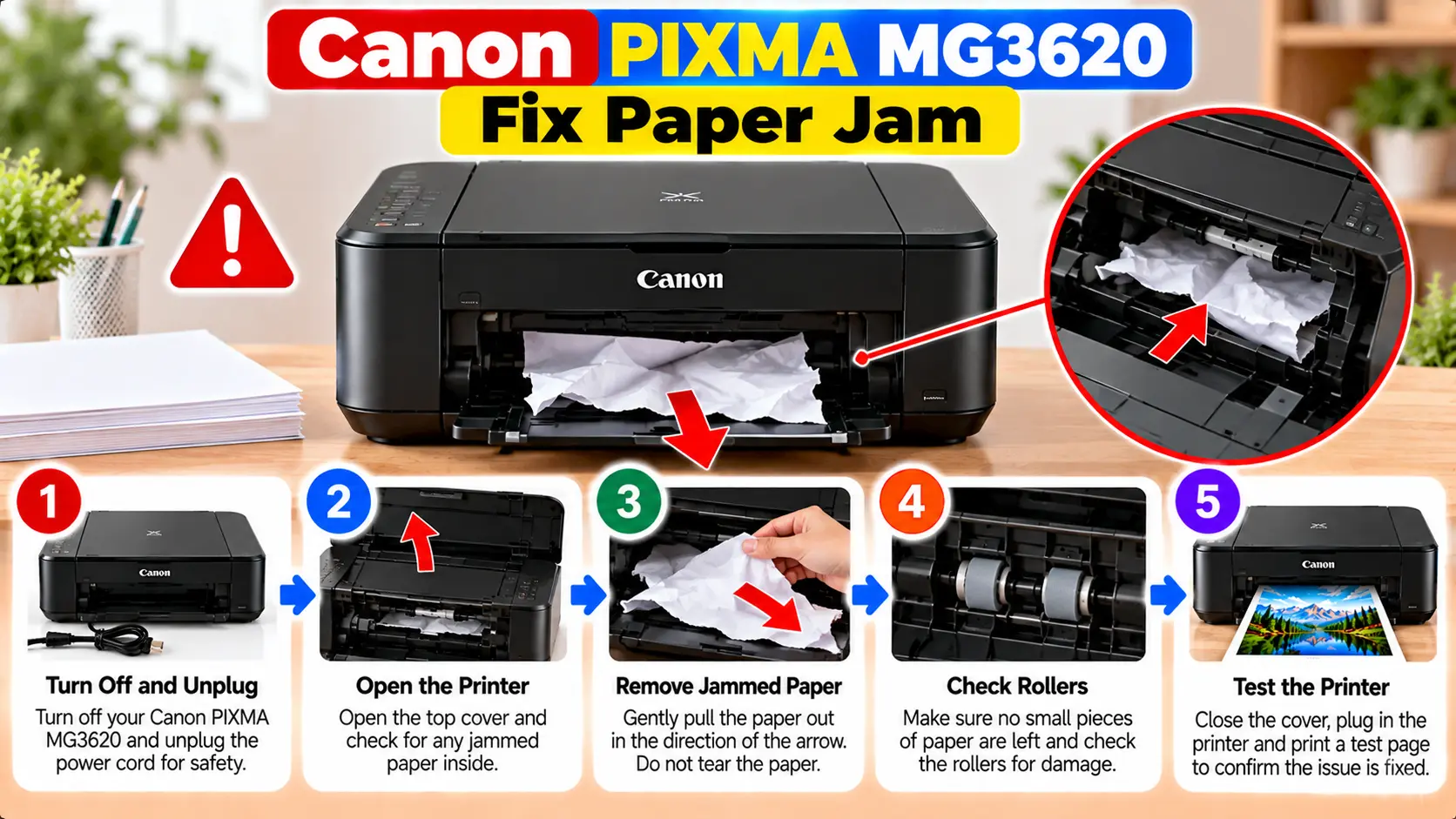
How Do I Clear a Canon MG3620 Paper Jam?
Stop the current print job and check where the paper is stuck. If the paper can be reached safely, hold it with both hands and pull it out slowly so it does not tear. If paper has torn, inspect the printer carefully for remaining pieces. Reload suitable, flat paper correctly before trying to print again.
Why Does My Canon PIXMA MG3620 Keep Jamming?
A paper jam does not always mean that the printer has a mechanical failure. Paper condition, loading, alignment, and small pieces left in the paper path can all contribute to feeding problems.
Common things to check include:
- Curled, folded, or damaged paper.
- Paper edges that are not aligned evenly.
- Paper loaded in the wrong orientation.
- Paper guides positioned incorrectly.
- Too much paper loaded at one time.
- Unsuitable paper size or media type.
- A small torn piece remaining inside the printer.
- An obstruction around the paper output area.
Before Removing Jammed Paper
Do not immediately pull hard on the first visible edge of paper. First determine where the sheet is trapped and whether it can be removed without forcing printer components.
- Stop the current print operation.
- Check the paper output area for visible paper.
- Look for folded or partially fed sheets.
- If the required procedure involves opening the printer or accessing the transport area, turn the printer off and unplug it first.
- Remove paper slowly rather than pulling sharply.
Remove Visible Jammed Paper
If you can clearly see and safely reach the jammed sheet from an accessible paper path or output area, try removing it carefully before opening deeper parts of the printer.
- Stop printing.
- Locate the visible edge of the jammed sheet.
- Hold the paper securely with both hands when possible.
- Pull the sheet out slowly and evenly.
- Avoid sudden pulling that could tear the paper.
- Inspect the removed sheet to see whether any portion appears missing.
If the sheet will not move with gentle pressure, do not keep pulling harder. Use the appropriate internal or transport-unit procedure instead.
How to Remove Paper Jammed Inside the MG3620
If the paper has torn or remains inside the printer, inspect the internal paper path carefully.
- Stop printing, turn off the printer, and unplug the power cord.
- Open the paper output cover carefully.
- Check whether jammed paper is visible inside.
- If necessary, carefully move the FINE cartridge holder toward the side that provides easier access to the trapped paper.
- Hold the jammed sheet securely with both hands.
- Pull it out slowly to reduce the chance of tearing.
- Check the internal area for any remaining pieces.
- Close the cover after the paper path is clear.
- Reconnect power and turn the printer back on.
Check the MG3620 Transport Unit
A jam may also occur near the transport unit. If paper cannot be removed from the normal accessible area, the transport path may need to be checked.
Before accessing this area, turn off the printer and unplug it.
Canon's MG3600-series procedure requires careful handling of the printer when accessing the transport unit. The document cover should remain closed, and the printer should be supported securely on a wide, flat surface.
Once the transport unit is accessible, pull the jammed paper out slowly. Support the printer while working so it cannot fall or shift unexpectedly.
After closing the transport unit, return the printer to its normal operating position before reconnecting power.
Check for Torn Pieces of Paper
A tiny piece of paper left inside the MG3620 can cause the jam message or feeding problem to return.
After removing the main sheet, inspect:
- The area below the FINE cartridge holder.
- The left and right spaces inside the printer.
- The accessible paper path.
- The paper output area.
- Areas where the removed sheet appears to have torn.
Remove only pieces you can reach safely. Do not insert sharp objects into the printer or scrape internal parts.
Reload Paper After Clearing the Jam
Once you are confident the paper path is clear, reload suitable paper correctly.
- Remove damaged or badly curled sheets.
- Align the edges of the paper stack.
- Flatten curled plain paper before loading when appropriate.
- Load the paper in the correct orientation.
- Adjust the paper guides without pressing them excessively against the stack.
- Do not overload the paper tray.
- Make sure the paper output tray is open before printing.
Canon MG3620 Still Says Paper Jam
If the paper jam warning remains after the visible sheet has been removed, inspect the printer again for a small torn piece.
Also check whether anything is blocking the paper output area and whether the newly loaded paper is curled, damaged, or loaded incorrectly.
If no paper or obstruction is visible and the printer continues reporting a jam, avoid repeatedly forcing paper through the mechanism. A persistent mechanical or sensor-related problem may require inspection or service.
Canon MG3620 Paper Jam Troubleshooting
| Problem | What to Check |
|---|---|
| Paper visible in output area | Pull slowly and evenly without tearing the sheet. |
| Paper torn inside printer | Check below the cartridge holder and accessible internal spaces for remaining pieces. |
| Paper cannot be removed normally | Check whether the transport-unit procedure is required. |
| Jam warning returns | Look for torn pieces, obstructions, or incorrectly loaded paper. |
| Paper repeatedly feeds badly | Check curl, paper alignment, guides, loading orientation, and stack size. |
| No paper visible but error remains | Reinspect the paper path; persistent problems may require service. |
How to Prevent Canon MG3620 Paper Jams
Correct paper preparation and loading can reduce repeated feeding problems.
- Use paper suitable for the printer and current print job.
- Do not use badly curled, folded, or damaged sheets.
- Align paper edges before loading.
- Load paper in the correct orientation.
- Keep paper guides aligned with the stack without squeezing it too tightly.
- Avoid overloading the paper tray.
- Keep the paper output path clear.
- Remove every torn paper fragment after a jam.
Mistakes to Avoid When Clearing a Paper Jam
- Pulling jammed paper aggressively.
- Ignoring a torn corner left inside the printer.
- Using sharp tools to reach paper.
- Touching or scratching the clear internal film.
- Forcing internal printer components.
- Reloading the same damaged sheet.
- Overfilling the paper tray.
- Continuing to print when the paper path is not fully clear.
Related Canon Printer Guides
Frequently Asked Questions
How do I remove a paper jam from a Canon PIXMA MG3620?
Stop printing and locate the jammed sheet. Remove accessible paper slowly with both hands when possible. If the paper has torn or remains inside, turn off and unplug the printer before carefully checking the internal paper path.
Why does my Canon MG3620 keep saying paper jam?
A small piece of torn paper may still be inside the printer. Also check for an obstruction, curled paper, incorrect loading, or another feeding problem.
Can I pull jammed paper out of the MG3620?
If the paper is clearly visible and can be reached safely, remove it slowly and evenly. Do not use excessive force because the sheet may tear and leave pieces inside.
What if the paper tears while removing it?
Inspect the accessible internal areas carefully for remaining fragments. Even a small piece can contribute to another jam or warning.
Why does paper keep jamming after I reload it?
Check whether the paper is curled or damaged, whether its edges are aligned, whether it is loaded in the correct orientation, and whether the paper guides and stack size are appropriate.
What should I do if no paper is visible?
Check the accessible internal paper path and transport area using the appropriate procedure. If the jam indication persists without a visible obstruction, the printer may need inspection or service.
Final Paper Jam Checklist
- Current printing has been stopped.
- Jammed paper has been removed slowly.
- No torn pieces remain in accessible areas.
- Internal printer parts have not been forced.
- The clear internal film has not been touched or scratched.
- Fresh, suitable paper has been loaded correctly.
- Paper guides are positioned properly.
- The output path is clear.
- A test print has been completed successfully.
