Canon Printer Error 5B00: Causes and How to Fix It
Canon printer Error 5B00 can appear on some models when the printer detects an ink-absorber or waste-ink related service condition. The exact message and procedure can vary by model. Unlike a simple paper or connection problem, a persistent 5B00 error may require attention to both the printer's recorded ink-absorber status and the physical condition of the printer.
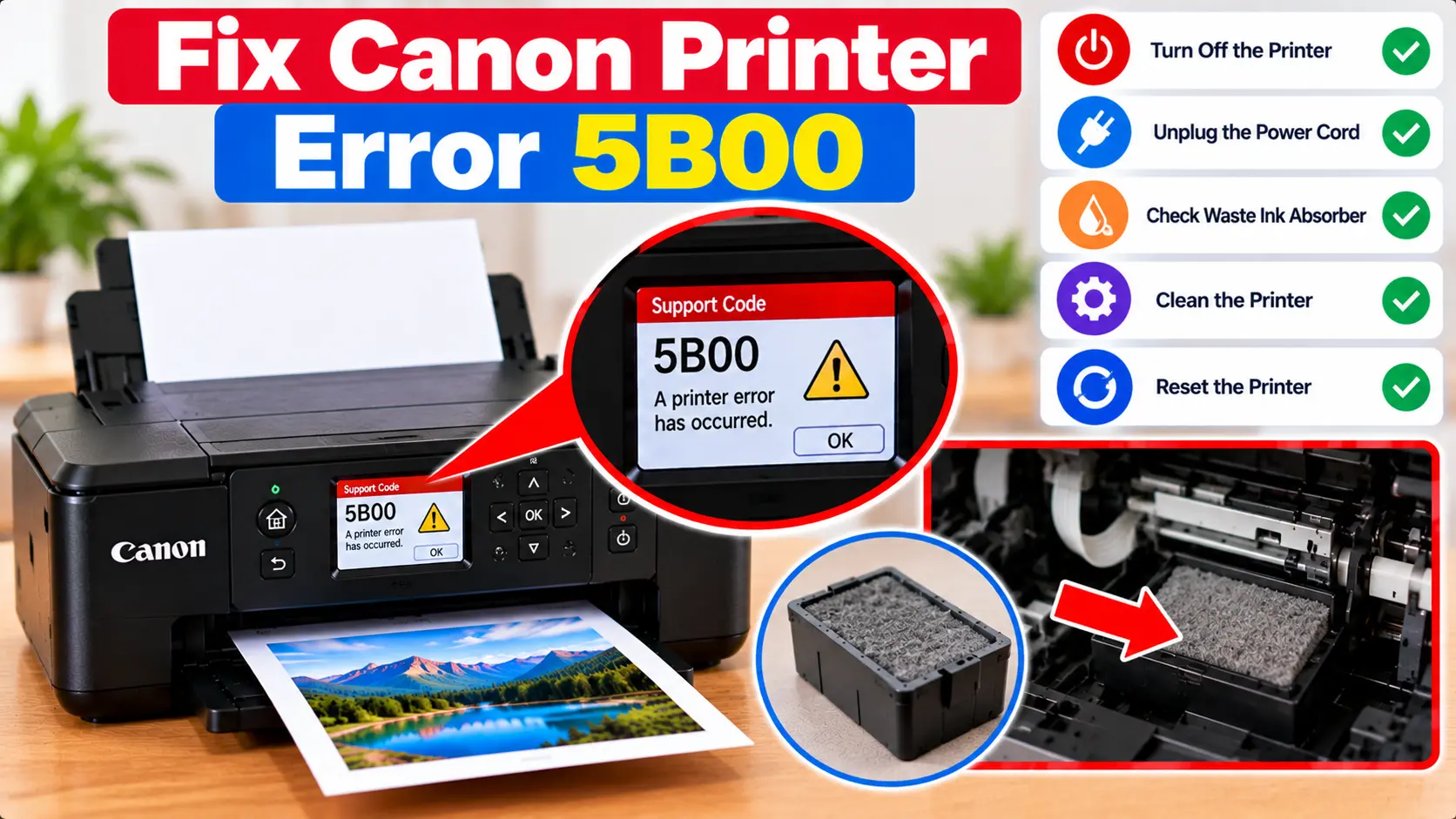
What Should I Do About Canon Error 5B00?
Record the complete 5B00 message and your exact Canon printer model, then perform a normal restart. If the error returns, check whether your model identifies 5B00 as an ink-absorber or waste-ink service condition. Avoid random service-mode reset procedures. Resetting a stored counter does not by itself clean, replace, or inspect a physical ink absorber that may require service.
What Does Canon Printer Error 5B00 Mean?
On some Canon printers, Error 5B00 is associated with an ink-absorber or waste-ink related service condition. Inkjet printers may collect ink that is discharged during operations such as cleaning and maintenance.
The printer can track this condition and may eventually restrict normal operation when a service threshold is reached. The exact behavior, terminology, and servicing procedure can differ between Canon models.
What Is a Printer Ink Absorber?
During normal inkjet printer operation, some ink may be discharged during print-head cleaning, maintenance, and other processes. Certain printers use internal absorbing material or a related waste-ink system to manage this ink.
Over time, the printer may determine that the absorber or waste-ink system has reached a condition requiring attention.
This is why Error 5B00 should not automatically be treated as a software-only problem.
Possible Causes of Canon Error 5B00
Depending on the exact printer model, factors may include:
- The printer has reached a tracked ink-absorber service threshold.
- A waste-ink related condition requires inspection.
- The printer has completed many cleaning or maintenance cycles over its service life.
- The printer requires model-specific maintenance or service.
- Another related message or support code is providing additional information.
The complete printer message and model number are important when deciding what should be done next.
1. Check the Complete Error Message
Before attempting any maintenance, write down the information shown by the printer.
Record:
- The exact Canon printer model.
- Error code 5B00.
- Any accompanying text.
- Any additional support code.
- The printer's indicator-light pattern, if relevant.
- Whether printing has completely stopped.
This information helps distinguish the condition from unrelated paper, cartridge, or connectivity problems.
2. Perform a Normal Printer Restart
A normal restart can confirm whether the message was temporary or whether the printer consistently detects the condition.
- Stop sending new print jobs.
- Turn the printer off using its normal power control.
- Allow the shutdown process to complete.
- Turn the printer back on.
- Wait for startup to finish.
- Check whether Error 5B00 returns.
If the same error immediately returns, repeatedly power cycling the printer is unlikely to address a persistent service condition.
3. Check for Obvious Visible Ink Problems
Without dismantling the printer, look around the exterior and normal user-accessible areas for unusual signs of ink.
Examples include:
- Unexpected ink pooling beneath the printer.
- Ink leaking from an accessible area.
- Excessive ink contamination where it is not normally expected.
Should You Reset Canon Error 5B00?
You may find online instructions that claim Error 5B00 can always be fixed by entering a service mode and resetting an internal counter. This should not be treated as a universal repair.
A stored counter and a physical ink-absorber condition are not the same thing. Changing stored information does not physically clean, inspect, or replace ink-absorbing material.
For this reason, avoid using unverified service-mode button combinations or reset utilities without understanding the exact requirements of your printer model and the physical maintenance that may be necessary.
Avoid Dismantling the Printer Without the Correct Procedure
Ink absorbers or waste-ink components may be located inside areas that are not intended for routine user maintenance.
Avoid:
- Removing printer covers that are not intended for normal user access.
- Reaching into ink-contaminated internal areas.
- Cutting, washing, or modifying internal absorbing material without an appropriate model-specific procedure.
- Using random service-mode reset sequences.
- Continuing to print if there is obvious ink leakage.
Improper handling can create ink spills or additional printer damage.
What If Canon Error 5B00 Keeps Returning?
If Error 5B00 returns after a normal restart, and the exact model associates the message with an ink-absorber or waste-ink service condition, the next step may require model-specific maintenance.
Before proceeding, note:
- Exact printer model.
- Complete error message.
- Additional support codes.
- Whether the printer still allows printing.
- Whether there is visible ink leakage.
- Whether the printer has recently undergone repeated cleaning cycles.
This information can help determine the appropriate model-specific maintenance or service approach.
Canon Error 5B00 Troubleshooting Table
| Situation | Recommended Check |
|---|---|
| 5B00 appears unexpectedly | Record the full message and printer model, then perform a normal restart. |
| Error returns after restart | Determine whether the exact model identifies the message as an ink-absorber or waste-ink service condition. |
| Printer will not print | Avoid repeated resets and determine the model-specific service requirement. |
| Ink is visible beneath the printer | Stop normal use and have the source of the ink assessed before continuing. |
| Online instructions suggest a counter reset | Remember that resetting stored information does not physically service an ink absorber. |
| 5B00 continues after basic checks | Move to maintenance or diagnosis specific to the exact Canon model. |
Related Canon Printer Error Guides
Frequently Asked Questions
What does Error 5B00 mean on a Canon printer?
On some Canon printer models, 5B00 is associated with an ink-absorber or waste-ink service condition. The exact message and servicing procedure can vary by model.
How do I fix Canon printer Error 5B00?
Start by recording the complete error message and exact model, then perform a normal restart. If the error returns and is associated with an ink-absorber condition on your model, model-specific maintenance may be required.
Can I reset Canon Error 5B00 myself?
Avoid assuming that a counter reset is a complete repair. Even where a model has a service counter, changing its stored value does not physically inspect, clean, or replace an ink absorber.
Will restarting the printer clear Error 5B00?
A normal restart is a reasonable basic check, but a persistent ink-absorber or waste-ink service condition may return after startup.
Is it safe to continue printing with Error 5B00?
Do not bypass a persistent service warning simply to continue printing. If the printer restricts operation or there is visible ink leakage, the underlying condition should be assessed first.
Should I replace the ink absorber myself?
That depends on the exact printer design and whether the component is intended for user-level maintenance. Avoid dismantling the printer without an appropriate model-specific procedure.
Final Canon Error 5B00 Checklist
- Confirm the exact Canon printer model.
- Record the complete 5B00 message.
- Perform a normal printer restart.
- Check for obvious external ink leakage.
- Determine whether your model identifies 5B00 as an ink-absorber or waste-ink condition.
- Do not rely on random reset combinations.
- Do not assume a counter reset physically services an absorber.
- Avoid dismantling internal printer components.
- Stop normal use if significant ink leakage is visible.
- Use model-specific maintenance if the error continues.
