Where Is the WPS Button on a Canon Printer?
If you are looking for a WPS button on your Canon printer, you may not find a physical button labeled "WPS." In a typical WPS Push Button setup, the WPS button is on the wireless router. The Canon printer is placed into its supported wireless or WPS setup mode, and the router's WPS button is then used to establish the connection.
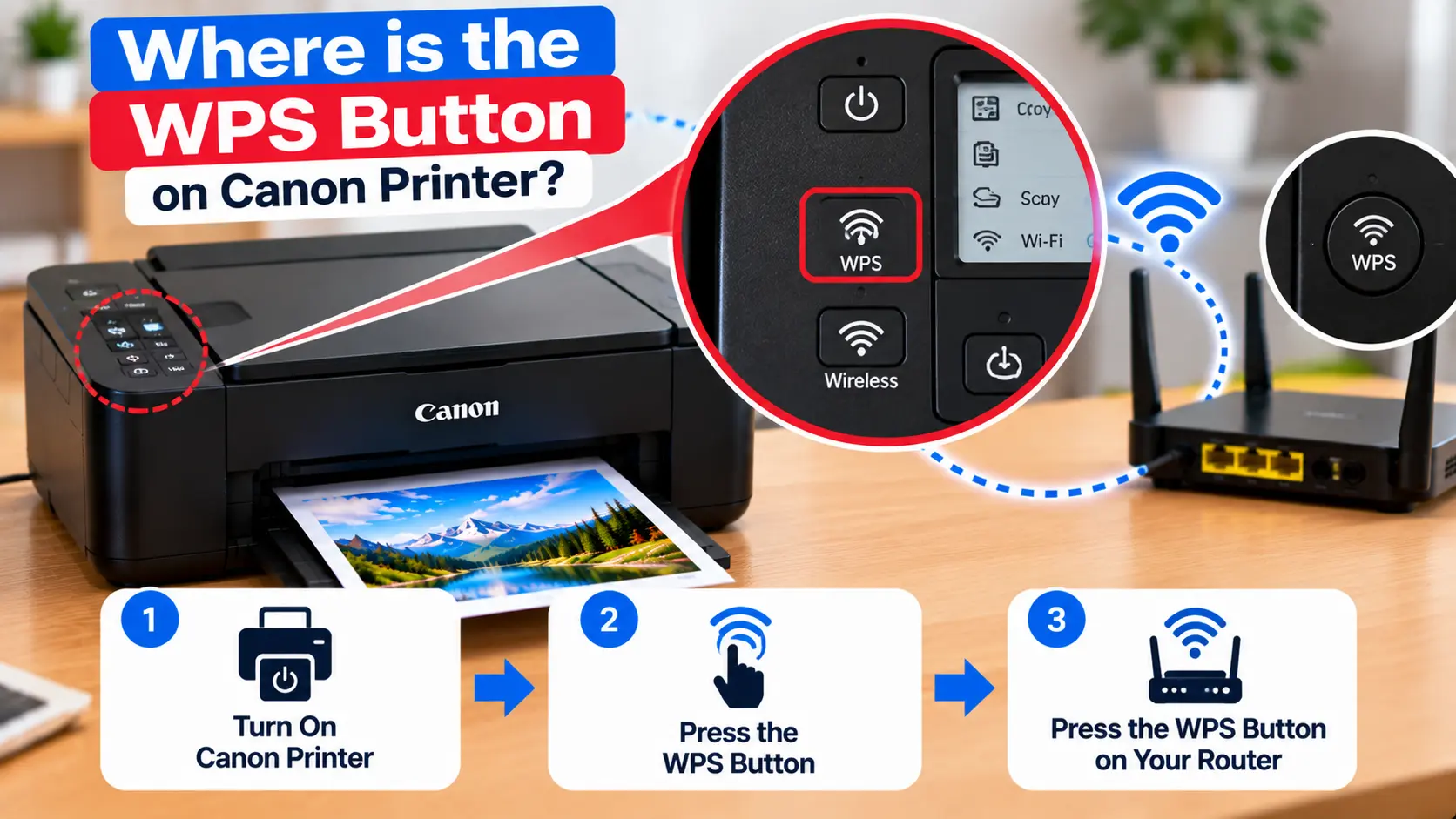
Where Is the Canon Printer WPS Button?
Many Canon printers do not have a physical button labeled "WPS." For WPS Push Button setup, you generally select or activate the printer's supported wireless setup mode and then press the WPS button on the wireless router. The exact printer controls vary by model.
What Is WPS on a Canon Printer?
WPS stands for Wi-Fi Protected Setup. On compatible equipment, it provides a way to establish a wireless connection without manually entering the WiFi password through the printer during the Push Button method.
WPS involves both the printer and the wireless router. The printer must support the applicable WPS setup method, and the router must also have the corresponding WPS capability enabled.
Two methods you may encounter are:
- WPS Push Button method.
- WPS PIN code method.
Availability and exact procedures vary by printer and router model.
What Should I Look for on the Canon Printer?
Depending on the model, look for available wireless controls or menu options rather than searching only for the letters "WPS."
You may encounter:
- Wi-Fi or wireless settings.
- LAN settings.
- Wireless LAN setup.
- WPS Push Button method.
- WPS PIN code method.
- Wireless or network indicator lamps.
The wording and available controls are not identical across all Canon printer families.
Canon Printers With a Display
If your printer has a display or touchscreen, check its network or WiFi setup options.
On compatible models, the menu may provide a WPS Push Button option. After starting that mode, the setup process will direct you to operate the wireless router.
Follow the prompts shown on your exact printer rather than using menu instructions written for a different model.
Canon Printers Without a Touchscreen
A Canon printer without a touchscreen may still support wireless setup, but its controls can be different.
Depending on the model, setup may involve a WiFi, Wireless, Setup, Information, Stop, Color, Black, or other control. Indicator lamps may show whether the printer has entered a network setup mode.
Do not use a button sequence simply because it worked on another Canon model. Different models can assign different network functions to the same buttons.
Where Is the WPS Button on the WiFi Router?
If your router supports WPS Push Button setup, look for its WPS control. The location depends entirely on the router manufacturer and model.
It may be located on the:
- Front panel.
- Back panel.
- Side of the router.
- Top surface.
It may be labeled "WPS" or identified with a wireless/WPS symbol.
Do not press a Reset button simply because it is located near the WPS control. Resetting a router can change or erase network configuration.
What Is the Canon Printer WPS PIN Code Method?
WPS PIN is different from WPS Push Button setup. Compatible Canon printers can use a PIN-based process in which a WPS PIN associated with the printer setup is entered or registered through the wireless router's supported configuration process.
Depending on the Canon model, the PIN may be shown through the printer's setup process or included on a printed network configuration page.
Do not use a PIN from another printer or follow a PIN-generation sequence written for a different model.
What If My Router Has No WPS Button?
WPS is not required for every Canon wireless setup. If the router does not provide a usable WPS option, use another wireless setup method supported by your exact printer.
Depending on the model, alternatives can include selecting the WiFi network and entering its password, or completing setup through supported printer setup software or a mobile setup method.
See our main guide: How to Connect Canon Printer to WiFi .
Canon Printer Won't Connect Using WPS
If WPS setup fails, check the basic requirements before repeating the process.
- Confirm the printer supports the WPS method you are attempting.
- Confirm WPS is available on the router.
- Make sure the router is operating normally.
- Keep the printer within practical wireless range.
- Start the printer's wireless setup mode again if the WPS setup window expires.
- Check for an error or alarm indicator on the printer.
- Use an alternative WiFi setup method if WPS remains unsuccessful.
For additional troubleshooting, see: Canon Printer Won't Connect to WiFi .
Do I Need the WiFi Password When Using WPS?
With a compatible WPS Push Button setup, the connection process can avoid manually typing the WiFi password into the printer during that setup flow.
However, you should still know and securely manage your network credentials. If you later use a manual wireless setup method, the network password may be required.
If your network password recently changed, see: Reset or Update Canon Printer WiFi Password .
Is WPS Safe to Use?
WPS availability and security settings depend on the router. Use only networking features supported by your equipment and follow the router manufacturer's security guidance.
If WPS is disabled by your network administrator or is not available on your router, do not weaken network security merely to connect the printer. Use another supported printer setup method instead.
Canon Printer WPS Troubleshooting Table
| Problem | What to Check |
|---|---|
| Cannot find WPS button on printer | The printer may use a menu or model-specific wireless control rather than a physical WPS button. |
| Cannot find WPS button on router | Check the router controls and its documentation. WPS may be unavailable or disabled. |
| WPS connection times out | Restart the supported setup process and follow the timing prompts for the printer and router. |
| Printer does not connect | Check router operation, printer range, wireless status, and WPS compatibility. |
| Router has no usable WPS option | Use another wireless setup method supported by the Canon printer. |
| WPS PIN requested | Follow the PIN setup process for the exact printer and router rather than using a random PIN. |
Common WPS Setup Mistakes
- Looking only for a physical WPS button on the printer.
- Pressing the router Reset button instead of WPS.
- Following instructions for a different Canon model.
- Using a random WPS PIN.
- Waiting too long after starting WPS mode.
- Assuming every router supports WPS.
- Repeatedly factory-resetting the printer when WPS fails.
- Changing router security settings unnecessarily.
Related Canon WiFi Guides
Frequently Asked Questions
Where is the WPS button on a Canon printer?
Many Canon printers do not have a dedicated physical button labeled WPS. The printer may provide WPS through its wireless setup menu or model-specific controls, while the physical WPS button used in Push Button setup is commonly on the wireless router.
Is the WiFi button on a Canon printer the same as WPS?
Not necessarily. A WiFi or Wireless button can have several model-specific functions. Check the setup method for the exact printer rather than assuming every wireless button is a dedicated WPS button.
Where is the WPS button on my router?
Its location varies by router. Check the front, rear, sides, or top for a control labeled WPS or an appropriate symbol. Do not confuse it with the router's Reset button.
Can I connect a Canon printer without WPS?
Yes, on models that provide other supported wireless setup methods. Depending on the model, you may be able to select the WiFi network and enter its password or use supported setup software.
What is WPS PIN on a Canon printer?
WPS PIN is a separate connection method from Push Button setup. Compatible printers provide a PIN through their supported setup process, which is then registered with the wireless router according to the router's setup method.
Why won't my Canon printer connect with WPS?
Check that both devices support the method, confirm WPS is available on the router, repeat the setup within the allowed connection window, and check the printer for any network or alarm indication.
Final WPS Setup Checklist
- Exact Canon printer model identified.
- Printer's supported WiFi setup method confirmed.
- Wireless router working normally.
- Router WPS capability confirmed if using WPS.
- WPS and Reset buttons not confused.
- Printer placed into the correct setup mode.
- Router WPS activated when required.
- Connection status checked on the printer.
- Alternative wireless setup used if WPS is not available.
