How to Connect a Canon Printer to a Laptop
You can connect a compatible Canon printer to a laptop using WiFi or a USB cable. The exact setup procedure depends on the Canon printer model and your laptop's operating system. For a wireless connection, connect the printer and laptop to the intended network, then add the printer in the operating system. For USB, connect the printer with a compatible cable and complete any required software or driver setup.
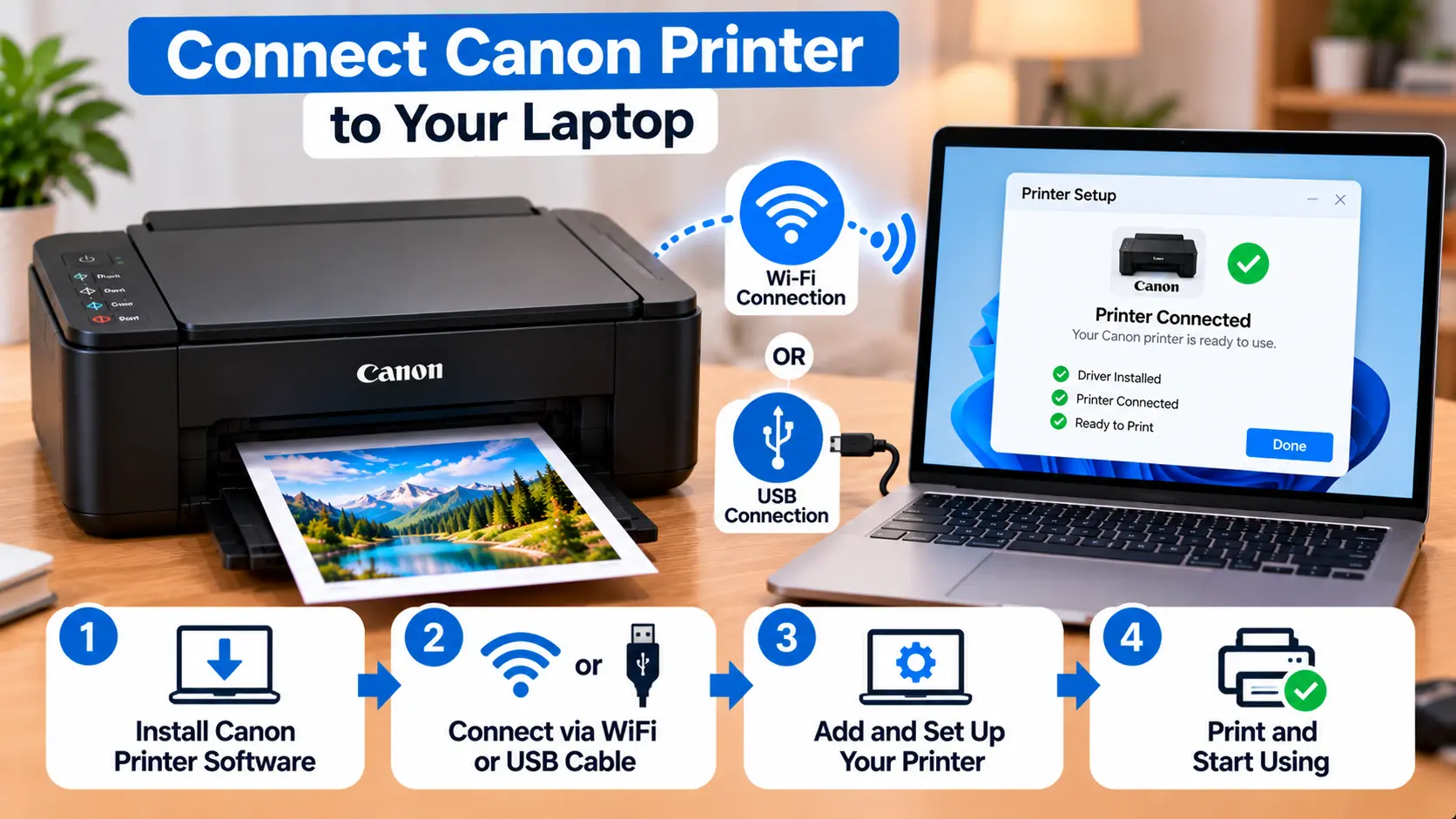
How Do I Connect My Canon Printer to My Laptop?
For WiFi, first connect the compatible Canon printer to your wireless network and make sure the laptop is using the same intended network. On Windows 11, open Settings > Bluetooth & devices > Printers & scanners, select Add device, and choose the printer. For a USB connection, connect the printer to the laptop with a compatible USB cable, turn the printer on, and complete any required installation steps.
Before Connecting a Canon Printer to a Laptop
Before starting the setup, identify the connection method you want to use and confirm that your printer supports it.
- Turn on the Canon printer.
- Check the exact Canon printer model.
- Make sure the printer is not displaying a blocking error.
- For WiFi setup, make sure the wireless router is working.
- Have the correct network name and password available if the printer setup requires them.
- For USB setup, use a compatible data cable and an appropriate USB port or adapter.
- Keep the laptop powered on during installation.
How to Connect Canon Printer to Laptop Using WiFi
Wireless printing is useful when you want to place the printer away from the laptop or allow multiple compatible devices to use the same printer.
Step 1: Turn On the Printer
Turn on the Canon printer and wait until its normal startup process is complete.
Step 2: Connect the Printer to WiFi
Use the wireless setup procedure supported by your exact Canon model. Depending on the printer, setup may use its control panel, a supported Canon setup process, WPS, or another documented method.
For detailed guidance, see: How to Connect Canon Printer to WiFi .
Step 3: Connect the Laptop to the Intended Network
Make sure the laptop is connected to the network from which you intend to use the printer.
For Windows wireless printer discovery, the laptop and wireless printer should normally be connected to the same wireless network.
Step 4: Add the Printer to the Laptop
Once the printer has joined the network, use your operating system's printer settings to locate and add it.
Step 5: Test the Connection
Open a simple document and attempt a test print. Confirm that the correct Canon printer is selected before sending the job.
How to Add a Canon Printer to a Windows 11 Laptop
After connecting the printer to the network, add it through Windows.
- Turn on the Canon printer.
- Confirm that the printer is connected to the intended network.
- Connect the Windows laptop to the same intended network.
- Open Start.
- Open Settings.
- Select Bluetooth & devices.
- Select Printers & scanners.
- Find the option to add a printer or scanner and select Add device.
- Wait while Windows searches for available printers.
- When your Canon printer appears, select the appropriate Add device option.
Windows supports many printers without requiring users to manually install a separate software package first. Additional or updated drivers may still be available when needed.
What If the Canon Printer Is Not Listed in Windows?
Give Windows enough time to search for available printers. If the printer does not appear, first verify the network or USB connection.
Windows also provides a manual-add option when the printer is not automatically discovered.
Before manually adding the device, check that the Canon printer is powered on, connected properly, and not showing an error that prevents normal operation.
How to Connect a Canon Printer to a MacBook
If your Canon printer supports macOS and the connection method you want to use, first prepare the printer according to its model-specific setup instructions.
For a network printer, make sure the MacBook and printer are available on the intended network. Then open the Mac's printer settings and add the available printer.
Depending on the Canon model and macOS version, macOS may use built-in printing support or require compatible Canon software for additional functionality.
For our dedicated Mac guide, see: Connect Canon Printer to Mac Computer .
How to Connect Canon Printer to Laptop With USB
A USB connection is useful when you want a direct connection between one laptop and the printer and do not need wireless printing.
- Check that the Canon printer supports a USB connection.
- Use a compatible USB data cable.
- Connect the printer to an appropriate USB port on the laptop.
- Turn on the printer.
- Allow the operating system time to detect the printer.
- Follow any installation prompts that appear.
- Install additional compatible software or drivers only if they are needed for your model or desired features.
- Test the printer after installation.
Do I Need a Canon Printer Driver on My Laptop?
It depends on the operating system, printer model, connection method, and features you need.
Windows can automatically install many printers, while additional or updated drivers may be available when required. Some Canon multifunction devices may also use additional software for scanning or model-specific features.
Avoid downloading printer drivers from unknown third-party download sites. Identify the exact printer model and operating system before installing software.
See our dedicated guide: Download Canon Printer Drivers .
Canon Printer Not Connecting to Laptop
If the laptop cannot detect or communicate with the printer, identify whether you are using WiFi or USB before troubleshooting.
1. Check Printer Power
Make sure the printer is powered on and has completed startup.
2. Check for Printer Errors
Resolve any paper, ink, cover, jam, or support-code message that may be preventing normal operation.
3. Check the WiFi Network
For wireless printing, confirm that the printer and laptop are connected to the intended network.
Multiple routers, extenders, guest networks, or different network names can sometimes prevent device discovery.
4. Check the USB Connection
For a wired connection, make sure the cable is firmly connected and capable of carrying data. Try another suitable USB port if necessary.
5. Search for the Printer Again
Open the laptop's printer settings and allow the operating system to search again.
6. Restart When Appropriate
If no specific hardware error is displayed, restarting the printer and laptop can clear a temporary communication problem. For a wireless problem, restarting network equipment may also be useful when appropriate.
7. Check the Driver or Software
If the printer is connected but features are missing or the device is not functioning properly, check whether an updated or model-specific driver is needed.
Use the Windows Printer Troubleshooter
Windows 11 provides printer troubleshooting through the Get Help app. If Windows detects the printer but printing or connection problems continue, the automated printer troubleshooter can run diagnostics and attempt common fixes.
This can be useful after you have already confirmed that the printer is turned on and properly connected.
WiFi vs USB: Which Connection Should You Use?
| Feature | WiFi | USB |
|---|---|---|
| Connection | Wireless network | Direct cable |
| Printer placement | More flexible within network range | Limited by cable length |
| Network required | Yes for normal network printing | No |
| Multiple-device use | Convenient when properly configured on the network | Primarily a direct connection to the attached laptop |
| Typical setup issue | Network discovery or credentials | Cable, USB port, or device detection |
Canon Printer and Laptop Troubleshooting Table
| Problem | What to Check |
|---|---|
| Laptop cannot find wireless printer | Check printer power, WiFi connection, and whether the laptop and printer are using the intended network. |
| USB printer not detected | Check the USB data cable, port, printer power, and Windows printer settings. |
| Printer appears but will not print | Check printer status, print queue, selected printer, and any displayed printer error. |
| Printer stopped working after new router | Reconfigure the printer for the new wireless network information. |
| Printer installed but features are missing | Check whether compatible model-specific software or an updated driver is required. |
| Printer shows offline | Check power, connection, Windows printer status, and network availability. |
Common Canon Laptop Setup Mistakes
- Trying to add the wireless printer before connecting it to the network.
- Connecting the laptop and printer to different network names.
- Using another Canon model's wireless setup instructions.
- Downloading drivers from unverified third-party websites.
- Using a USB cable or adapter that does not support the required data connection.
- Ignoring a support code or other error on the printer.
- Performing a factory reset before checking the actual connection problem.
Related Canon Printer Guides
Frequently Asked Questions
How do I connect my Canon printer to my laptop wirelessly?
Connect the compatible Canon printer to your wireless network using its model-specific setup procedure. Connect the laptop to the intended network, then use the laptop's printer settings to find and add the printer.
How do I add a Canon printer to Windows 11?
Open Settings → Bluetooth & devices → Printers & scanners. Use the Add device option to search for the printer and add it when it appears.
Can I connect my Canon printer to a laptop with USB?
Yes, if the Canon printer supports USB connectivity. Connect it with a compatible USB data cable, turn the printer on, and allow the operating system to detect and install it.
Why can't my laptop find my Canon printer?
Check printer power, the WiFi or USB connection, the network used by the laptop, printer errors, and whether the device has been added correctly in the operating system.
Do I need a driver to connect a Canon printer to a laptop?
Not always. Windows can automatically install many printers, but some Canon models or advanced features may require additional or updated compatible software.
Why did my Canon printer stop connecting after I changed my router?
The printer may still contain the previous network configuration. Run the printer's wireless setup again using the new network information.
Final Canon Printer to Laptop Checklist
- Correct Canon printer model identified.
- Printer is powered on and ready.
- No blocking printer error is displayed.
- WiFi or USB connection method has been chosen.
- For WiFi, printer and laptop are on the intended network.
- For USB, a compatible data cable is connected securely.
- Printer has been added in the operating system.
- Required driver or software has been checked.
- A test print has been completed.
