How to Connect Canon PIXMA TS3122 Printer to WiFi
Connecting a Canon PIXMA TS3122 printer to WiFi allows compatible computers, phones, and tablets on your network to communicate with the printer wirelessly. One available setup method is Canon's Easy Wireless Connect, which prepares the printer so wireless router information can be configured from a compatible device.
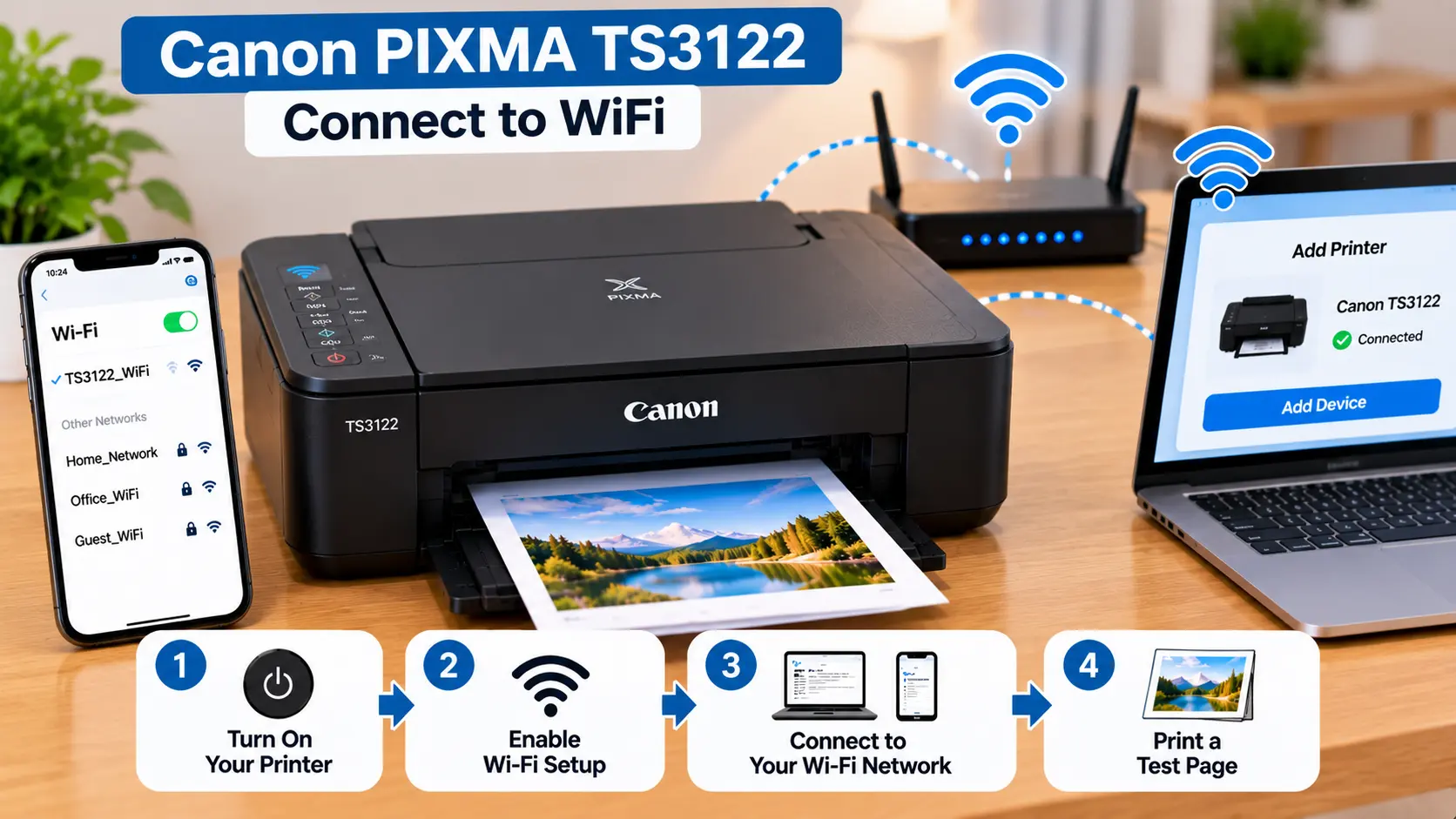
How Do I Connect My Canon TS3122 to WiFi?
Turn on the Canon PIXMA TS3122. If the ON lamp is flashing, press the Stop button. Press and hold the Direct button and release it when the Direct icon flashes. Confirm that the network status icon and its horizontal bars are flashing, then return to the Canon setup process on your computer or mobile device and follow the on-screen instructions to provide the wireless network information.
Before Connecting Canon PIXMA TS3122 to WiFi
Prepare the printer, wireless network, and the computer or mobile device you plan to use for setup.
- Make sure the Canon PIXMA TS3122 is turned on.
- Make sure your wireless router is turned on and operating normally.
- Have the correct wireless network name and password available if the setup process asks for them.
- Keep the printer within a reasonable distance of the wireless router during setup.
- Make sure the computer, smartphone, or tablet being used for setup has WiFi enabled.
- If the printer is performing another operation, allow that process to finish before starting wireless setup.
Connect Canon TS3122 Using Easy Wireless Connect
The PIXMA TS3122 belongs to Canon's TS3100 series. Canon provides an Easy Wireless Connect procedure for preparing the printer for network setup.
Step 1: Turn On the Printer
Make sure the printer is powered on. The ON lamp should be lit.
Step 2: Check the ON Lamp
If the ON lamp is flashing before you begin the wireless setup procedure, press the Stop button.
Step 3: Press and Hold the Direct Button
Press and hold the Direct button on the printer.
Release the Direct button when the Direct icon begins flashing.
Step 4: Check the Network Indicators
Confirm that the network status icon and the indicated horizontal bars are flashing on the printer's display.
Step 5: Continue Setup on Your Device
Once the printer is in Easy Wireless Connect mode, return to the Canon setup process on your computer, smartphone, or tablet.
Follow the on-screen instructions to complete the network configuration.
How to Connect Canon PIXMA TS3122 to WiFi on Windows
For a Windows computer, first put the TS3122 into Easy Wireless Connect mode using the steps above. Then run the appropriate Canon setup process for the TS3122 and follow its on-screen instructions.
- Turn on the printer and Windows computer.
- Confirm that the computer has access to the intended wireless network.
- Put the TS3122 into Easy Wireless Connect mode.
- Start the Canon TS3122 setup process.
- Continue through the network connection steps displayed by the setup program.
- Select or confirm the intended wireless network when requested.
- Enter the correct network credentials when required.
- Allow setup to finish before attempting to print.
Canon's TS3122 Windows setup page provides a downloadable setup process and instructs users to follow the on-screen steps to complete installation.
How to Connect Canon TS3122 to WiFi Using a Phone
A smartphone or tablet can also be used during wireless configuration. First prepare the printer with Easy Wireless Connect.
- Turn on the TS3122.
- Put the printer into Easy Wireless Connect mode using the Direct button procedure described above.
- Make sure WiFi is enabled on the phone or tablet.
- Return to the supported Canon setup application or setup workflow on the mobile device.
- Follow the displayed instructions to configure the printer for your wireless network.
- Wait for setup to complete before testing a print job.
If you are setting up a Canon printer specifically for mobile printing, you can also read our Canon printer to phone guide .
Can Canon PIXMA TS3122 Use Wireless Direct?
Yes. The TS3100 series also supports Wireless Direct. This is different from connecting the printer to your normal wireless router.
With Wireless Direct, a compatible computer, smartphone, or tablet can establish a direct wireless connection with the printer without using the wireless router as the connection path.
Canon's instructions indicate that Wireless Direct can be enabled from the printer using the Direct button. The connecting device then selects the printer's Wireless Direct network and uses the printer's network password when required.
How to Check Whether the TS3122 Is Connected
After completing wireless setup, confirm that the printer is available from the computer or mobile device from which you intend to print.
You can also print the printer's network setting information when you need to inspect its current network configuration.
On the TS3100 series, Canon documents the Information button as a way to print LAN/network setting information.
This can help when checking network details during troubleshooting.
Canon PIXMA TS3122 Won't Connect to WiFi
If wireless setup fails, work through the connection checks systematically instead of repeatedly resetting the printer.
1. Check Printer and Router Power
Make sure the printer and wireless router are turned on and operating normally.
2. Confirm the Correct Wireless Network
Verify that you are configuring the printer for the intended wireless router and network name.
3. Recheck the WiFi Password
If setup asks for a network password, enter the credentials for the intended wireless network carefully.
4. Check the Printer's Network Status
Use the printer's network indicators or print its network setting information to help determine whether it has connected to the intended network.
5. Move the Printer Closer to the Router
Wireless communication can become unreliable when the printer is too far from the router or when walls, floors, metal objects, or other sources of interference weaken the signal.
6. Check the Computer or Phone Network
Make sure the device being used to communicate with the printer is connected to the intended network.
7. Restart Devices When Appropriate
If there is no specific printer hardware error, restarting the printer, computer or mobile device, and router can help clear temporary communication problems.
TS3122 Stopped Working After Changing the Router
If you replaced your router or changed its wireless network information, the printer may still have the previous network configuration.
Run the wireless setup process again so the TS3122 can be configured for the new network information. Then make sure the computers and mobile devices that need the printer are using the intended network.
Canon TS3122 WiFi Troubleshooting Table
| Problem | What to Check |
|---|---|
| Printer won't enter wireless setup | Make sure the printer is on. If the ON lamp is flashing, press Stop before beginning Easy Wireless Connect. |
| Direct icon does not flash | Confirm that you are using the Direct button and following the TS3100-series Easy Wireless Connect procedure. |
| Setup cannot find printer | Check printer power, wireless setup mode, device WiFi, and distance from the router. |
| Wrong WiFi network | Recheck the network selected during setup and enter the correct network credentials. |
| Printer stopped working after new router | Run network setup again using the new router's wireless information. |
| Phone loses normal WiFi while using printer directly | Check whether the device is using Wireless Direct instead of the normal router-based connection. |
Common Canon TS3122 Wireless Setup Mistakes
- Following another Canon model's control-panel instructions.
- Confusing Easy Wireless Connect with Wireless Direct.
- Using the wrong wireless network password.
- Moving through the setup before the printer is correctly placed in wireless setup mode.
- Ignoring a weak or unstable wireless signal.
- Assuming that turning on WiFi automatically connects the printer to the router.
- Performing a factory reset before basic network checks have been completed.
Related Canon Printer Guides
Frequently Asked Questions
How do I put my Canon TS3122 in WiFi setup mode?
For Easy Wireless Connect, make sure the printer is on. If the ON lamp is flashing, press Stop. Press and hold the Direct button, then release it when the Direct icon flashes. Confirm that the network status indicator and the specified horizontal bars are flashing before continuing setup on your device.
Can the Canon PIXMA TS3122 connect wirelessly?
Yes. Canon provides wireless network connection options for the TS3122, including router-based wireless connectivity and Wireless Direct.
Can I connect the TS3122 directly to my phone?
The TS3100 series supports Wireless Direct, which allows a compatible device to connect wirelessly to the printer without using the router as the connection path.
Why is my Canon TS3122 not connecting to WiFi?
Check printer and router power, wireless setup mode, the selected network and password, wireless signal strength, and the network used by your computer or mobile device.
Do I need to reset my TS3122 when I change routers?
A full factory reset should not automatically be the first step. If the router or wireless credentials changed, run the network setup process again with the new network information.
How can I check the TS3122 network settings?
The TS3100-series documentation provides a way to print the LAN/network setting information using the printer's Information button. This can help when checking current network details.
Final Canon TS3122 WiFi Checklist
- Printer is powered on.
- Wireless router is operating normally.
- Correct network name and credentials are being used.
- TS3122 has been placed into the appropriate wireless setup mode.
- Canon setup has been completed on the computer or mobile device.
- Printer is within a suitable range of the router.
- Computer or mobile device is using the intended network.
- A test print has been attempted after setup.
